iCNC PERFORMANCE
Manual 0-5399 NESTING 5-29
5.7 Marking
5.7.1 Marking Text
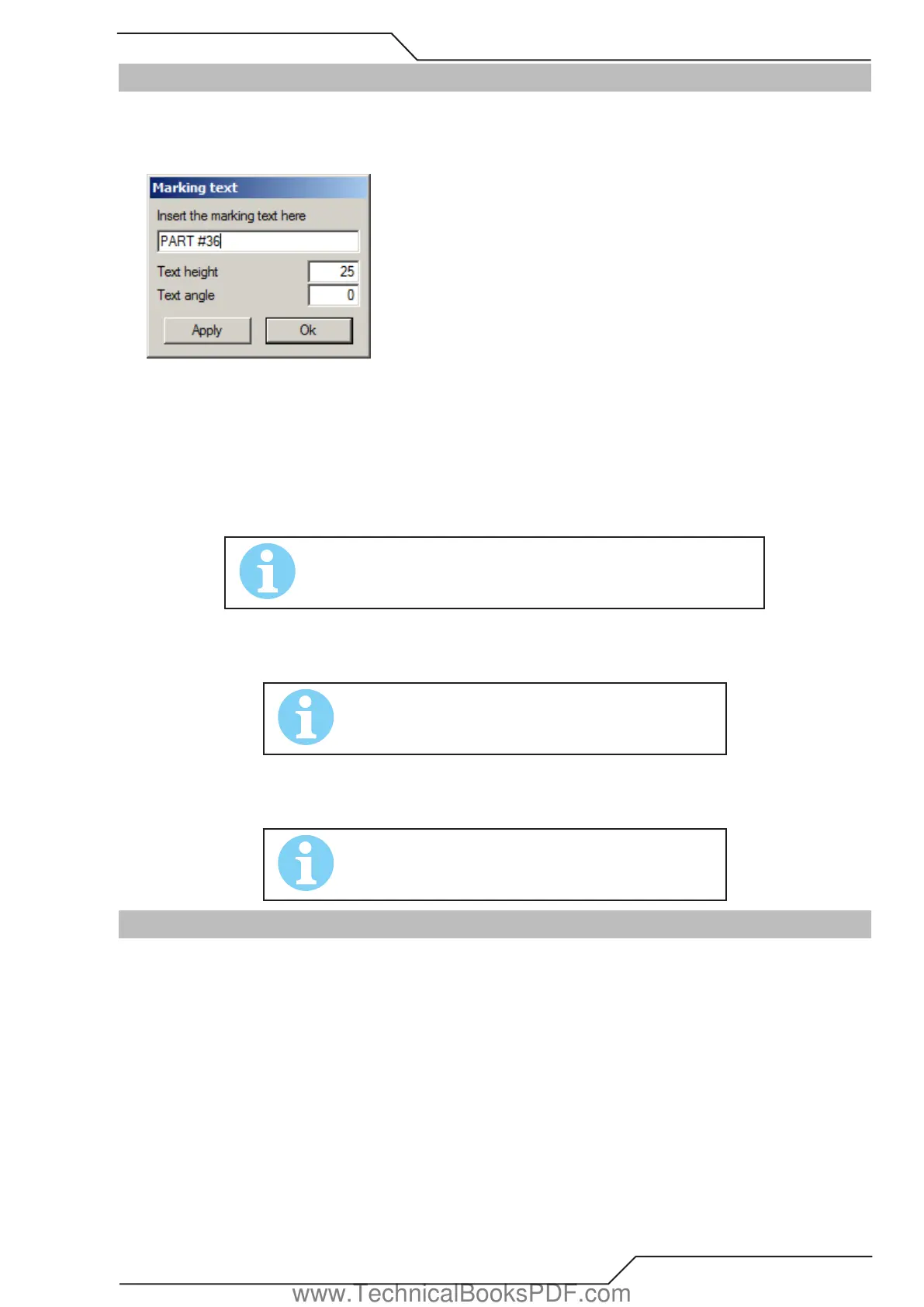
With this tool you can insert text on plates for marking. Selecting this tool activates the window below:
To Insert text for marking:
1. Write the text you wish to mark into the field Insert the marking text here.
2. Set the text height. The minimum allowed height is 5 mm (0.2 inches).
3. Set the text angle (0-360 degrees).
4. Click Apply to confirm the changes.
5. Click the part you want to mark. The text is inserted to the spot you clicked.
NOTE!
This is an additional module and it is not included in the basic version of
ProMotion® Nest.
5.7.2. Hole to Point
This tool converts round holes to point marking points. You only need to click those holes you want to convert.
NOTE!
You cannot reverse the conversion. If you make a mistake,
please use Undo tool.
5.7.3. Cut to Line Marking
This tool converts holes to line marking profiles. You only need to click those holes you want to convert.
NOTE!
You cannot reverse the conversion. If you make a mistake,
please use Undo tool.
5.8 Autonest
5.8.1 Triangle Nest
This tool nests the parts into the smallest possible rectangle. For example two triangles are nested so that their sides are facing each
other. This tool works well with triangles and that’s where the name comes.
5.8.2 MultiNest
MultiNest nests all shapes automatically. If shapes do not fit on the current plate, MultiNest creates new copies of the current plate
and continues nesting on them until all the shapes are nested.
www.TechnicalBooksPDF.com



 To Next Page