iCNC PERFORMANCE
5-46 NESTING Manual 0-5399
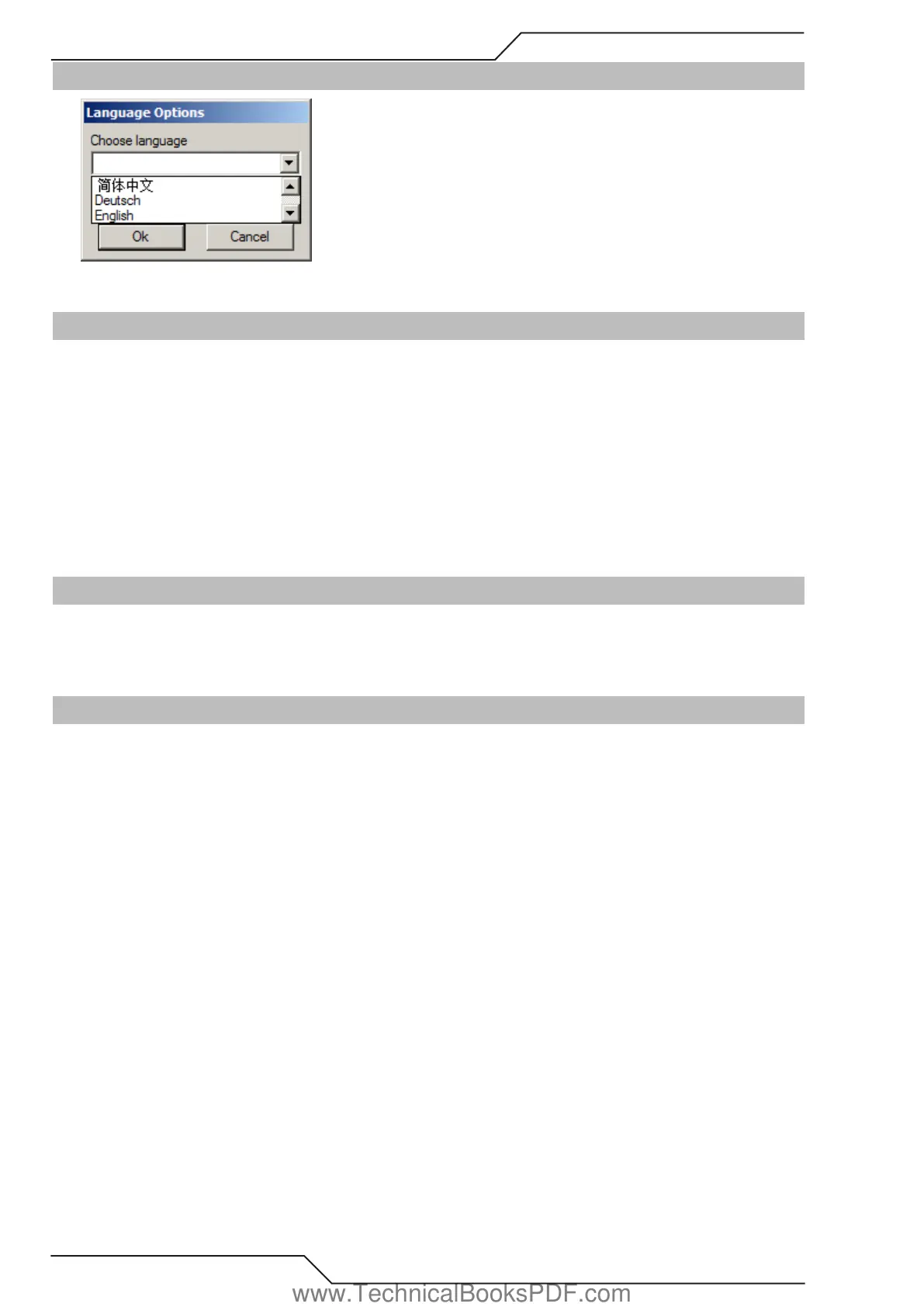
5.17 Language Options
Changes the language used by the user interface of ProMotion® Nest.
5.18 Registration Menu
Tools to register your ProMotion® Nest software.
5.18.1 Registration Form
Please fill this out form to order software or new software options.
It is also recommended to use this form if you have some technical problems, especially license related.
5.18.2 Registrate
Use this dialog to enter your new license number. If you received your new license as a license file simply copy that file to the ProMo-
tion® Nest directory. If you received the license by fax, then you should fill in the form carefully and completely.
5.19 Help Menu
Help menu has the following items:
• Contents Opens the help file on your screen.
• About... Provides information about your version of ProMotion® Nest software.
5.20 List Windows
There are two list windows on the right hand side of ProMotion® Nest user interface. Those windows are Plate List and Part List.
They both offer several tools for your use.
5.20.1 Plate List
This window contains a list of all plates, which are opened. The list is sorted alphabetically. The active plate has a blue bar on it (it is
selected). These tools are available in the plate window:
Activate - Click the name of the plate to activate it.
Nest - Double-Click the name of the plate and it will be automatically nested.
Popup menu - Right-Click the window to open a popup menu. The menu contains following commands:
• New Plate Creates a new plate
• Change plate Changes the plate’s size.
• Trash Trashes the current plate and the nesting in it.
• Rename Renames the current plate.
• Nest Automatic nesting on the current plate
• Move Nesting to (see below)
• Marking Text Activates the marking text tool.
• Print Extras (see below)
www.TechnicalBooksPDF.com



 To Next Page