Juno Series Handhelds User Guide 57
Pairing with a Bluetooth-enabled device
Pairing the handheld with another Bluetooth-enabled device creates a permanent
security bond between the devices, which helps to exchange information securely
between the devices. The paired relationship is established when two devices create
and exchange a link key. Once the relationship is established, the handheld and the
other Bluetooth device only need to have their Bluetooth radios turned on to exchange
information; they do not need to be visible to other devices.
To pair with a Bluetooth device:
1. Make sure that the handheld and the Bluetooth device you want to pair with are
w
ithin five meters of each other, and that the Bluetooth radio in each device is
turned on.
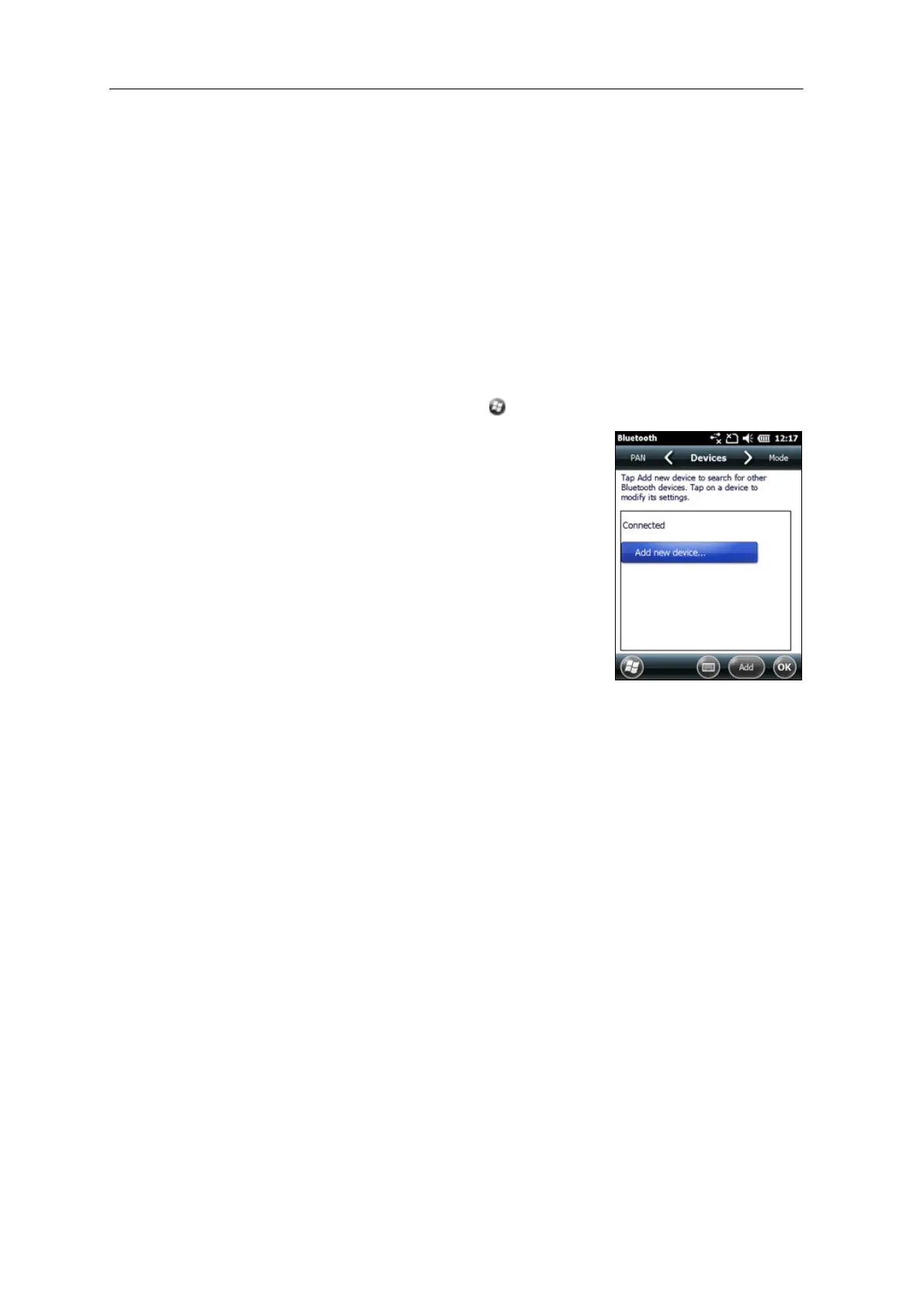
2. On the Juno series handheld, tap / S
ettings / Bluetooth.
3. In the De
vices tab, tap Add new device. The
handheld searches for other Bluetooth devices
and di
splays them in the list.
If the device you are trying to connect is not
d
isplayed in the list, ensure that the device is on
and within range and then tap
Refresh to search
for devices again.
4. Tap the name of the device you want to pair with
and t
hen tap
Next on the right softkey.
5. In the Pa
sscode field, enter a passcode of between
1 and 16 characters. If you are connecting to:
– a device with a keypad, enter a passcode of
your choice.
– a device without a keypad, but you know that the device has a
pre-programmed passcode that will be exchanged, enter that passcode on
the Juno series handheld
Note – T
rimble recommends that you enter only numbers, as some devices do not support
passcodes that include letters.
6. Tap
Next.
7. When prompted, enter the same passcode on the other device.
8. On the handheld, tap the name of other device. The Pa
rtnership Settings screen
appears.
9. If required, change the name of the device in the Di
splay Name field.
10. Select the service(s) you want to use with this device. For example, if you are
c
onnecting to:
– a Bluetooth-enabled phone to connect to the Internet and receive real-time
corrections or download background maps, select Dialup Networking
(DUN).



 To Next Page