32 Juno Series Handhelds User Guide
Making a recording
For handheld configurations equipped with an
integrated microphone, you can create
a stand-alone voice note or you can add a recording to a note. Then you can work with
voice notes in the same way that you work with notes.
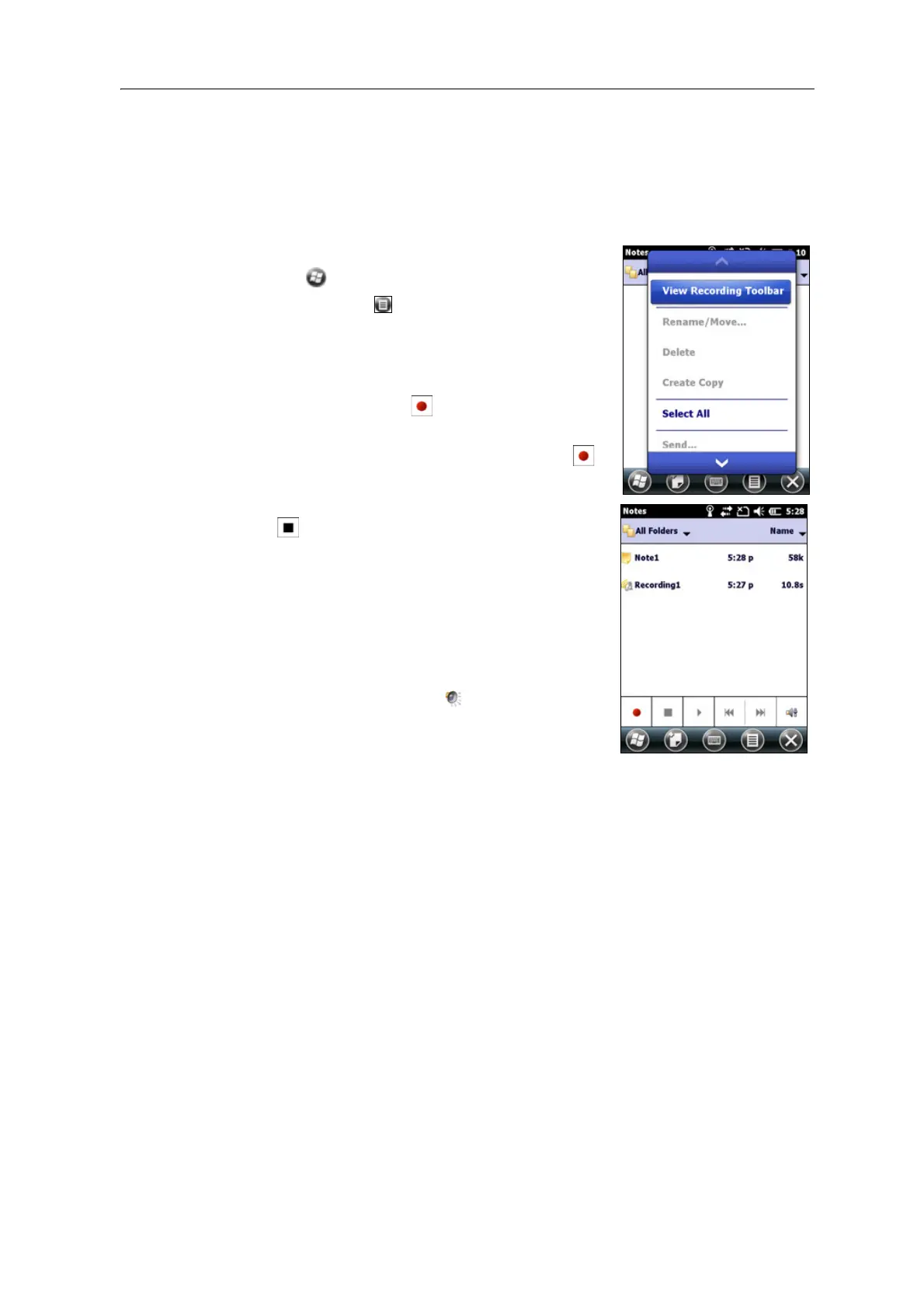
To make a recording:
1. Tap
and then tap the Notes icon.
2. Tap the Menu icon.
3. Do one of the following:
– To create a stand-alone recording, in the
screen displaying the list of notes, tap the
Record button to begin recording.
– To add a recording to a note, create or open
a note and then tap the Record button
to begin recording.
4. When you finish recording, tap the Stop button
.
If you are creating a stand-alone recording, an
ic
on appears in the note list.
If you are recording in an open note, an icon
app
ears in the note. Tap
OK to return to the note
list.
To play a recording, tap the recording in the note list or
op
en the note and then tap the icon in the note.
Personalizing the handheld
Use the controls in the Settings area to customize the handheld. The following
examples describe the available controls.
Buttons
Use the But
tons control under Personal settings to assign the action you want to be
performed when you press the left or right application key.
By default, these keys perform the same action as the left and right tiles in the tile bar.
A
lternatively, program these keys to perform a selected action.
Application buttons can be programmed to perform one of the following types of
act
ions:
• Run a selected application, for example Messaging or Calendar.
• Act as a software button, for example an OK/Close button or a scroll button.



 To Next Page