Juno Series Handhelds User Guide 69
To disconnect, tap / ActiveSync on the handheld and then select Menu / Disconnect.
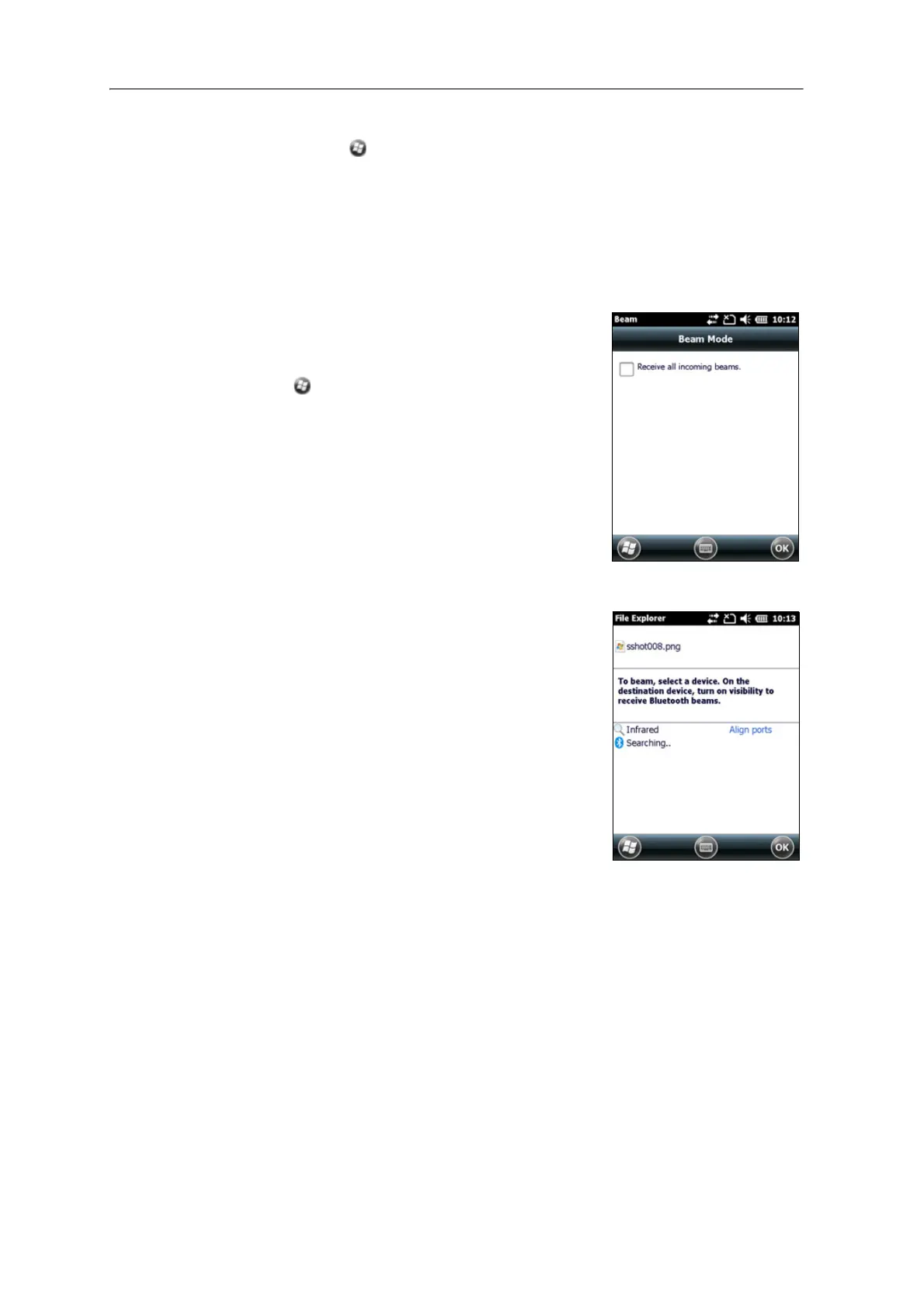
Beaming files to or from another device
You can beam files, contacts, tasks, and appointments between the handheld and
another device.
To re
ceive beamed files from another device:
1. Make sure that the Juno series handheld’s
integrated Bluetooth radio is turned on (see
page 50).
2. Tap
/ Settings / Connections/ Beam.
3. Select the R
eceive all incoming beams check box
and then tap
OK.
4. When another device attempts to beam a file,
y
ou are prompted to accept the file. To receive
the file, tap
Yes.
Note – A
ll incoming files are automatically saved in the
My Documents folder on the handheld.
To se
nd beamed files to another device:
1. Make sure that the Juno series handheld’s
integrated Bluetooth radio is turned on
(s
ee page 50).
2. On the Juno series handheld, open File Explorer
and go to th
e file you want to send.
3. Tap and hold the file and then select Bea
m File.
The handheld scans for nearby devices.
4. Tap the device you want to send the file to. The
file
is sent to the device.
A message reports
Done or Failed, depending on
the outcome of the file transfer.
Accessing a corporate network thr
ough your Internet connection
Use a Virtual Private Network (VPN) connection to access a corporate network or
In
tranet.
Before you begin, obtain the following information from y
our network administrator:
• user name and password
• domain name
• host name or IP address of the VPN server
To access a corporate network through your Internet connection, you must:



 To Next Page