70 Juno Series Handhelds User Guide
1. Set up an Internet connection on the handheld.
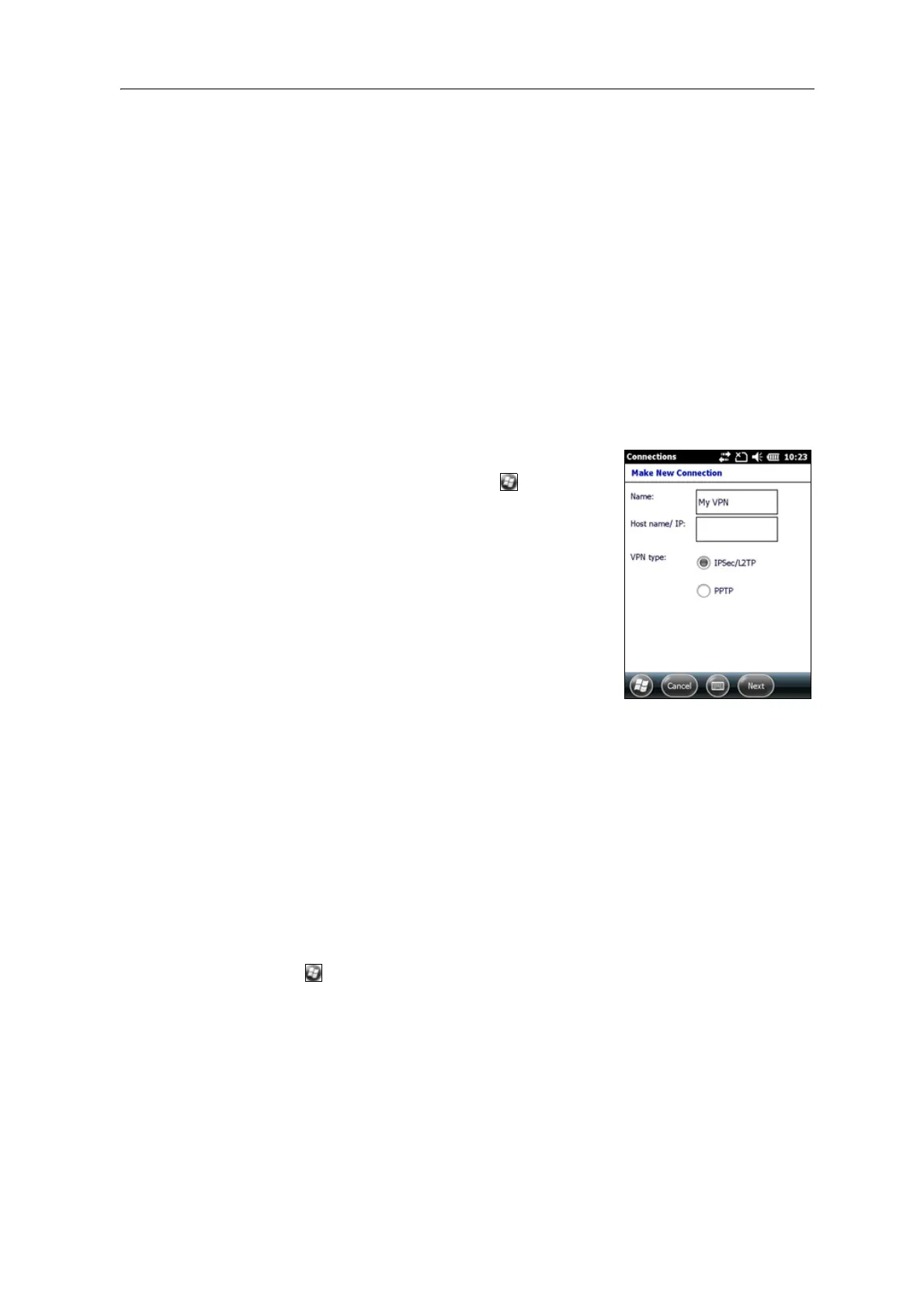
2. Set up a VPN connection.
3. Connect to the corporate network or Intranet.
Step 1: Setting up an Internet connection on the handheld
Do one of the following:
• Set up a Wi-Fi connection to an access point. For more information, see page 53.
• Connect to the Internet using the internal cellular modem (Juno 3D only). For
more information, see page 51.
• Connect to the Internet using a Bluetooth-enabled phone. For more
information, see page 60.
Step 2: Setting up a VPN connection
1. On the Juno series handheld, tap / Settings /
Connections / Co
nnections.
2. From the My
Work Network list, tap Add a new VPN
server connection.
3. Follow the instructions in the Ma
ke New
Connection wizard.
4. Tap
Finish.
Step 3: Connecting to the corporate network or Intranet
To connect to the corporate network or Intranet, simply start using Internet Explorer.
The Windows Embedded Handheld operating system automatically controls whether
th
e VPN connection is used, depending on whether the URL contains a period. For
example, the URL www.trimble.com contains periods, and so the connection to this
website is made without using the VPN connection. However, an address to a network
computer or file server that does not contain periods automatically starts the VPN
connection.
If you need to use the VPN connection to access URL addresses that contain periods,
s
pecify exceptions for the addresses that are within the corporate network. To do this:
1. Tap / Settings / Co
nnections / Connections.
2. Tap the Ad
vanced tab.



 To Next Page