9-12
User Authentication and Accounting (User Login, Job Accounting) > Setting User Login Administration
3 Click [OK].
Managing the Users to Scan Using TWAIN
It is possible to manage the users that scan using TWAIN.
Setting TWAIN Driver
To manage the users that scan using TWAIN, the following settings are necessary in the TWAIN driver. Instructions are
based on interface elements as they appear in Windows 8.1.
1
Display the screen.
1 Select [Search] in charms, and enter "TWAIN Driver Setting" in the search box. Click
[TWAIN Driver Setting] in the search list then the TWAIN Driver Setting screen appears.
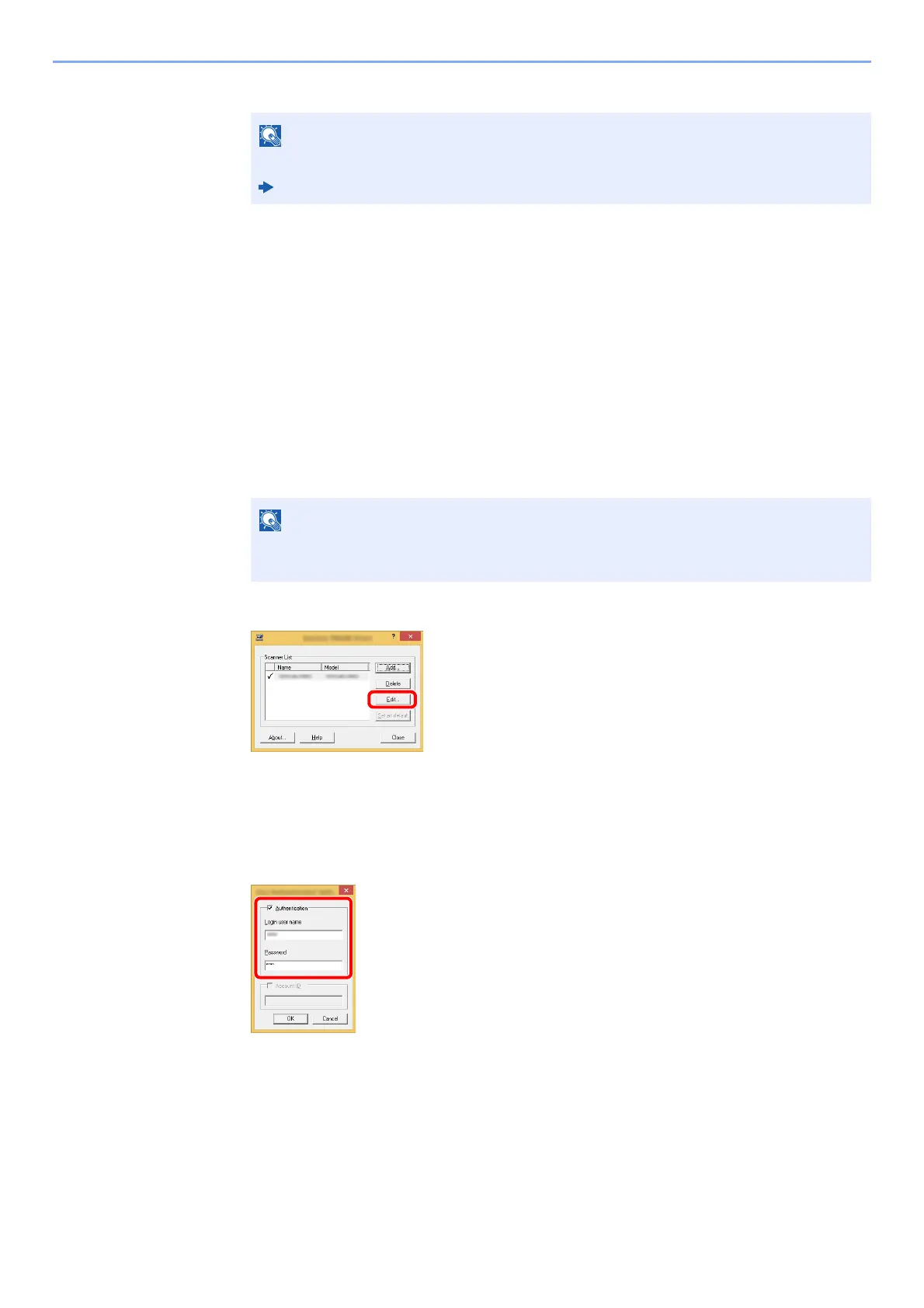
2 Select the machine, and click [Edit].
2
Configure the settings.
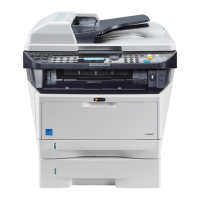
1 Click [User Authentication Settings].
2 Select the checkbox beside [Authentication], and enter Login User Name and Password.
3 Click [OK].
For other settings of job accounting, refer to the following:
Printing System Driver User Guide
In Windows 7, select [Start] button on the Windows, [All Programs], [(Brand Name)]
and then [TWAIN Driver Setting].



 To Next Page