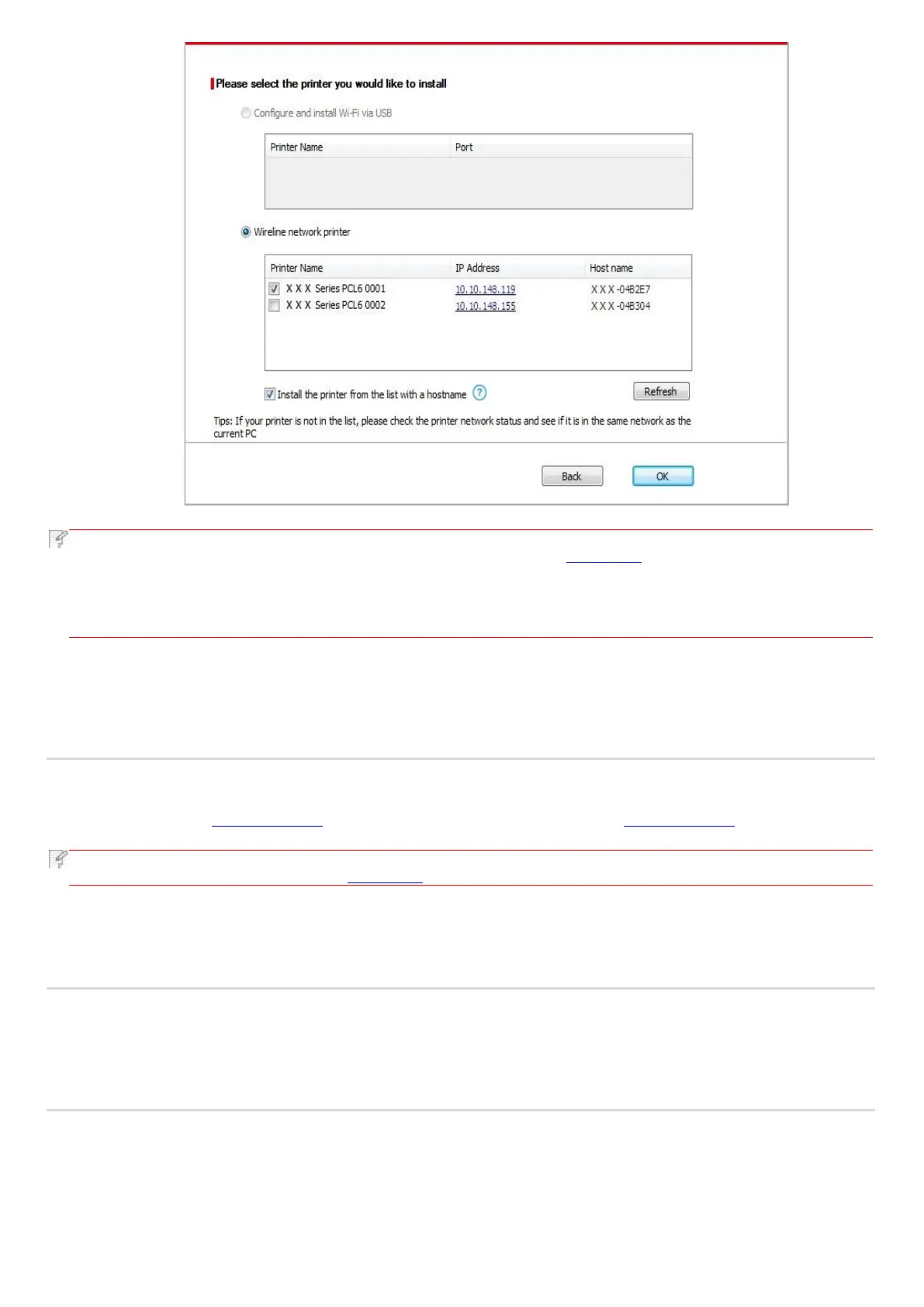
• If the printer you need is not shown in the list, please click "Refresh" button to search again. If it is not found, please
check if the printer and computer are in the same network. (Please see Chapter 5.3 for how to check).
• When the printer IP address changes under printer driver installed with host ID , you can also directly print without re-
installing the driver. If you need to install the printer driver with the host ID, please check the option "Install the printer
in the list with host ID".
7. After the installation, click "Print &Test Page" button. If your printer prints the test page successfully, it means that you have
installed the driver correctly.
3.1.1.3. Method III: Connect the printer via wireless network
Please check if the printer is connected with wireless network when installing the printer driver software. If disconnected, please
install it with reference to Chapter 3.1.1.3.1. If connected, please install it with reference to Chapter 3.1.1.3.2.
• You can print "Network configuration page" to confirm printer network connection status to see if printer is
connected with network (Please see Chapter 7.2 for how to print).
3.1.1.3.1. The printer is not connected with wireless network
3.1.1.3.1.1. Configure wireless network via USB cable and install driver
Since some computers are not provided with wireless network function, this section is divided into "Connect computer to router
via Wi-Fi" and "Connect computer to router via wired connection" to introduce installation process.
I.Connect computer to router via Wi-Fi
1. Computer is already connected to router via Wi-Fi.
2. Connect the printer to computer via USB cable, then power the printer on.
3. Place the attached installation CD in the computer CD-ROM:


 To Next Page