3. Press "Start" button and the Scan Process Bar Interface will pop up on the computer.
4. After completing scanning the first page, the contents as shown below will appear on the control panel:
Press "Start" button - scan the next page
Press "OK" button- end the scanning
5. Put the document to be scanned on the glass platen and press Start button to continue to scan the second page.
6. Repeat the operation as described in the step 5 to scan multi-pages till you press "OK" button to end this operation.
7. After completing the operation, the application will save PDF document to the specified folder.
10.1.5. Other Scan Functions
1. Scan to E-mail
Users can scan monochrome or color documents as attachments to E-mail application. Operation steps as follows:
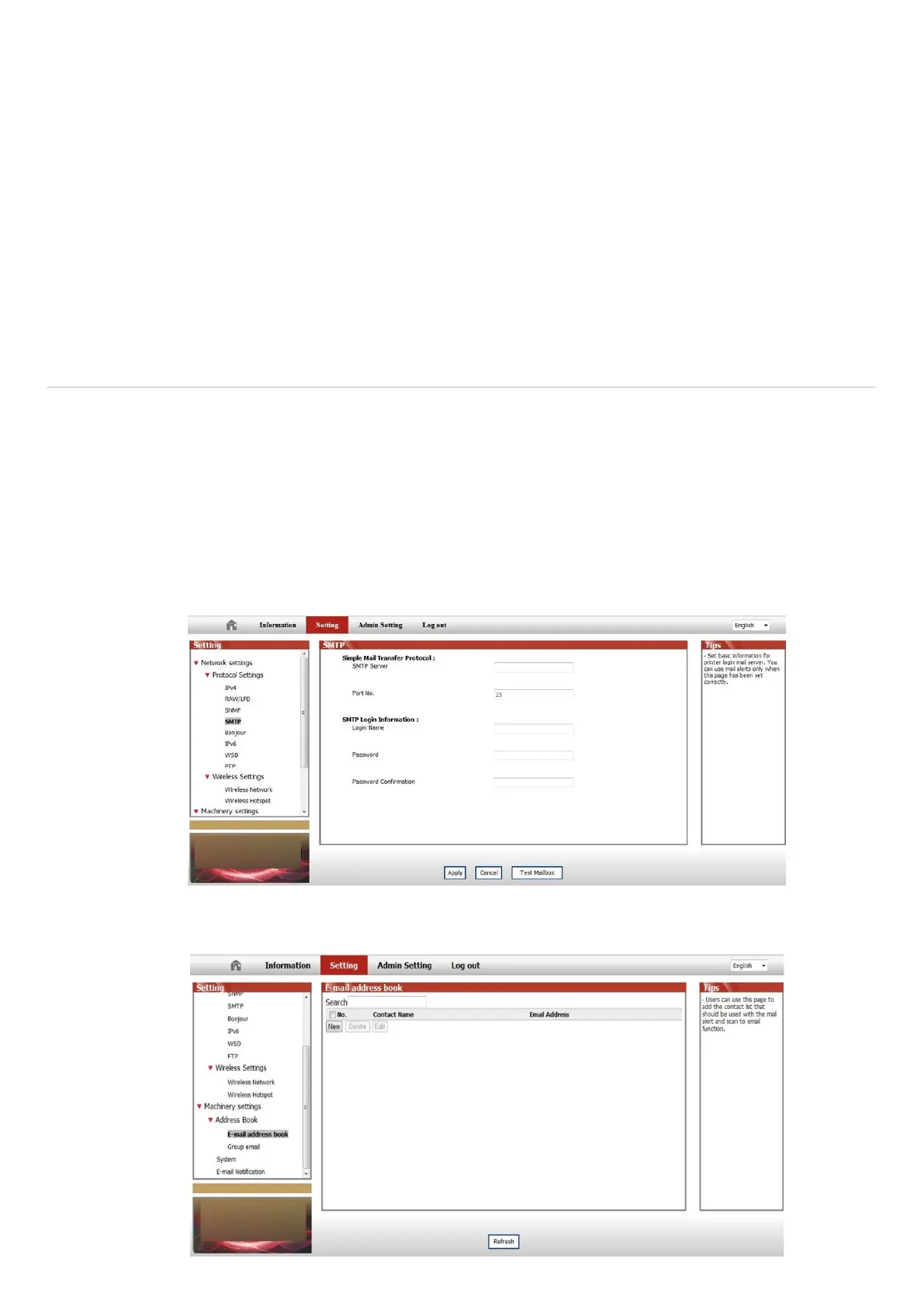
① Type the IP address in the Web browser & web address bar to access the embedded Web server of the printer.
② Click on "Setting"—"SMTP" to set the relative parameters of the SMTP Protocol; After finishing setting, click on "Apply"
to save.
③ Click on "E-mail Address Book" in the left setting column to enter into the settings interface of the email.


 To Next Page