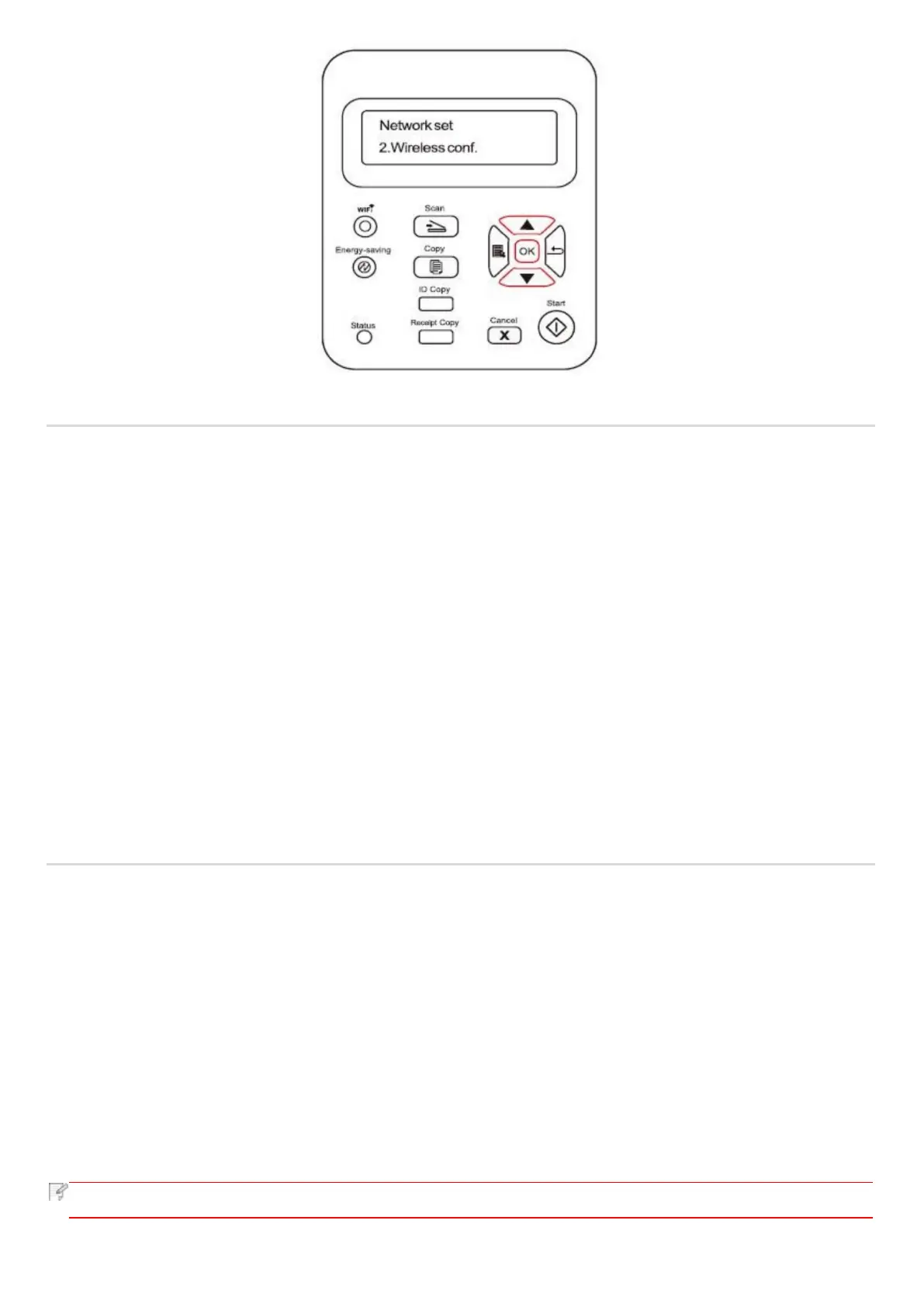
7.1.7. Network Information
Users can check the network status through Network Information.
1) Press "Menu" button to enter the menu interface.
2) Press direction pad "▲" or "▼" to select System Settings and press OK button.
3) Press direction pad "▲" or "▼" to select Network Information and press OK button.
4) Press direction pad "▲" or "▼" to select "1. TCP/IP" "2. Wi-Fi Information".
5) Select "1. TCP/IP" option and press "OK" button, press direction pad "▲" or "▼" to select "1. IP Address", "2. Subnet
mask" and "3. Gateway".
6) Select "2. Wi-Fi Information" option and press "OK" button, press direction pad "▲" or "▼" to select "1. Mac Address ",
"2. Wi-Fi Status", "3. Wi-Fi Channel" or "4. SSID Information" (The display of SSID Information only supports English letters
and numbers).
7.2. Print information report
You can print information report by operating control panel. These pages can help you to learn about product information, and
diagnose and solve product failures.
1) Press "Menu" button to enter the menu interface.
2) Press "▲" or "▼" to select "Info. Report".
3) Press “OK” key to enter information report print. You can print product report according to needs.
Printable product reports include Print Demo Page, Print information Page, Print Menu Structure, Print Menu Setting, Print
network configuration, Print network Service, Print mail address, Print Group Mail, Print FTP address, Print Wi-Fi hotspot and Print
Wi-Fi Configuration.


 To Next Page