9.5.3. Paper setting
ID card copying supports A4 and Letter paper dimension.
9.6. Receipt setting
Change relevant setting with “copying setting menu” for better copying effect.
1. Press “receipt copying key” on control panel and then press “OK key” to enter “copying setting “interface.
2. Press “direction key” to select options and then press “OK key” to enter setting interface.
3. Press “direction key to select option to be set and press “OK key” to set option.
9.6.1. Intensity
For intensity setting, see 9.4.2.
9.6.2. Paper setting
The receipt copying supports A4, Letter, B5, A5, A6 and Executive paper dimension.
10. Scan
This printer provides two types of scans: "Push Scan", which means scanning through the printer’s Control Panel operations; "Pull
Scan" which means scanning through PC terminal scanning the application.
10.1. Push Scan
10.1.1. Steps for Push Scan with Tablet
This section introduces how to scan documents to the PC (only through USB cable connection) with control panel of the printer.
The specific operation steps are as follows:
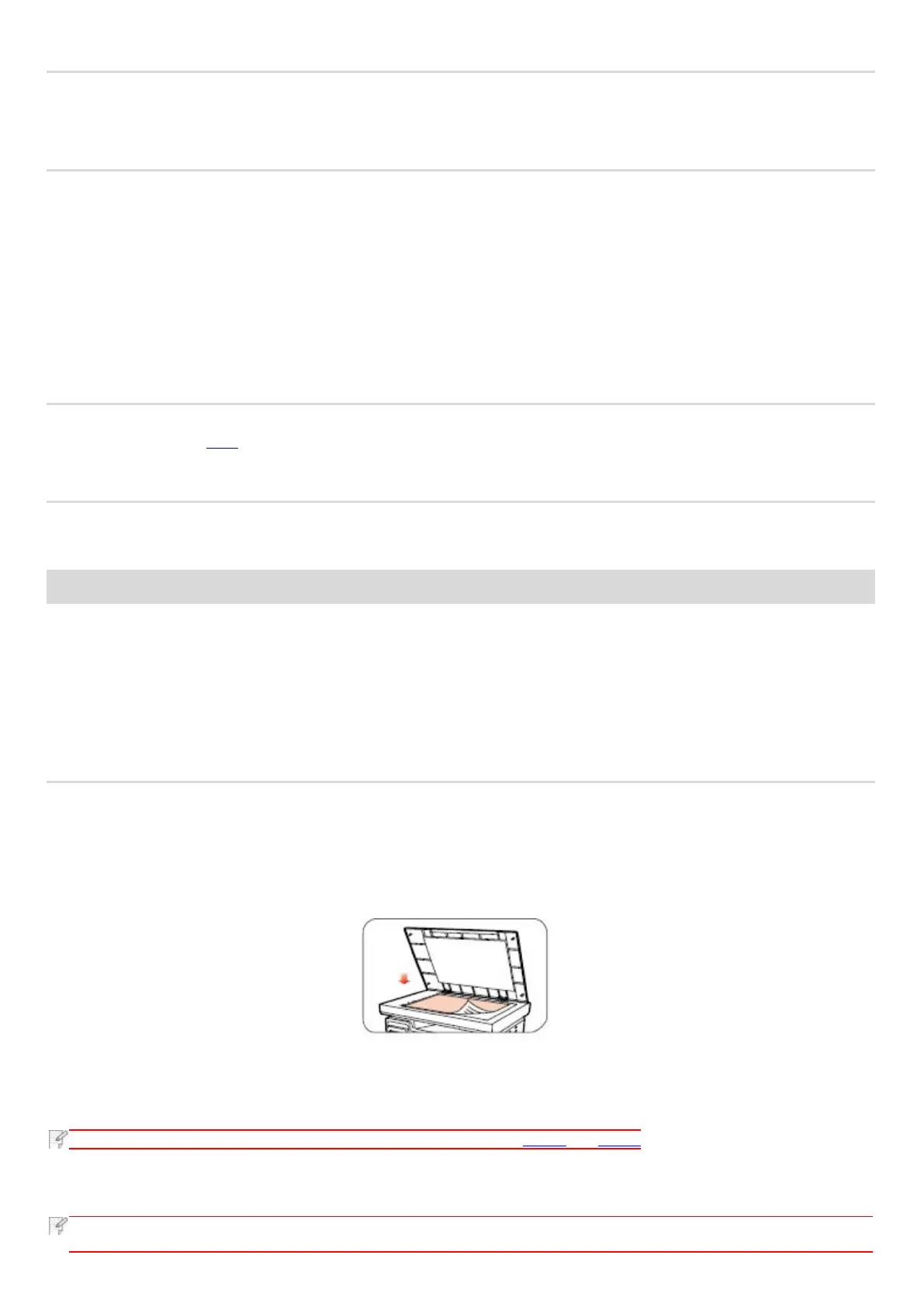
1) Put the document face down on the glass platen.
2) Press Scan on the Control Panel and press direction pad "▲" or "▼" to select "Single Page Scan" or "Merge Scan" to
enter into the Scan mode.
• Formats of scanned attachments: network scan supports PDF, TIFF and JPEG formats. Users can select the Save As
Type on the panel for the scanned documents.


 To Next Page