• Too much paper in the
tray.
• The print media is beyond
the usage specification
range.
• There is foreign matter in
the feed channel.
• The feed roller is dirty.
• Internal parts failure.
• Remove excess paper from the tray. If you print on
special print media, please use the manual feeder
tray.
• Make sure to use the paper that meets
specifications.
• If you print on special print media, please use the
manual feeder tray.
• Clean the feed channel.
• Clean the feed roller.
Print with
multipage fed in
• Excessive static electricity
on the print media.
• The print media is damp or
sticks together.
• Internal parts failure.
• Re-separate the print media to eliminate some static
electricity. It is suggested that you use the
recommended print media.
• Re-separate the print media or use new print media.
• If the trouble still cannot be shooted after the above operations, please contact Printon Customer Service.
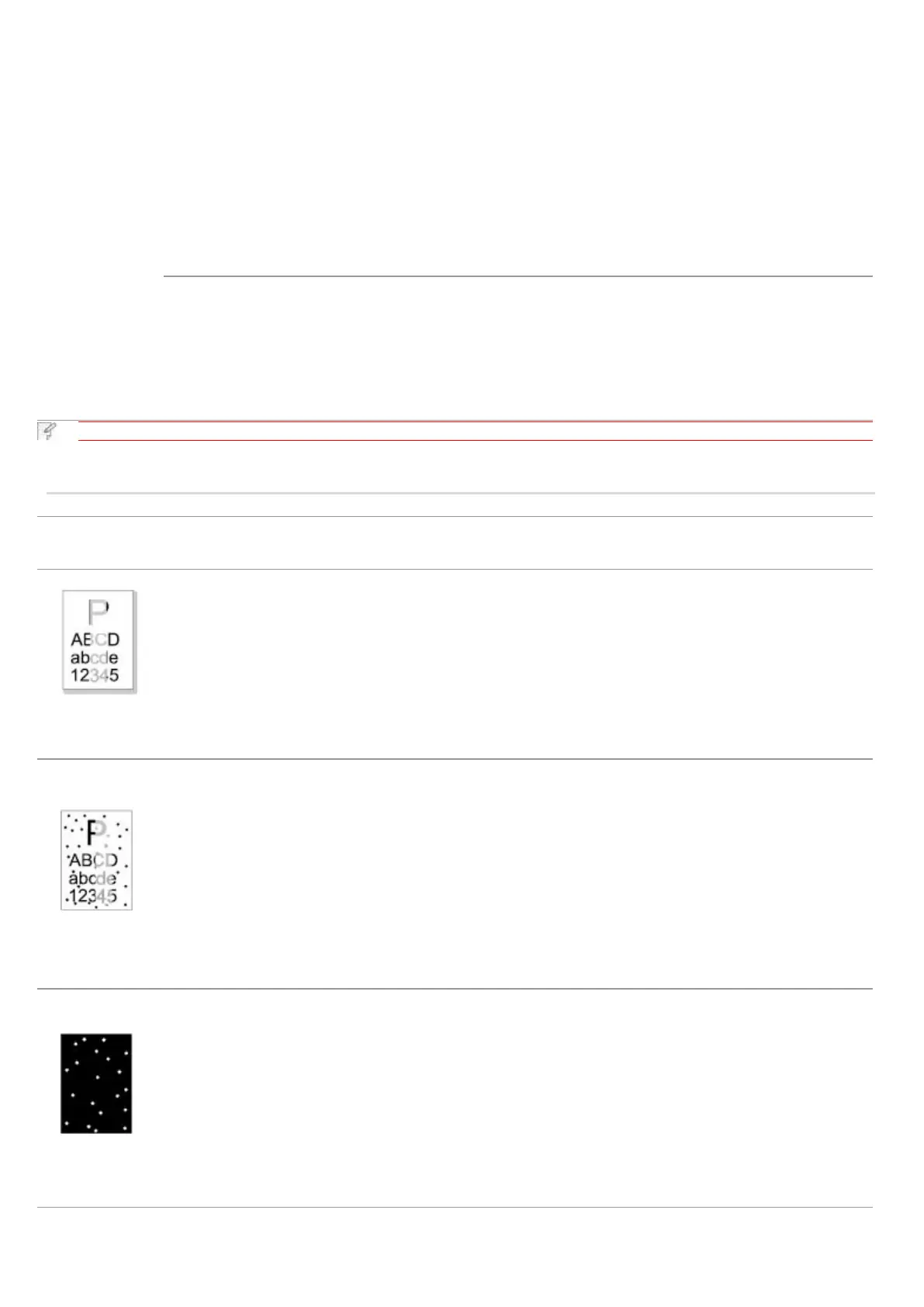
The printout is whitish
or light
• Toner is low.
• The print media does not meet usage specification,
such as the media is damp or too rough.
• The resolution in the print program is set too low,
concentration setting is too low, or toner saving mode is
ticked.
• The laser toner cartridge is damaged.
• Please properly use the print media
within the specification range.
• Set the print resolution, concentration,
or cancel ticked toner saving mode in
the program.
• The laser toner cartridge is dirty or leaks toner.
• The laser toner cartridge is damaged.
• The print media that does not meet usage specification
is used. For example, the media is damp or too rough.
• The feed channel is dirty.
• If toner spots appear when copying and scanning, the
platen glass may be dirty.
• The scanner is dirty or damaged.
• Please use the print media within the
specification range.
• Clean the feed channel.
• Clean the platen glass.
• The print media that does not meet usage specification
is used. For example, the media is damp or too rough.
• The feed channel is dirty.
• The internal part of the laser toner cartridge is
damaged.
• The reflective glass of the laser inside the printer is
dirty.
• The scanner is damaged.
• Please use the print media within the
specification range.
• Clean the feed channel.
• Clean the reflective glass of the laser.


 To Next Page