• Remove the jammed paper in accordance with the following steps, close the upper cover and tidy the paper in the
tray, then the printer will automatically resume printing. If the printer cannot automatically start printing, please press
the button on the control panel.
If the printer still does not start printing, please check whether all the jammed paper inside the printer is cleared.
If you cannot remove the jammed paper yourself, please contact your local Printon Authorized Repair Center or send
the printer to the nearest Printon Authorized Service Center for repair.
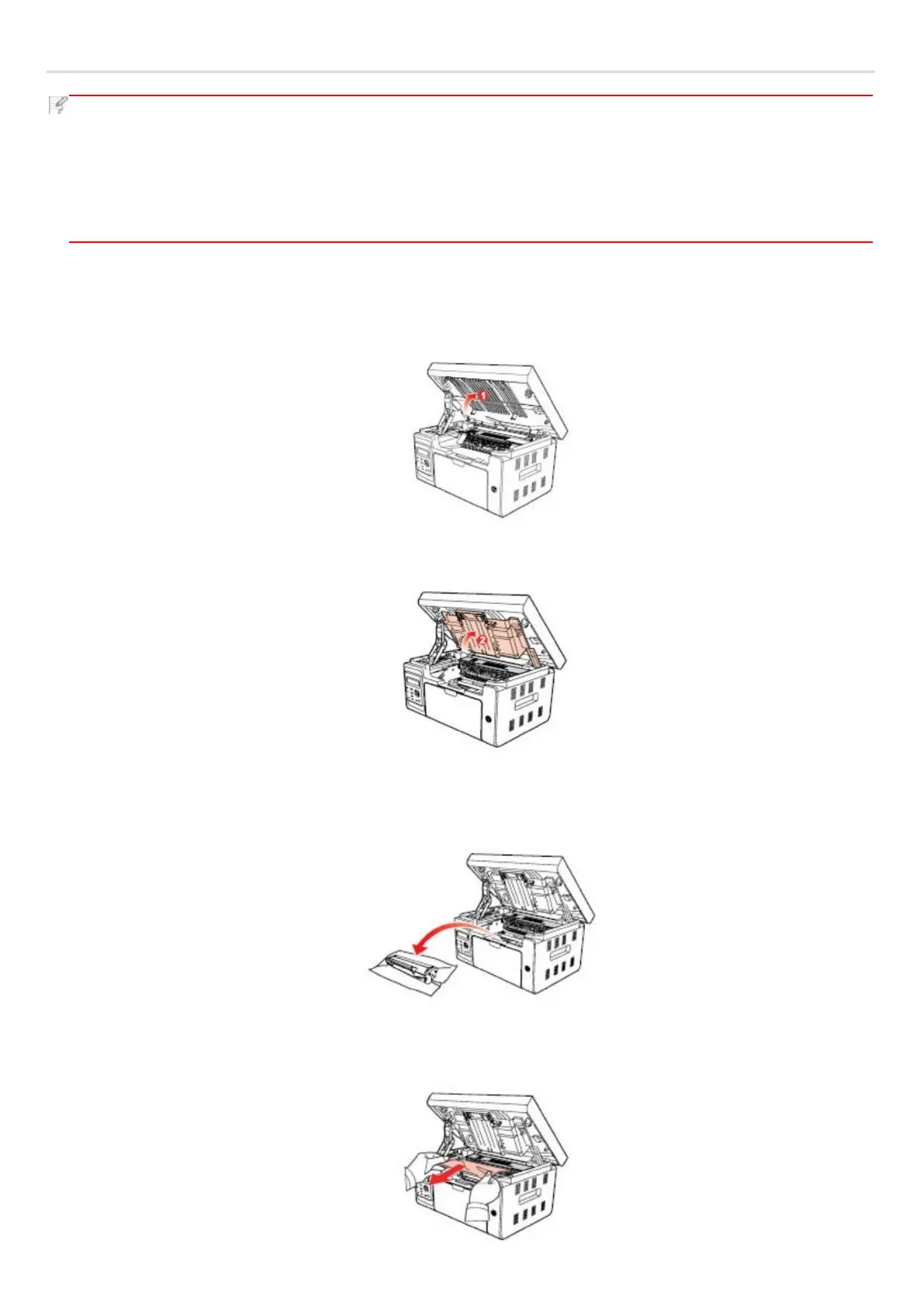
Please follow the following steps to clear the jammed paper if you are prompted of a paper jam by the LCD.
1) Raise the scanning platform until it is locked.
2) Open the output bin by the upper right ridge of the concave section.
3) Remove the laser toner cartridge along the guides.
4) Gently draw the jammed paper out along the paper output direction.


 To Next Page