5. Click “Agree” on the prompt window popping out to accept the licensing agreement.
6. Click “Install”.
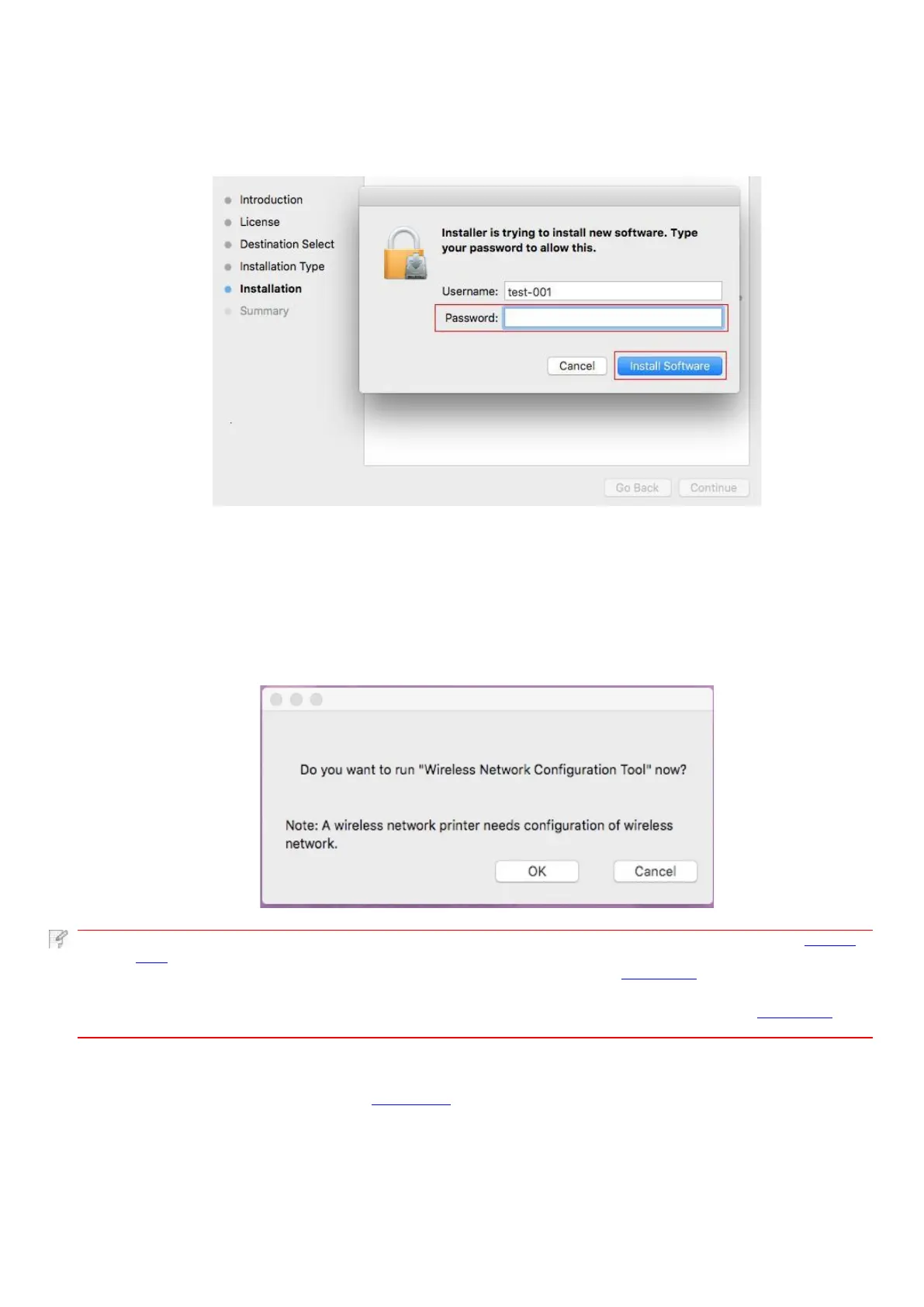
7. Input computer password and click “Install Software”.
8. Click “Continue Installation” on the prompt window popping out.
9. The system will finish driver installation automatically.
• If using a USB cable to connect a computer with a Wi-Fi model printer, a wireless network configuration prompt window
will pop up during driver installation, as shown in following picture.
• click “Yes”, you can configure printer’s wireless network via wireless network configuration tool (refer to Chapter
5.1.1 for how to make configuration).When configuration is completed, unplug USB cable, and then on the pop-up
“Add Printer” interface, you may add the network-connected printer(refer to Chapter 3.3 for how to add printer).
• Click “No”, you can add a USB-connected printer on the pop-up “Add Printer” interface (refer to Chapter 3.3 for
how to add printer).
If using a USB cable to connect a computer with a non-Wi-Fi model printer, a “Add Printer” interface will pop up during the driver
installation and you can add a printer here (refer to Chapter 3.3 for how to add printer).


 To Next Page