Creating an Event Table 117
The remainder of this section describes how to access the Program Event screen and enter
an event table.
Accessing the Program Event Screen
1. Press the Program Table function key to display the Program Gradient screen (see
Figure 6-5).
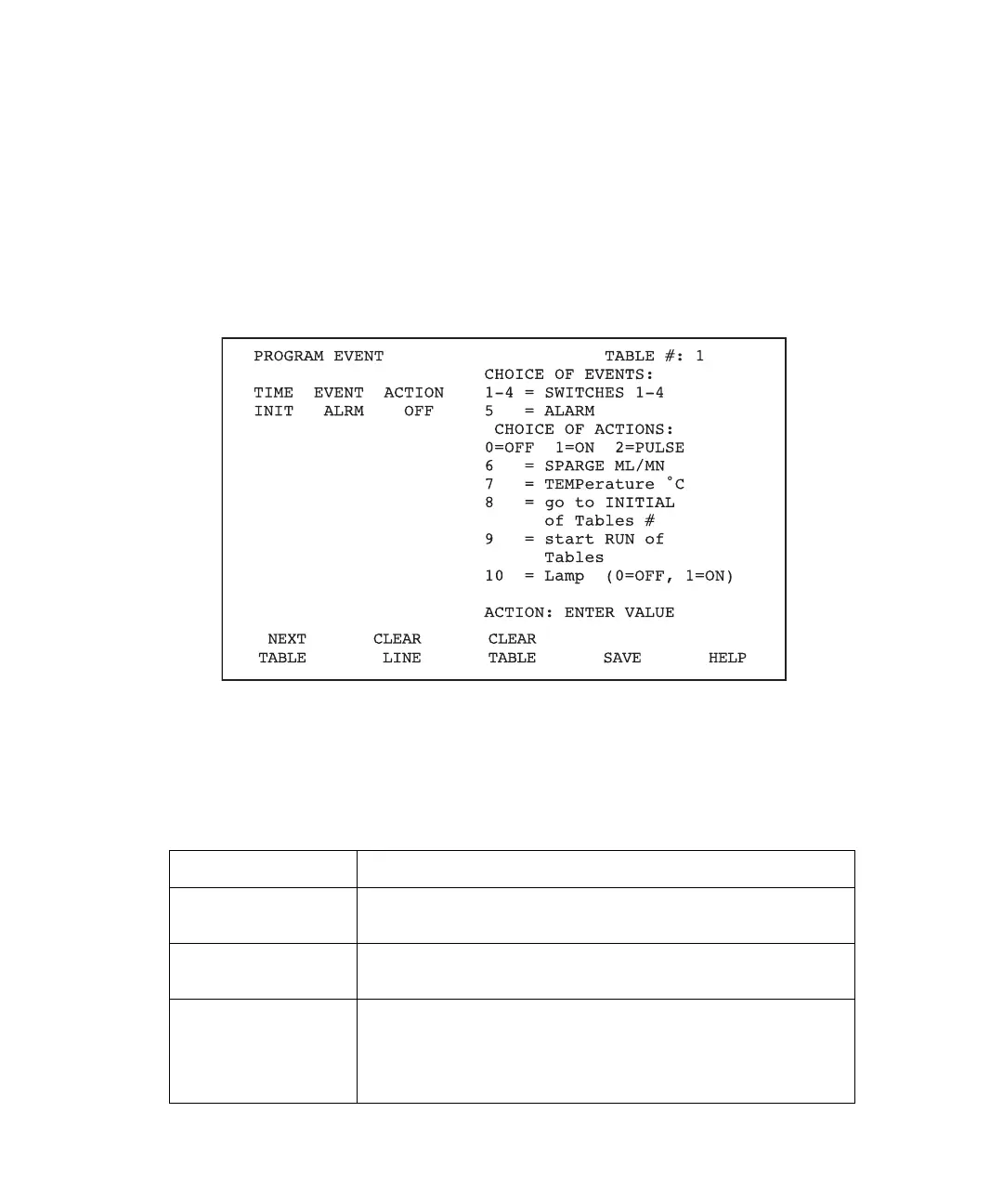
2. Press the Next Table screen key. The PowerLine Controller Program Event screen
appears (Figure 6-9).
Figure 6-9 PowerLine Controller Program Event Screen
In addition to the event table parameters, the Program Event screen displays five active
screen keys that function as described in Table 6-3.
Table 6-3 Program Event Screen Keys
Key Function
Next Table Cycles through the Detector Table screen, Program
Gradient screen, and back to the Program Event screen.
Clear Line Clears the line on which the cursor currently resides. The
line is not erased from permanent memory.
Clear Table Clears the entire table currently displayed on the screen
and returns the initial conditions line to default status. The
table remains in permanent memory until you save a new
table.



 To Next Page