Waves eMotion LV1 Classic User Guide | Chapter 3: Setup
Window
ASSIGN A SHARED DEVICE TO YOUR INVENTORY (CLIENT)
To share I/O channels from a sharing-enabled system, do this:
• Select a device slot in the System Inventory.
• Go to the Device menu and choose a network device whose name is in italics (remote system) and not grayed out
(this device is available to you). All assets in the combined systems are shown in the System Inventory of all users
(see below).
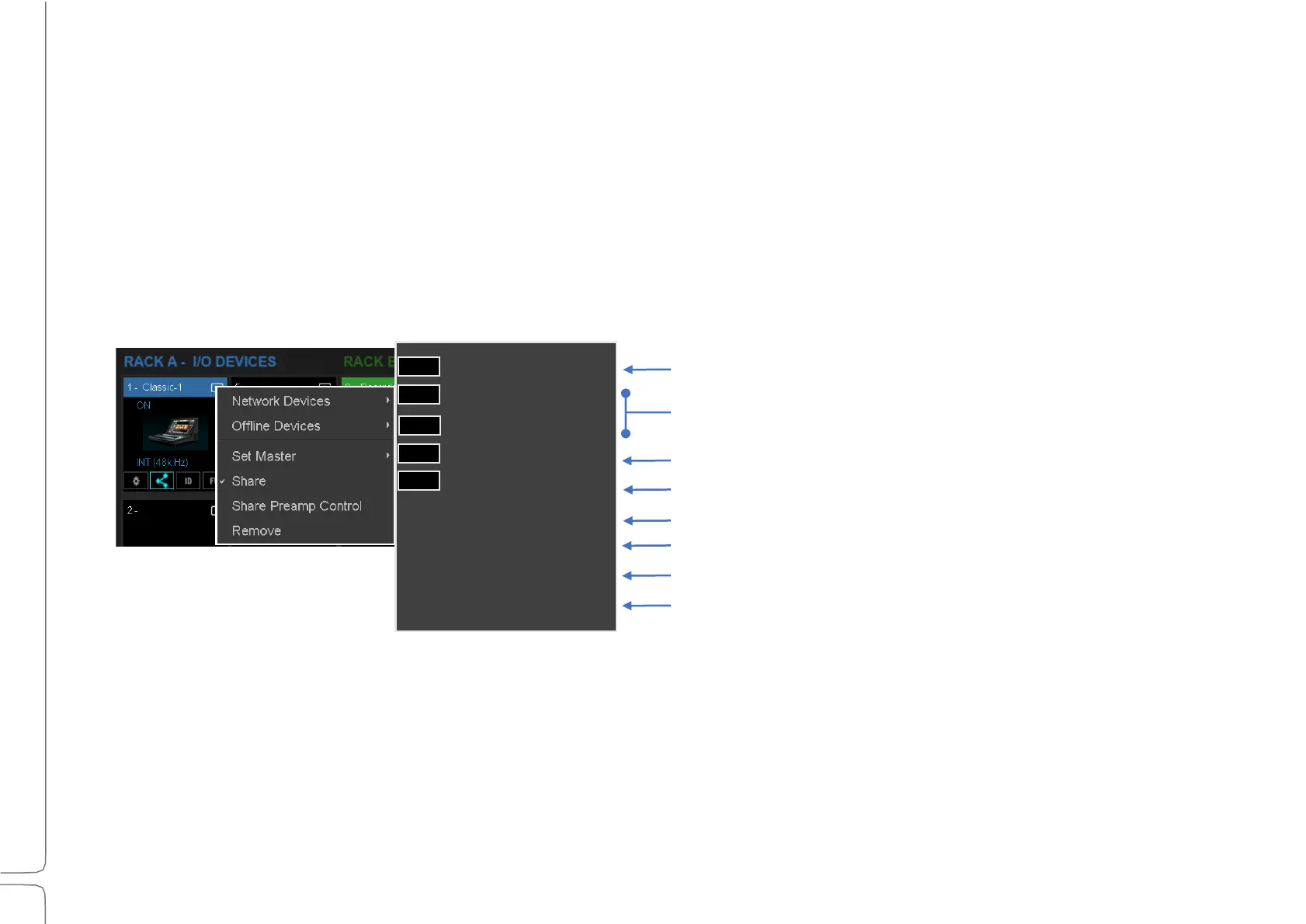
This is how a System Inventory might look in a large shared system. The font color (white or gray) and its type (roman
or italic) indicates the status of the devices in the network.
Locally assigned device (your device, assigned to you, not free)
Unassigned devices
Sharing-enabled device on another system (italicized)
Device assigned to another system (grayed out, italicized)
Unassigned driver
Sharing-enabled driver on another system
Driver assigned to local LV1
Driver assigned to another system
S
HARE
P
REAMP
C
ONTROL
When the device manager selects Share Preamp Control in the Device menu, any client can adjust the preamp gain for
any I/O channel on the shared device. All users sharing this device have equal control of preamp gain in any patched
I/O channel.
Controlling gain in multi-system environments and retaining gain structure while other users are controlling preamp
gain is described on the next several pages.
Classic I/O - 1
B-Ionic 24/Free
A-Ionic 24/free
C-Ionic 16 / SGQA0
Classic I/O - 2
DAW / MPB16
DAW / System 2
DAW /JP.local


 To Next Page