Waves eMotion LV1 Classic User Guide | Chapter 2: Channel
Window Window
EQ Plugin Controls in the Main Control Section
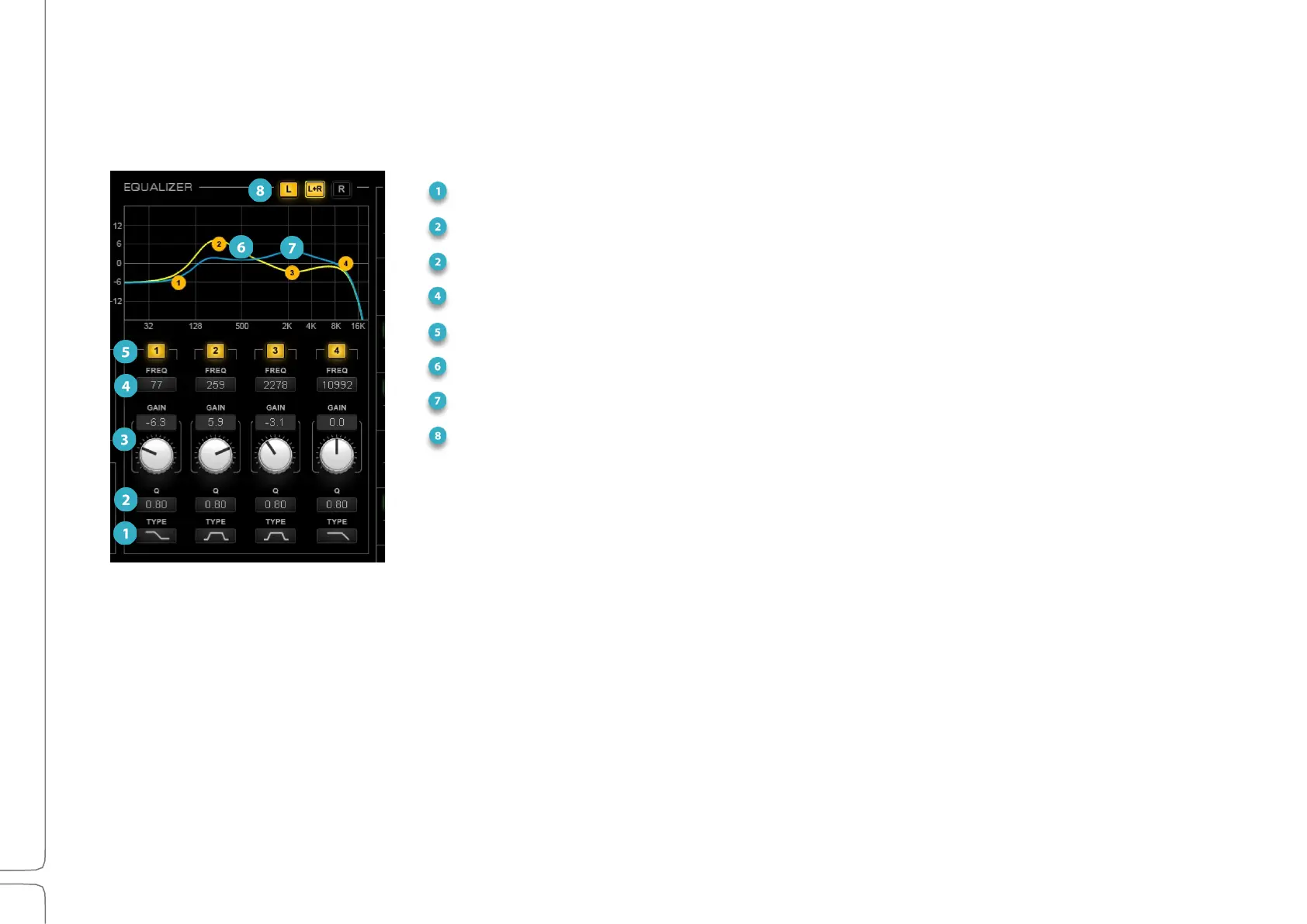
Assigned EQ plugin controls are mapped to the Main Control section. Mapping may vary from one EQ plugin to another.
Filter Type Select
Q Adjust
Band Gain Adjust and Value Box
Frequency Adjust
Band On/Off
EQ graphic Display and Control (L)
EQ graphic Display and Control (R)
Left/Right Channel Linking
EQ Controls
1.
Mapping varies depending on the plugin.
2.
Filter Type: Selects between four filter types: high pass, resonant shelf, bell, and shelf.
3.
Q Value Box: Displays the Q value for the band. To set Q, type a value into the box or click on it and slide vertically.
Many plugins also allow you to adjust Q on the graphic display by holding ALT while sliding the band marker
horizontally.
4.
Gain Adjust Knob and Value Box: Set gain by clicking on the gain adjust knob and dragging vertically or by
sliding the band marker vertically. The Main section maps four band gain controls.


 To Next Page