Waves eMotion LV1 Classic User Guide | Chapter 1: Mixer
Window Window
S
ENDS ON
F
ADERS
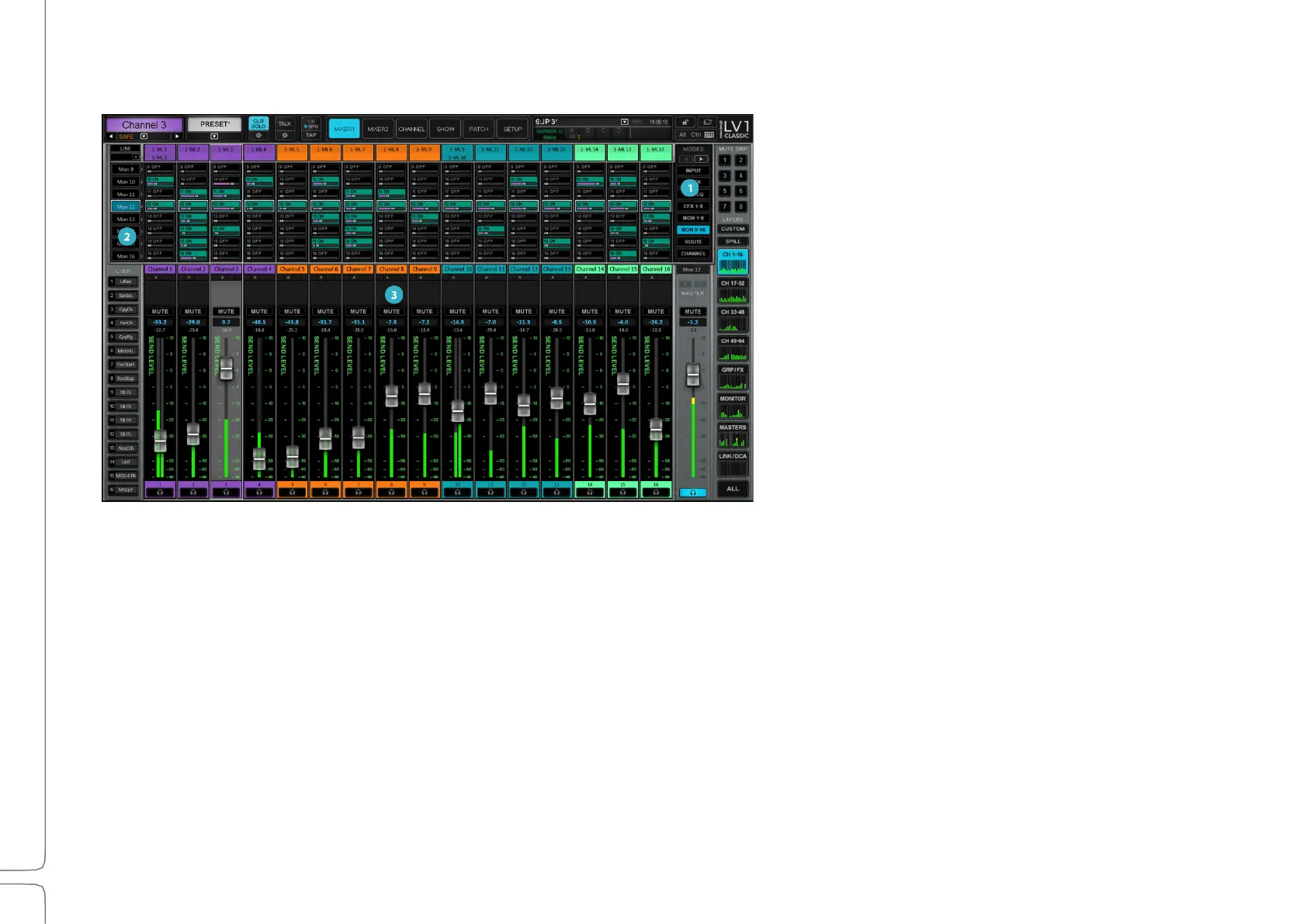
In the “Sends on Faders” (Flip) mode, the
channel faders control the level of the aux
send—not the channel level. The master
fader controls the level of the aux channel
rather than that of the main out.
This results in increased convenience and
accuracy when adjusting aux sends.
Controlling Aux Sends with Large Faders
Starting from the fader bank:
Press Flip on the right side of the fader bank.
1. The top row of buttons (Select/User) turns green and starts blinking, along with the Flip button.
2. From the top row, select the aux mix you want to flip to. It is presented in banks of eight, buttons. Buttons 1–8
select the aux and buttons 10–12 set the aux bank: FX 1–8, Mon 1–8, or Mon 9-16.
3. Once an aux has been selected, its button turns white and continues to blink. The rest of the top row stops
blinking. Faders have flipped to become sends to the selected aux, and the pan pots become send pans. This
configuration is also shown on the Mixer 1 screen.
4. You can select a different aux from that top row, and faders will flip to that aux’s sends.
5. When you finished adjusting sends, click the Flip button to return to the normal channel out faders.


 To Next Page