Waves eMotion LV1 Classic User Guide | Chapter 2: Channel
Window Window
Copy/Paste Channel Information
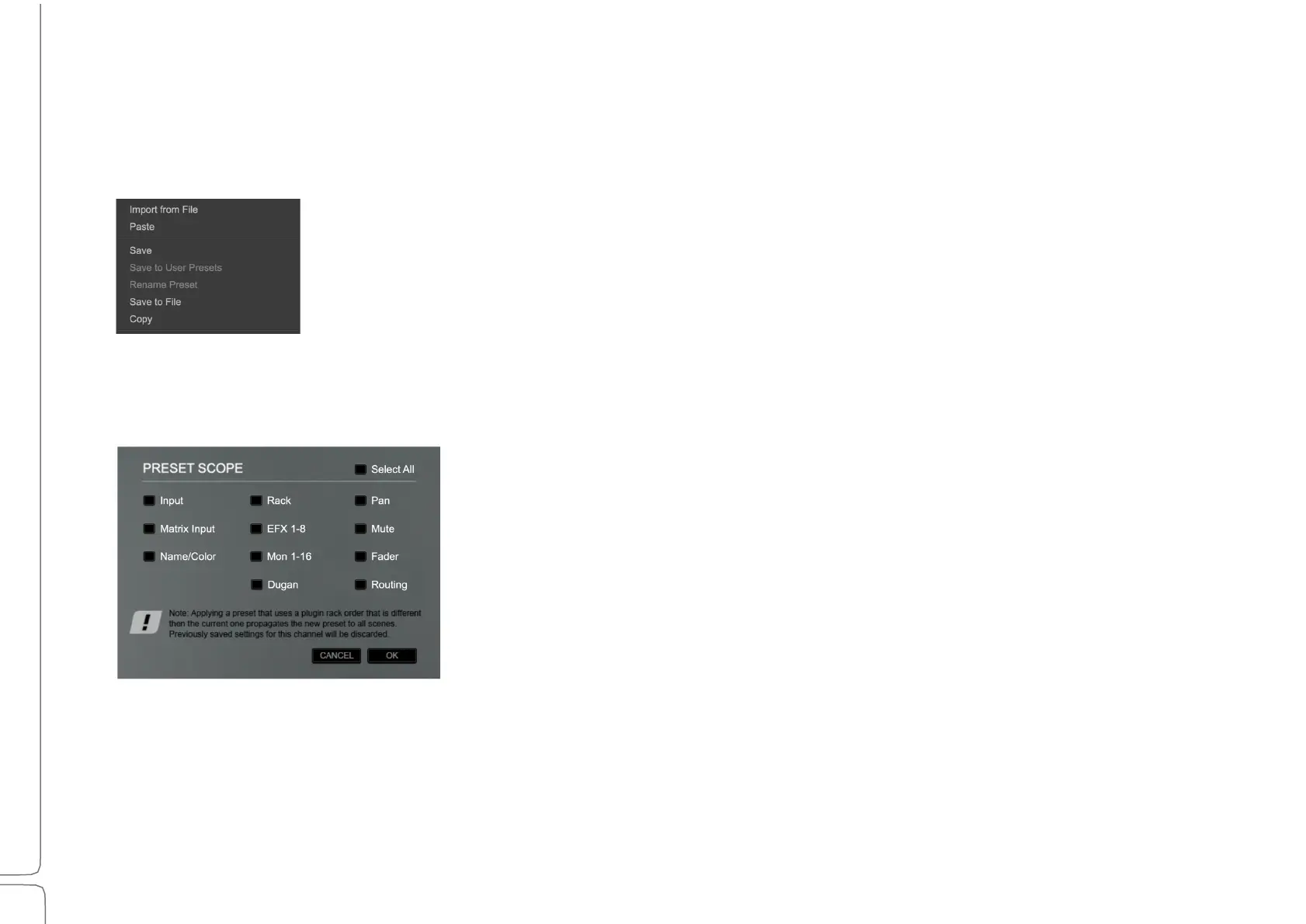
Use the Preset menu to copy an entire channel or specific channel settings to another channel.
C
OPYING CHANNELS WITHIN A SESSION
1. Select a channel and choose Copy from the Preset menu.
2. Select the target channel and click Paste.
3. Select what to replace and what to leave unchanged. Choose Select All to paste all
channel settings.
4. Select the import parameters and click OK. Parameters that are not selected in the
list will not be altered in the target channel.
Channel names can be copied within a session. Channel names and colors cannot be imported from another
session.
The Preset Scope function allows you to modify these settings:
Input
Trim, phase, A/B switch
Matrix Input Matrix input faders
Name/Color Channel name and color setting status
Rack
Plugin
settings,
rack
structure
and
status
EFX 1–8 Send levels, On/Off, pan, route
MON 1–16 Send levels, On/Off, pan, route
Dugan Auto, weight fader, override, group
Pan All pan/balance/rotate controls
Mute
Change
state:
On/Off
Fader
Change
fader value
Routing
Internal
routing:
group,
matrix,
links,
mute
groups,
main
(L/R,
C,
M)
Name and color import options vary depending on the import type as follows:
•
Copy/Paste: Name and color available.
•
User Presets: Color is available, but not name.
•
Factory Presets and Files: Name and color are not available.
Note: Scope does not modify input/output patching or preamp settings.


 To Next Page