Waves eMotion LV1 Classic User Guide | Chapter 1: Mixer
Window Window
Mixer Window Overview
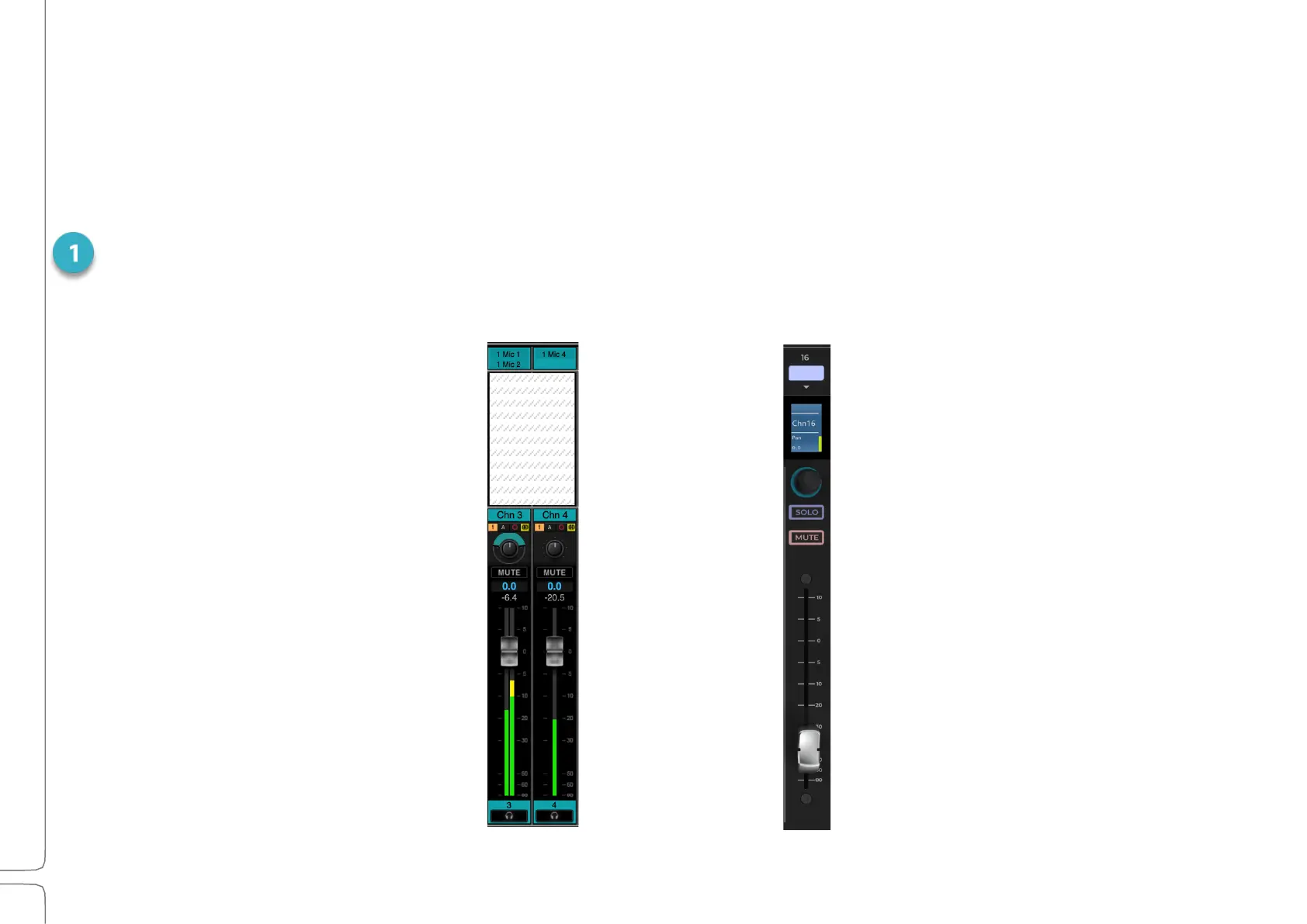
A Mixer’s processing, routing, and control take place on Mixer Channels. To control these channels, two things are needed:
(1) A way to control channel input, panning, cue/solo/mute and other mixer functions (Channel Strip).
(2) A way to select and control the processing, routing, and settings applied to channels or busses (Channel Strip
Modes).
MIXER CHANNELS: CHANNEL STRIPS
Channel Input
Mode Section
Section used for input, routing, sends, etc. The
view changes, depending on the he Mode
selection.
Channel name
Link, server, record, and Dugan status
Pan, rotate, immersive positioning
Mute
Meter values
Meter and faders
Channel ID
Cue/Solo
Channel Select/User Keys
Scribble Strip
Channel name, channel meters and channel
status. Changes by function
Rotary encoders
Pan, gain, edit plugin
Solo/Mute
Fader
Channel ID is on the scribble strip
TOUCHSCREEN CHANNEL STRIP


 To Next Page