Waves eMotion LV1 Classic User Guide | Chapter 1: Mixer
Window Window
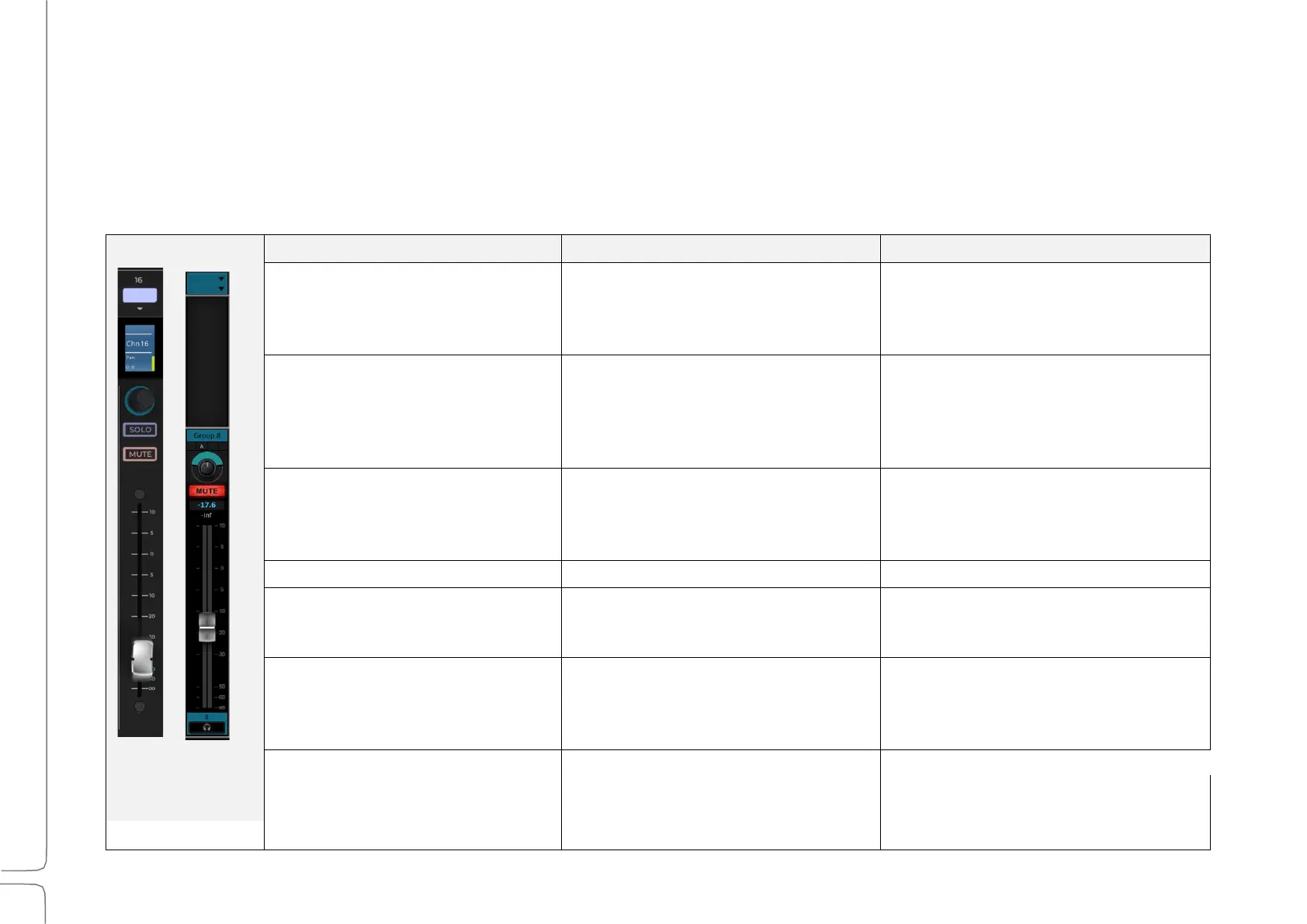
CHANNEL STRIP ELEMENTS
The channel strips on the touchscreen and the fader bank are functionally identical, although some controls, by
necessity, are presented differently. Fader bank channel strips are mapped to the touchscreen interface. They use the
same logic and flow as the touchscreen channel strips.
Select Chan on the Chan/User
selector and choose a channel or
touch a fader.
Touch the fader or the lower
section of the channel strip. You
can also use the Channel Navigator
in the Top Bar.
Turn the encoder knob when the
encoder panel is set to Pan.
Panner controls panning and
imaging. On Aux busses, it may
control immersive monitoring. Input
gain and trim are controlled in the
Input mode.
Select “Gain” on the Encoder
selector. In this mode, preamp gain
or trim is controlled, depending on
the presence of a preamp.
Channel mode only. Controls
preamp gain (if preamp is present
on channel) or trim.
Multipurpose display that changes
by function: Channel/User, Plugin
Edit, Flip.
Displayed in the scribble strip.
Channel name is shown in the
center of the channel strip. Track ID
is shown at the bottom of the
channel strip.
100mm ALPS fader mapped to
touchscreen fader.
High-resolution. -60 dB to +10 dB


 To Next Page