Waves eMotion LV1 Classic User Guide | Introduction
Media Player
The eMotion LV1 Classic console features a built-in media player. You can use it to
play music directly from the console for walk-in music, cues, background music, and
more, without the need for external audio playback devices.
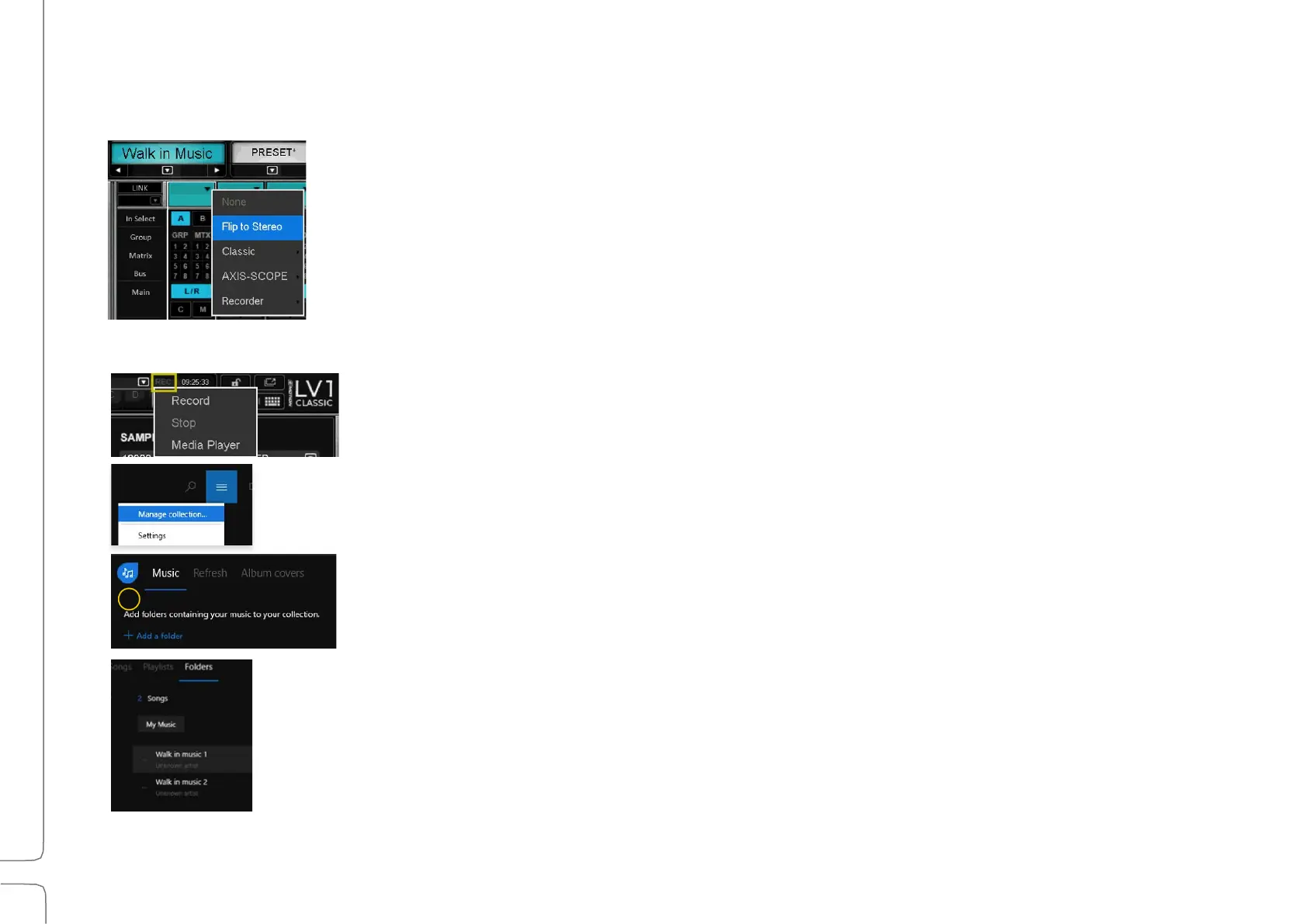
The media player is connected to the mixer using a SoundGrid ASIO device labeled
Recorder, which is assigned in the mixer inventory by default.
Follow these steps to set up the media player and route the sound in the console.
CONFIGURE THE MEDIA PLAYER
• Connect a USB storage device containing your media files to any of the
console’s USB ports.
• Cick the REC button on the right side of the Top Bar and select Media Player
from the drop-down menu.
• In the Media Player, click the menu button and select Manage Collection.
• Click + Add a folder.
• Navigate to the folder containing your music files and click on Select Folder.
• At the top of the media player, click on Folders. The music folder and and its
contents will appear will appear in the list.
• Select a music file.


 To Next Page