Waves eMotion LV1 Classic User Guide | Chapter 2: Channel
Window Window
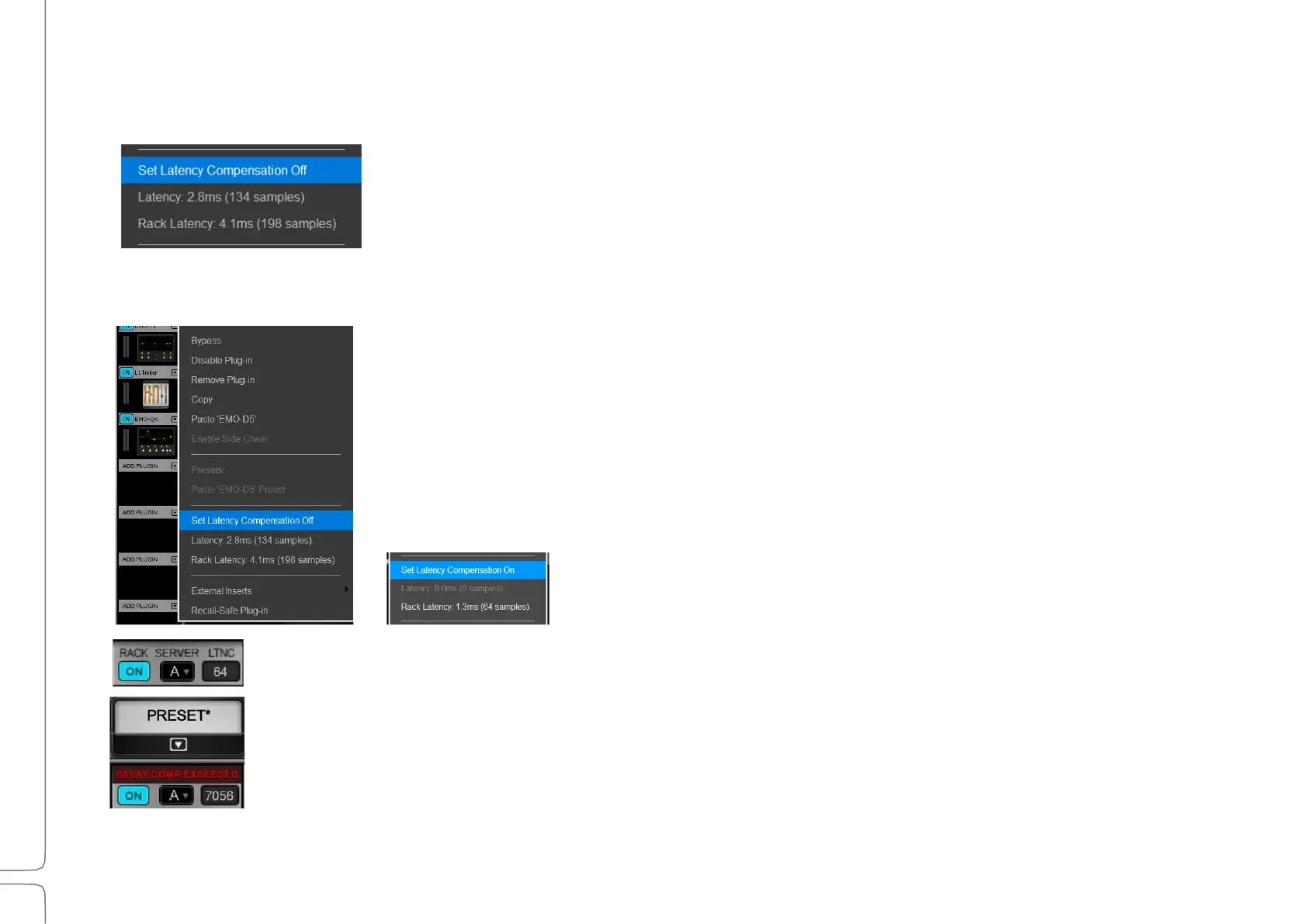
Plugin Menu: Latency Section
L
ATENCY
Indicates the delay introduced by the plugin or external insert.
R
ACK
L
ATENCY
Indicates the total latency of all plugins and inserts in the rack. If no latency is declared by
any of the plugins in the rack, both sections will be grayed out.
S
ET
L
ATENCY
C
OMPENSATION
O
N
/O
FF
Disabling latency compensation removes the plugin from plugin/buss latency
compensation calculations. The plugin remains active, but its latency is no longer reported
to the delay compensation engine. This allows you to prevent plugins with particularly
long delays from delaying the entire buss. Since the selected plugin is no longer delay
compensated, it may not be synchronized with the rest of the channel.
Example (shown left): The selected plugin has a latency of 134 samples and the rack’s
total latency is 198 samples. When compensation is on, the channel reports a rack latency
of 198 samples to the delay compensation engine.
When latency compensation for the selected plugin is turned off, the
channel reports a delay of only 64 samples (i.e.,198 samples minus
134 samples).
Total rack latency is also displayed at the top of the rack.
Warning: If the total rack latency exceeds 4000 samples, a red warning is displayed at the top of the
rack, indicating the destination rack may not be able to compensate for such a large latency.
eMotion LV1 latency compensation is discussed in detail in Appendix B.


 To Next Page