Waves eMotion LV1 Classic User Guide | Chapter 2: Channel
Window Window
E
XTERNAL
I
NSERTS
You can add external inserts to a plugin rack. An external insert follows the same routing path as plugins and can be moved up
or down the rack to change its position in the processing chain.
Follow these steps to add external inserts:
1. Choose a rack slot.
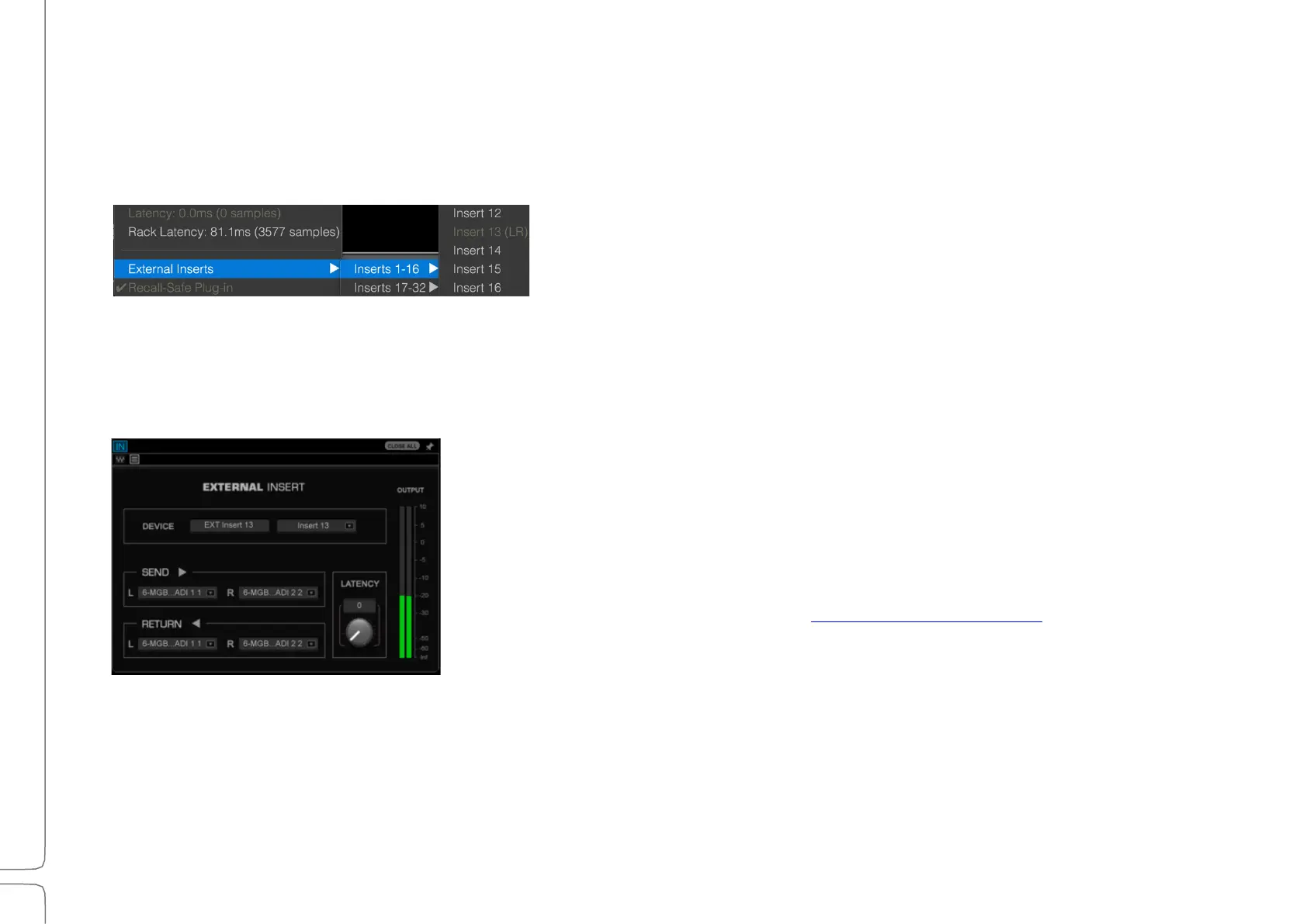
2. Select External Inserts from the Plugin Menu.
3. Choose an available insert from the menu. This opens the External
Insert control page.
4. Select physical send and return I/Os using the drop-down menus.
5. Rename the insert using the Device cell, if desired. Use the Insert drop-down menu to move between inserts.
If no send is assigned, then the insert will be bypassed. It remains in the rack and its place in the processing chain is
unchanged. If no return is assigned, then any other source assigned to this insert return will be heard.
A mono/stereo full-scale meter shows the level of the return signal This helps
to maintain proper levels on sends and returns.
The Latency knob is used to adjust the amount of delay to and from the
external insert device. Unlike a plugin, an external insert doesn’t declare its
delay to the plugin-buss latency compensation engine, so this must be done
manually.
For more information, please refer to www.Waves.com/support.



 To Next Page