Waves eMotion LV1 Classic User Guide | Chapter 1: Mixer
Window Window
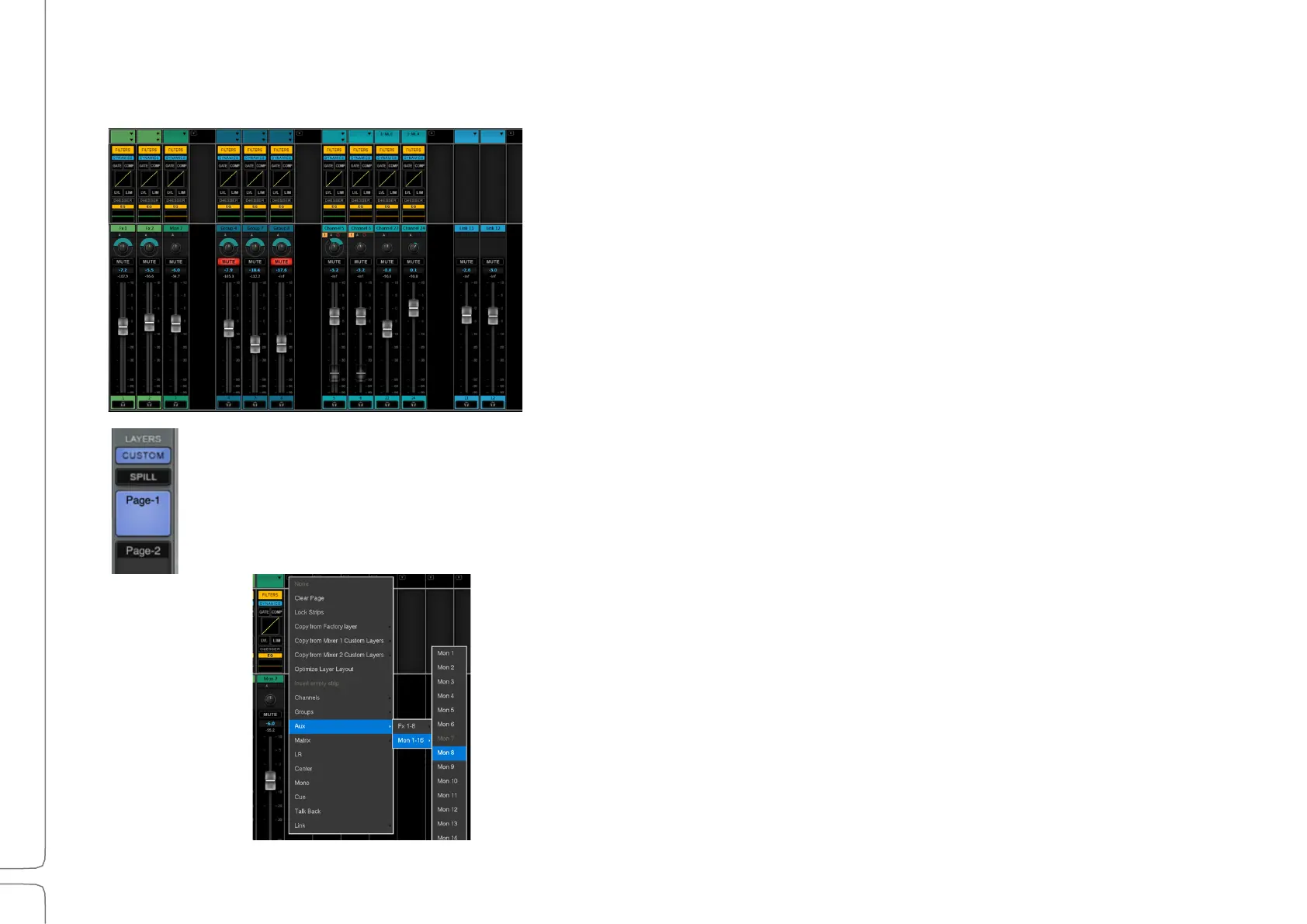
Custom Layers
Channels of any layer type can be combined in user-created Custom
layers. This feature enables control over a specified assortment of
channels in one view, without changing mixer layers. Channels can be
organized in any order within a Custom layer.
To populate a Custom layer, click “Custom” and choose one of the eight Custom layer buttons. The
layer will initially be blank.
• Use the drop-down menu at the top of a channel strip to open the
Custom assignment menu and select the assignment.
• Click and drag on the channel to rearrange the channel strips.
• If a channel strip is already populated, Ctrl+click on the channel name
(or use the arrow on the top-right corner of the strip) to access the
Custom layer menu.
• To rename a Custom layer, Double-click on a Custom layer page
button.
• Repeat the assignment process for up to eight Custom layers.


 To Next Page