Waves eMotion LV1 Classic User Guide | Chapter 2: Channel
Window Window
Plugin Rack
The Plugin Rack is a chainer that hosts up to eight plugins per channel. Plugins inserted in this rack are also displayed in the
Rack section of the Mixer window. Signal flow is from top to bottom of the rack.
A plugin rack can be stereo or mono, depending on the channel state. If a mono-to-stereo plugin is added to a mono rack,
the rack becomes stereo from that point on in the signal flow. You can drag a plugin up or down to change its position in
the rack signal flow.
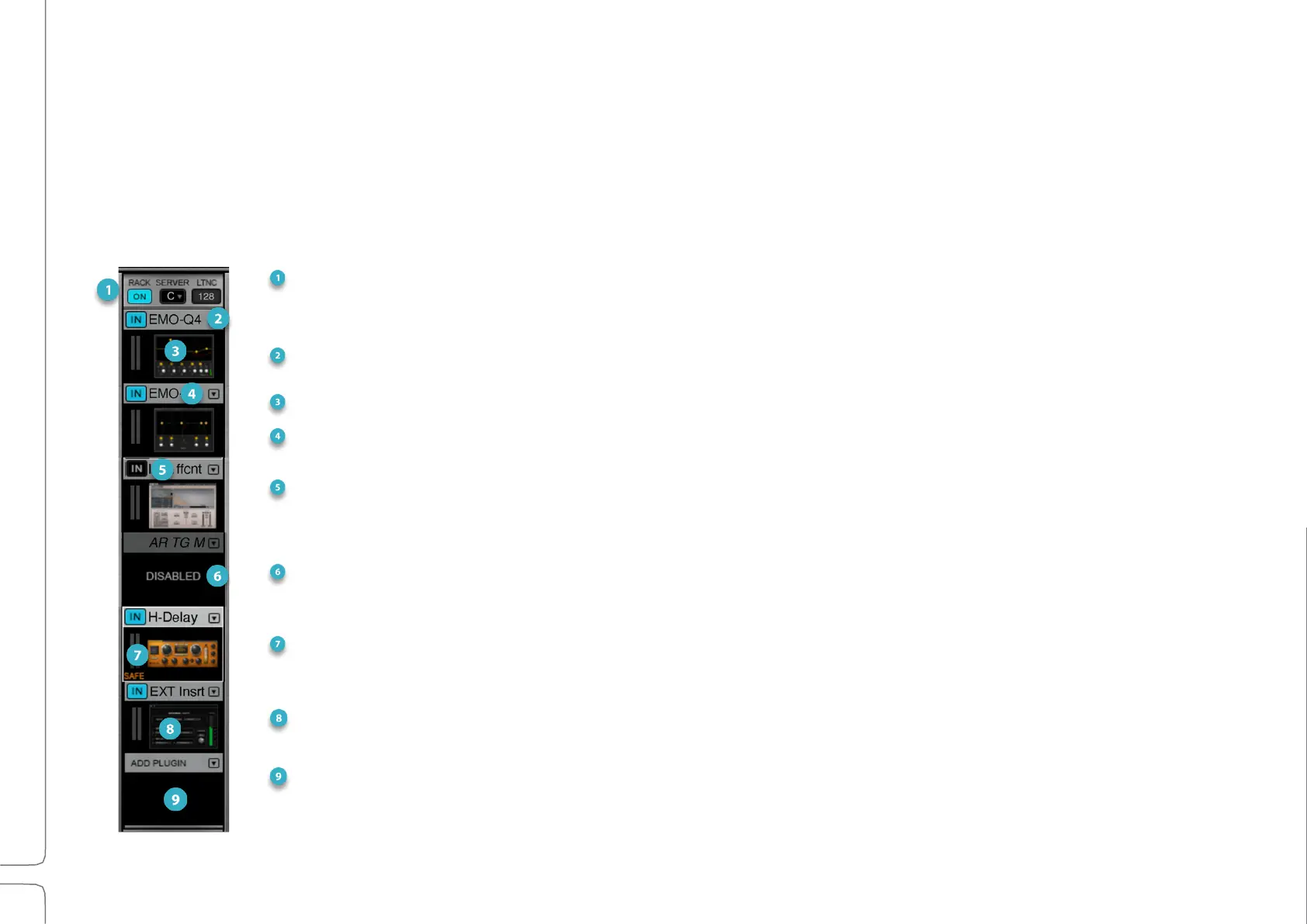
Rack Top: Rack processing On/Off; Server assignment menu for channel or buss; Total rack latency indicator.
When rack processing is off, audio still streams. If the server group assigned to the rack goes offline, the on/off
button will turn red until the sever is restored or you select a different server for the rack.
Plugin Name: Displays the name of the plugin inserted on the rack slot. Names longer than 14 characters are
abbreviated.
Plugin Icon: Shows a thumbnail image of the plugin’s interface.
Plugin Menu Access: Provides accesses (via a drop-down menu) to the plugin menu, which is used to insert and
manage plugins.
Plugin In/Out: When deselected (dark), plugin processing is bypassed but the plugin remains active.
Disabled Plugin: A disabled plugin remains installed in the rack but is removed from processing in the server.
The plugin will no longer display an icon, but rather the text “Disabled.”
Recall-Safe Plugin: Prevents modifications during scene changes. An orange/brown SAFE notice in the rack slot
indicates that the plugin is set to a recall-safe mode.
External Insert: A rack slot can send to and receive from an external device via specified I/Os.
Empty Rack Slot: “Add Plugin” appears in the plugin name cell.


 To Next Page