iPump User’s Manual
wegener.com 29 800009-01 Rev. A
User input screens below the menus shown here allow control of such items as
Program Number to Record, File to Record to, Decoder Number to Play File
to, and others. There are two types of user-input screens - those with an edit-
able field and those with a selectable field.
Editable
Fields
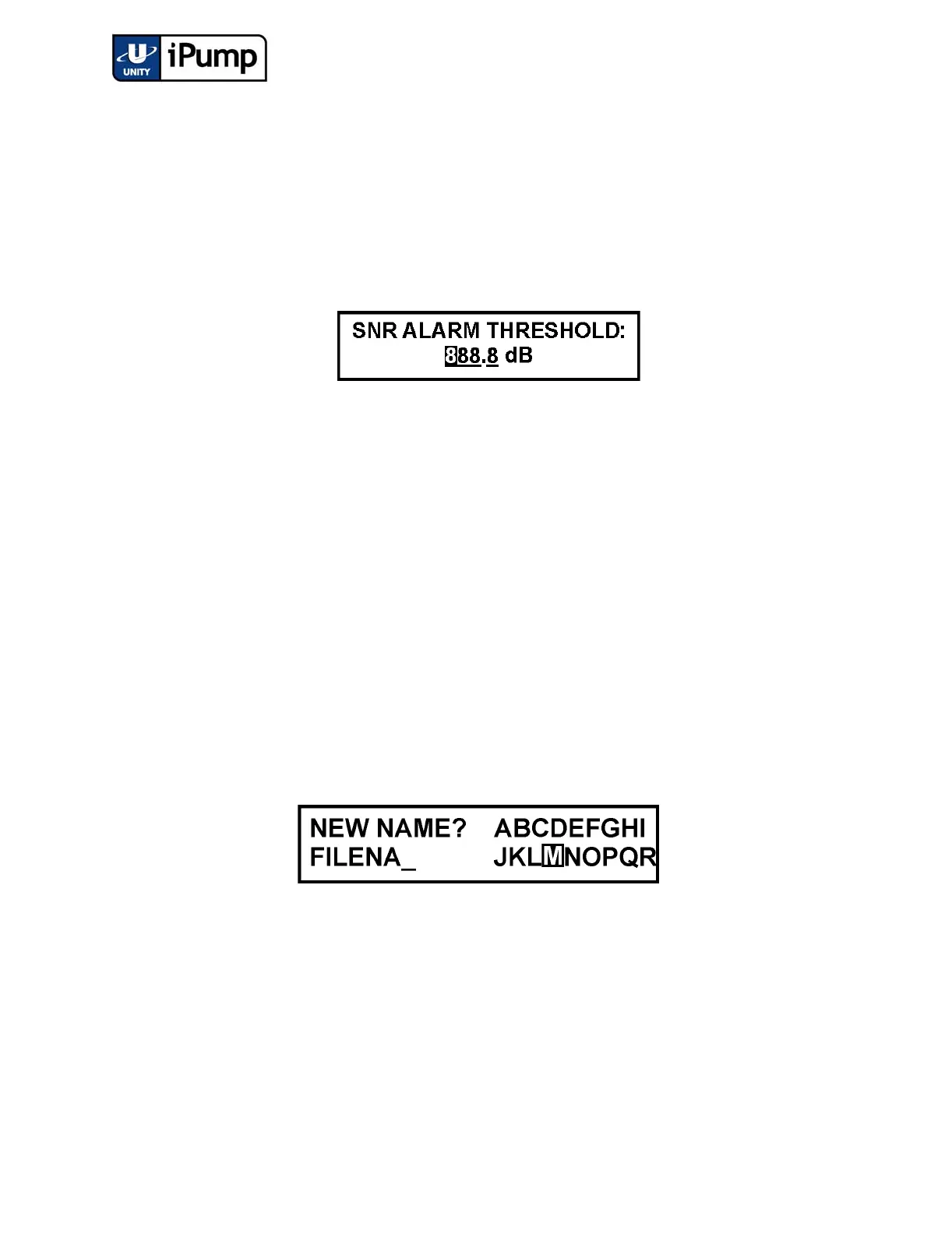
User-input screens with editable fields accept data entry by the user. Shown
here is an example of a user-input screen with an editable field.
Figure 3.6 Editable Field
To make changes to the data in the field:
a) Press ENTER to open the field. The first character location of the field
is highlighted.
b) Press the up or down arrow buttons to increment that digit or letter until
the desired value is displayed. Press the right arrow button to move to
the next digit or location in the field and change it the same way.
Continue until all digits or letters are displayed correctly.
c) Press the ENTER button to save your changes. Pressing ESC before
pressing ENTER will cancel any changes.
Another type of editable field appears when filenames must be entered. These
fields have the following appearance:
Figure 3.7 Filename Field
a) Press ENTER to begin spelling the filename. The letter A in the
character list is highlighted.
b) Press the arrow buttons to move through the character list until the first
character of the filename is highlighted. (Additional characters
including numerals, decimal, space, and hyphen appear on the LCD as
you move downward through the available characters list.)



 To Next Page