iPump User’s Manual
800009-01 Rev. A 30 wegener.com
c) Press ENTER to confirm the first character. The first charcter is
displayed at the bottom left of the LCD.
d) Select additional characters as in steps b) and c) until the entire
filename is displayed completely at the bottom left of the LCD.
e) When the entire filename is shown, press ESC to stop editing. When
prompted, "Done?", press ENTER if the filename is correct or ESC to
continue editing your entry.
Selectable
Fields
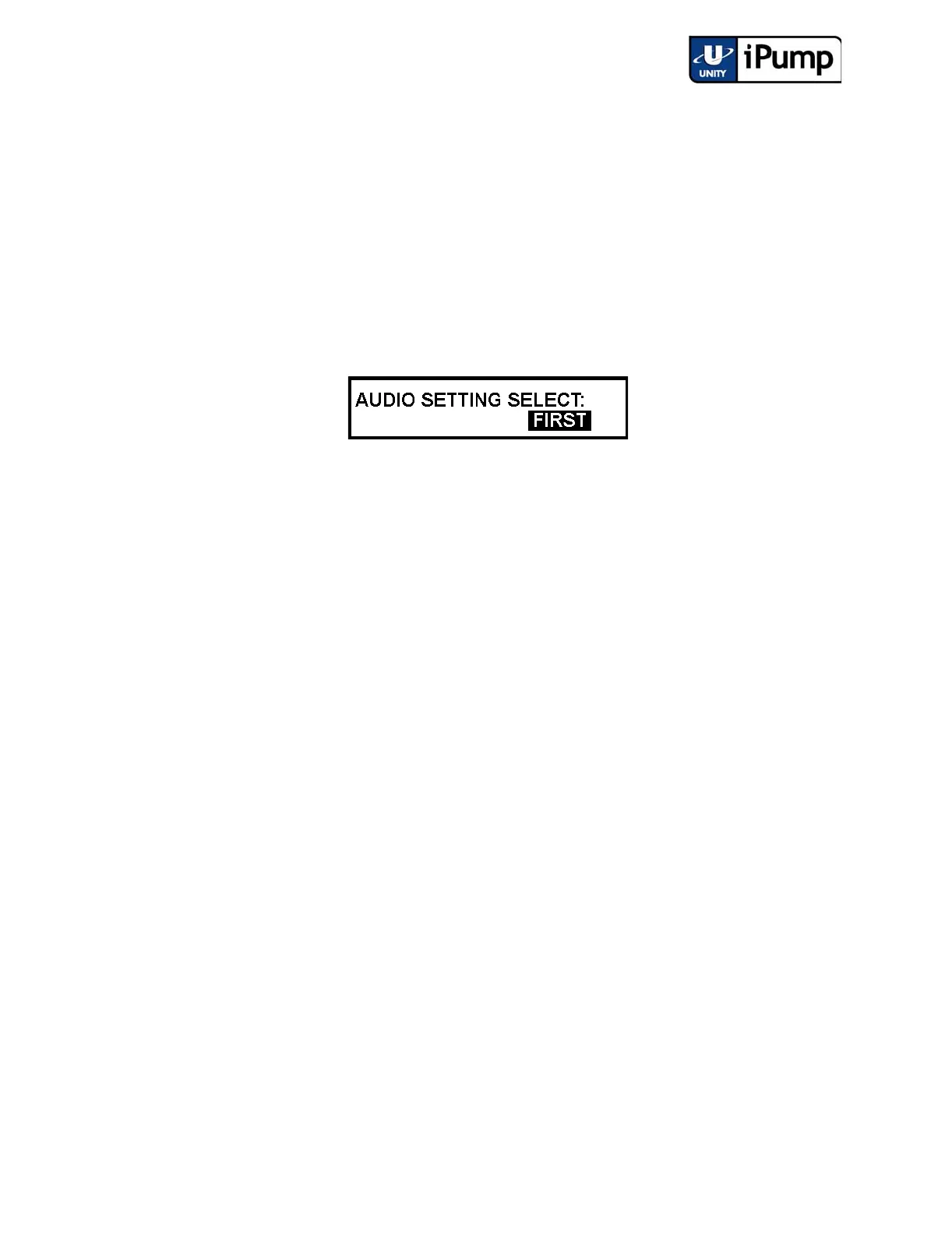
Other user-input screens allow choosing from a list of options. Here is an
example of a user-input screen with a selectable field.
Figure 3.8 Selectable Field
When you reach the screen, the current selection is displayed. To change your
selection:
a) Press ENTER to open the field. The current selection is highlighted.
b) Press the up or down arrow buttons to view available options one at a
time.
c) When the desired option is shown, press the ENTER button to save
that selection. Pressing ESC before pressing ENTER will cancel any
change.
NOTE: Front-panel control is limited by a four-minute timeout period. After
four minutes without input from the front-panel pushbuttons, the iPump LCD
will automatically return to the home screen and any unsaved changes will be
lost.



 To Next Page