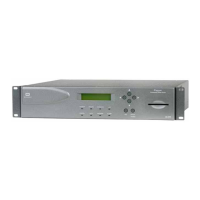
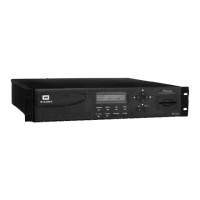
iPump User’s Manual
800009-01 Rev. A 42 wegener.com
iPumps.) The Record/Play chart on the left will display the name and
time remaining of the selected program or playlist.
e) To stop playing a program or playlist before it has played completely,
click the "Stop" hyperlink under the Record/Play chart.
File
Management
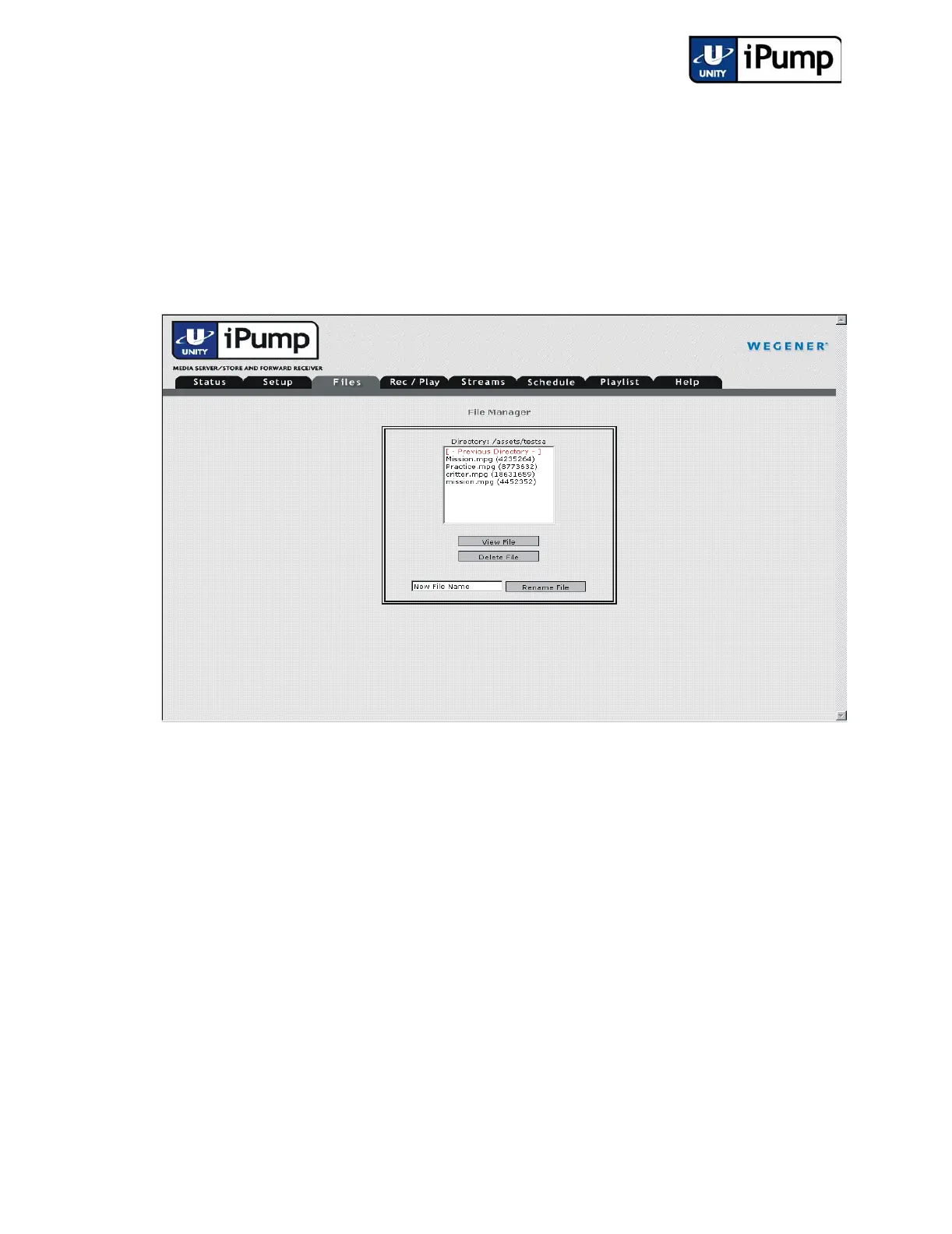
View, delete, and rename files using the following procedure:
a) Click the Files tab from your web browser interface.
b) Select a file by clicking on its filename under the File Manager list (file
size in bytes is shown adjacent to each filename). The name of the
current directory is shown just above the list of files.
When displayed,
you may double click
[-Previous Directory-] to view file
names in the next higher directory. Or, double click any selection
displayed in red text inside square brackets (such as
[directoryname] ) to move down to that directory level.
c) To view a file, click the View File
button or double-click the filename
to open/play the file on your screen. The file will be opened by the
application indicated by the extension on the filename (Windows Media
Player for MPG files, Microsoft Word for DOC files, for example).
d) To delete the selected file, simply click the Delete File button.



 To Next Page