37
Machine control board, Software
704 67 020 00 _ 111
OPERATING INSTRUCTIONSGF Robimat XL / XM
M
E
C+E
R
CHECK
←L SEL. M→ :E
ERROR C#001
CON. 4 BLOCKED
ERROR C#001
SEL.KEY JAM?
CHECK
OK! NO PROBLEMS
READY TO USE
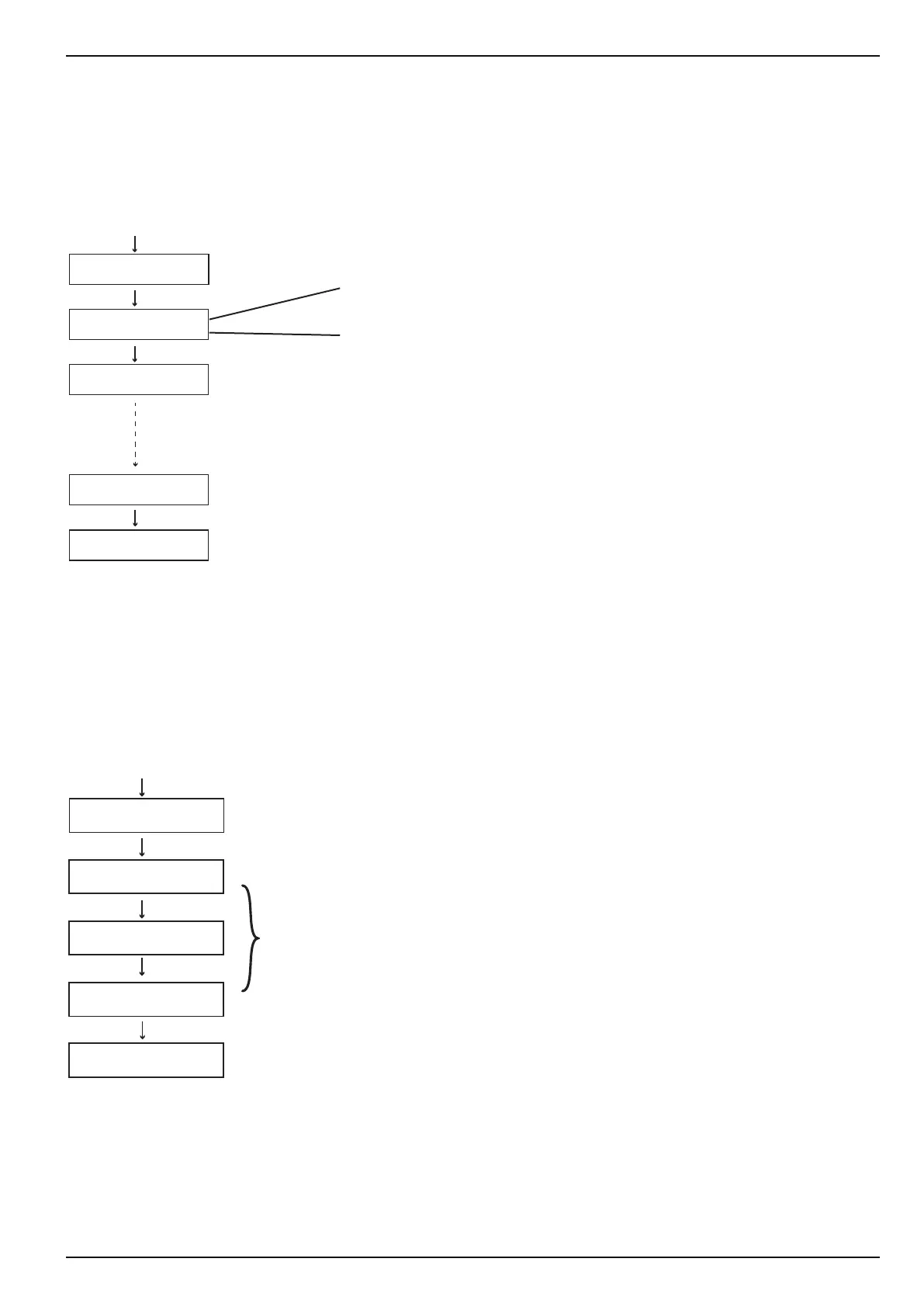
Current machine errors are displayed as text in the [CHECK] menu. An actual counter reading is displayed with each
malfunction.
• Button [ E ] acknowledges the error messages.
• Button [ C ] deletes the error messages.
• If several faults occur at the same time, the next message will be displayed once the previous error has been
acknowledged.
• The refund button [ R ] reverts to vending mode.
• If no button is pressed for a certain time, the control board automatically reverts to vending mode.
• Pressing [ M ] - [ 1 ] - [ E ] in sequence will display the error history.
• [ E ] scrolls through the error history list.
• The refund button [ R ] switches back to vending mode.
• If no button is pressed for a period of time, the machine control board automatically reverts to vending mode.
M
E
1+E
R
E
CHECK
←L SEL. M→ :E
ERROR C#001
CON. 4 BLOCKED
ERROR C#003
CREDIT SYSTEM ?
ERROR C#003
SEL.KEY JAM?
READY TO USE
Press C + E several times
The machine is again ready for operation.
Error history display
Error counter
Error test



 To Next Page