Configure settings to permit login with
SSH
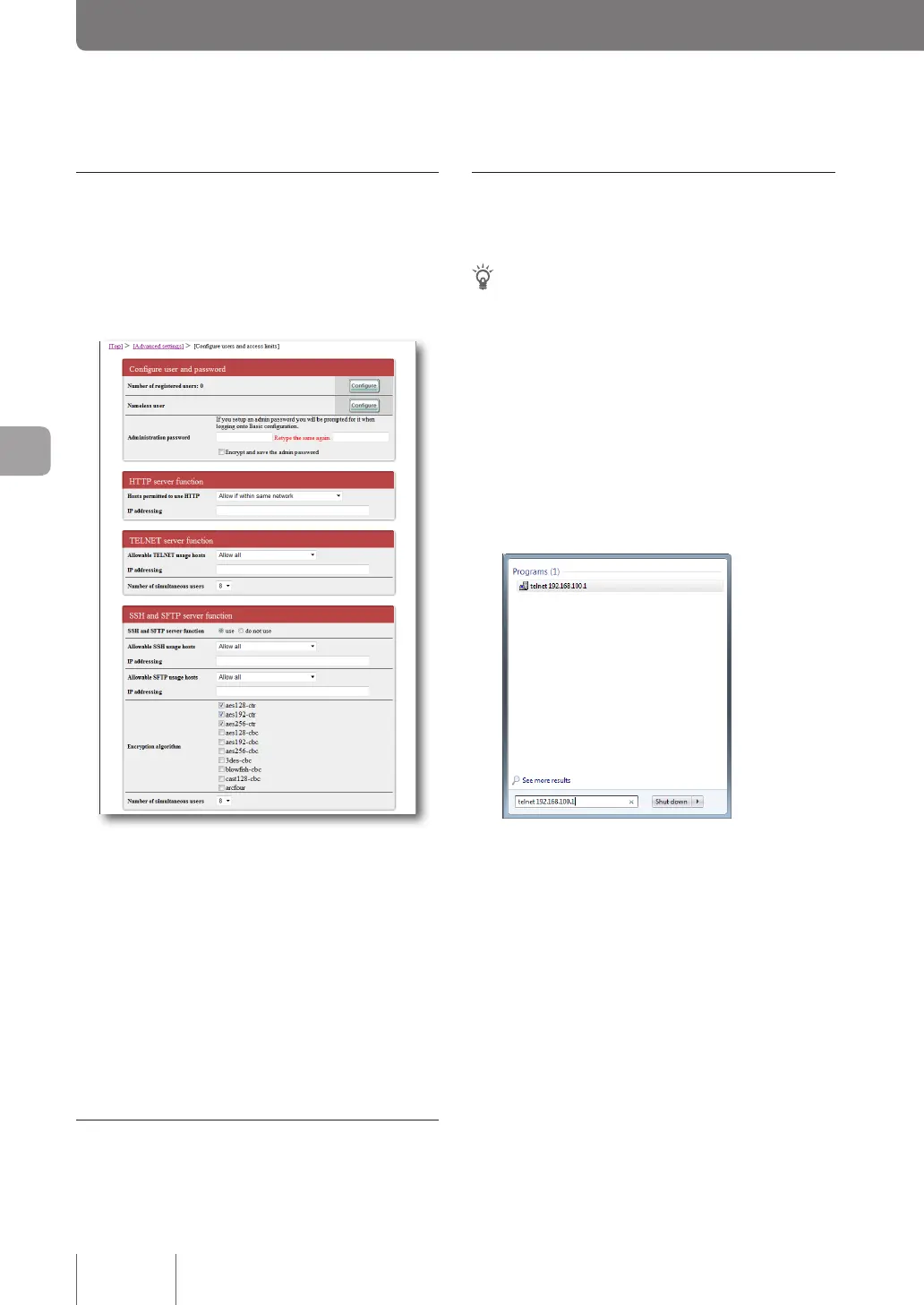
The SSH server function of the product is set to “do not
use” by factory default. To permit login using SSH, in the
“SSH and SFTP server function” eld on the “Congure
users and access limits” screen, change the setting to “use”.
For more details on the settings, click “Help” on the setup
screen and refer to the description displayed.
To open the “Configure users and access limits”
screen
From “Basic conguration page”, click the buttons on the
setup screen in the following order:
▶ “Advanced settings” in the top page
▶ “Congure” of “Congure users and access limits(HTTP,
TELNET, SSH, SFTP)”
Connect with SSH
Follow the instructions of the SSH software to be used.
Connect with TELNET
The following explains an example of connection from a
PC, using TELNET included as standard in Windows 7.
Tip
In Windows 7, TELNET must be enabled by the following
procedure:
1 From “Control Panel”, select “Programs” - “Programs and
Features” - “Turn Windows features on or off”.
2 In the “Windows Features” screen, select the “Telnet Client”
checkbox, and click “OK”.
1
From the “Start” menu, select “Search
programs and files”.
2
Type in “telnet 192.168.100.1”, and click “OK”.
If you have changed the IP address of the product, type
in the changed address instead of “192.168.100.1”.
3
When “Password:” is displayed, type in the
login password and press the Enter key.
If nothing appears on the screen, press the Enter key
once.
The password to be entered here for TELNET is the
login password for anonymous users.
118
Operating and managing the product
7
Changing the product settings (Continued from the previous page)



 To Next Page