Using the console port
The product can be congured with console commands
from a PC that is connected to the console port of the
product using a serial cable.
• In the “Congure users and access limits” screen, you
can prohibit access from web browser (HTTP), TELNET,
SSH, and SFTP software programs (page 100) to make the
product accessible only by means of physical connection.
This restricts users who can change settings, and helps
enhance security.
• You can also specify, from the terminal software, a
conguration le to be used upon startup.
Note
• The following explains an operation using Windows XP and
Hyper Terminal. As Windows Vista and other later Windows
operating systems do not include the hyper terminal utility,
you should use a terminal software program supplied from a
vendor to control its serial devices.
• For more details on how to use the terminal software, please
refer to the instruction manual attached to each software
program.
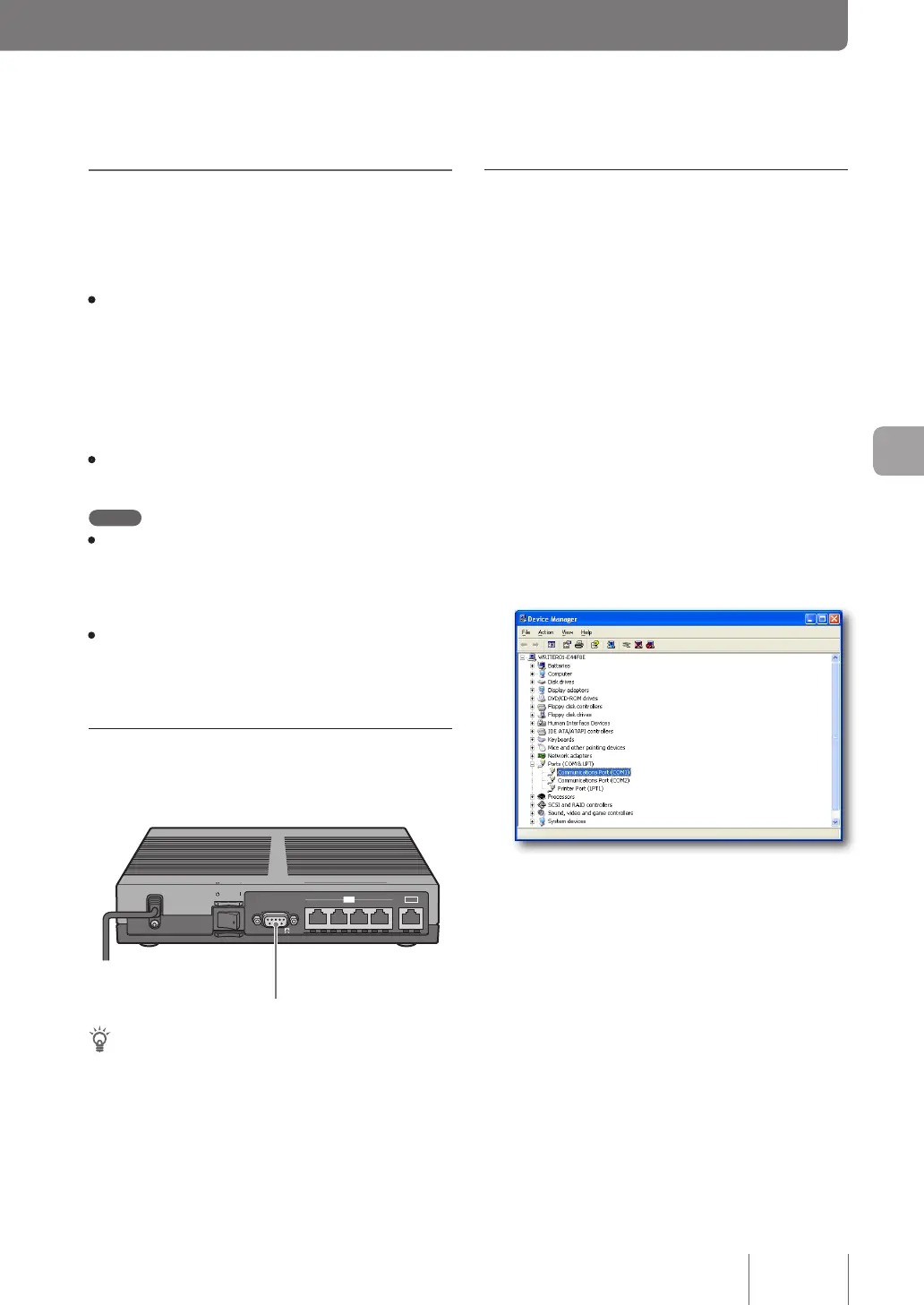
Connect the console port to your PC
Connect the console port of the product to the serial port of
your PC with a cross type serial cable.
ON
STANDBY
WAN
4
3
2
1
CONSOLE
LAN
1 2 3
WAN
CONSOLE
STANDBY ON
SPEED
LINK/DATA
4
LAN
Console port
Tip
One of the connectors attached to the serial cable must be 9-pin
D-sub male (to t the product port), and the other connector must
match the port type of your PC.
Check the console port number
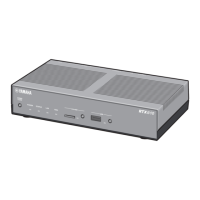
Check the COM port number to which the serial port of
your PC is assigned.
1
From the “Start” menu, click “My Computer”.
2
On the left of the “My Computer” screen, click
“View system information” in the “System
Tasks” field.
The “System Properties” screen appears.
3
Click the “Hardware” tab.
4
Click “Device Manager”.
The “Device Manager” screen appears.
5
Expand “Ports (COM & LPT)” and check the
“Communication Port Number” (COMx).
Normally, “COM1” is assigned.
6
Close the “Device Manager” screen and the
“System Properties” screen.
121
Operating and managing the product
7


 To Next Page