133
Operating and managing the product
7
Checking configuration
information of the product
Information required for connecting with the provider, and
various types of conguration information are managed as
a single conguration le (cong) inside the product. It is
convenient to save the conguration le to your PC because
you can use it as the backup of settings or edit it with the PC.
Furthermore, when you contact our support, being familiar
with the content of the conguration le may help solve the
problem at an early stage.
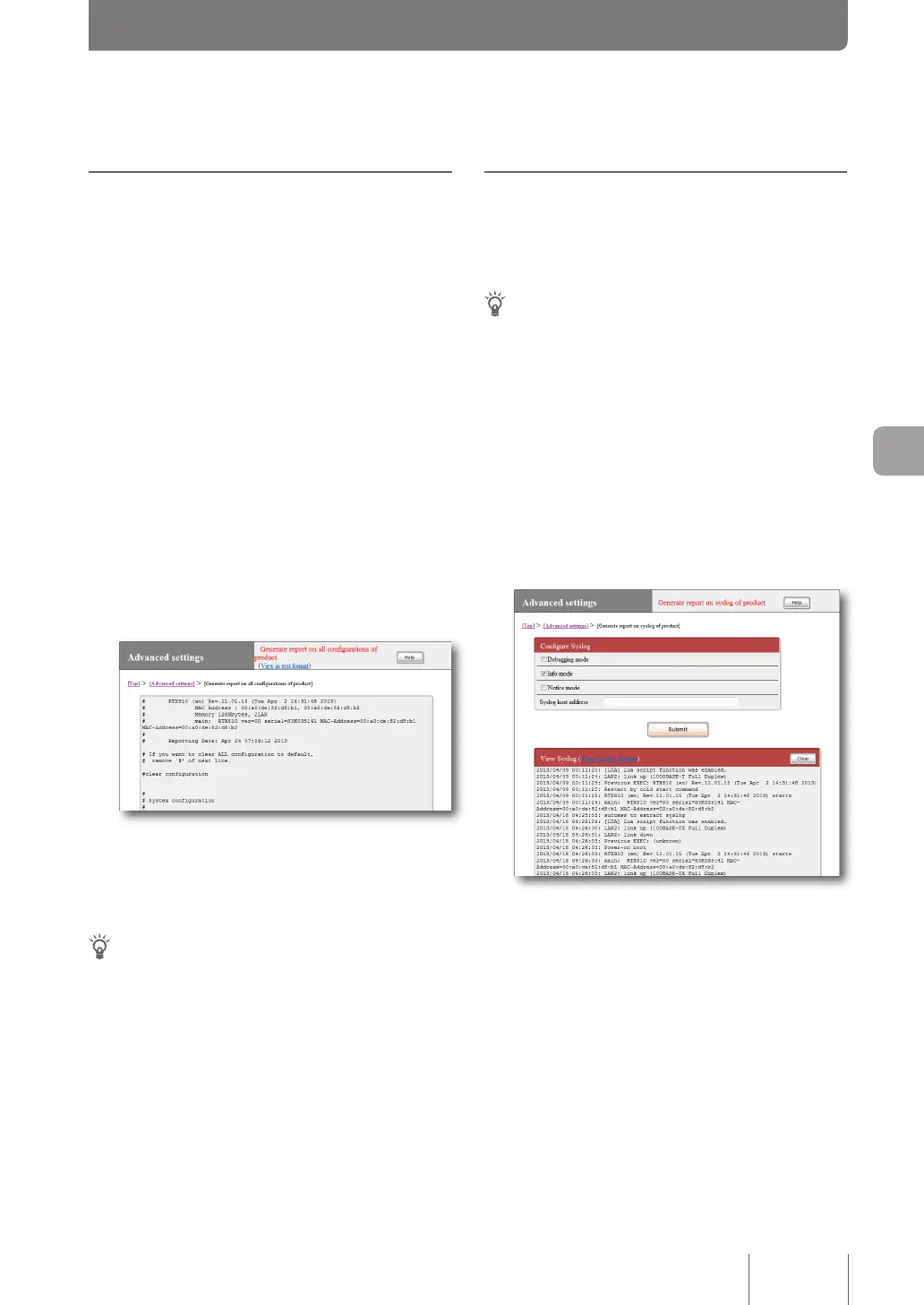
1
From the top page of “Basic configuration
page”, click “Advanced settings”, then
click “Execute” of “Generate report on all
configurations of product”.
All of the conguration information of the product is
displayed on the “Generate report on all congurations
of product” screen.
2
Copy the displayed configuration information,
and paste it to notepad or other software to
save it.
Tip
If you want to transfer the conguration le edited in your PC
to the product, copy the content of the conguration le in text
format to the clip board in advance, and then paste it to the
“Execute command” screen (page 120).
Checking the configuration information
and log of the product
Checking the product log
The history of the product operation is managed as a log le
(Syslog). Checking the history of the product operation from
the log le may give you a clue to solve a network problem.
Tip
There are several steps in the method of saving the log le.
Please refer to “Command reference” (included in the attached
CD-ROM) for more information.
1
From the top page of “Basic configuration
page”, click “Advanced settings”, then click
“Execute” of “Generate report on syslog of
product”.
The product log is displayed on the “Generate report
on syslog of product” screen.
2
Copy the displayed log, and paste it to notepad
or other software to save it.


 To Next Page