Using an external memory
device
You can load a conguration le stored in a commercially-
available external memory device (USB memory stick or
microSD card) to the product to change settings. This is
convenient when you want to change the settings of multiple
units of the product.
Note
• External memory devices used for the product must be
formatted in FAT or FAT32.
• You cannot use a USB hub to connect two or more USB
memory sticks or other external memory devices to the
product.
• Some types of USB extension cables may not be able to work
normally. Use the USB memory stick by inserting it directly
into the USB port of the product.
• Do not remove the external memory device while the USB
lamp or microSD lamp of the product is lit up or ashing.
Doing so may damage data in the external device. Before
removing the external device, hold down the USB button or
microSD button for two seconds and make sure that the USB
lamp or microSD lamp has gone off.
Change settings so that the
configuration file in the external
memory device can be loaded to the
product
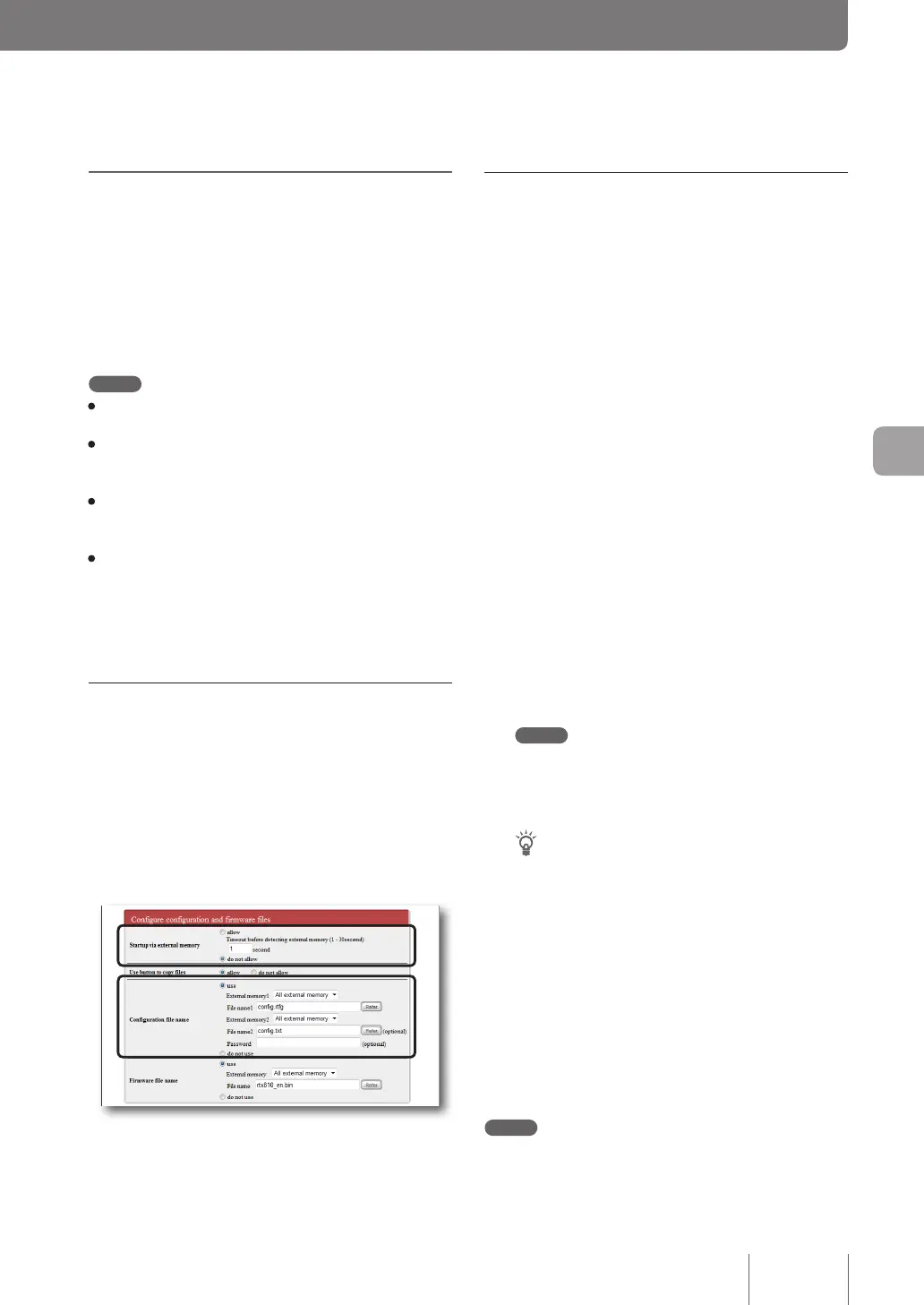
In the “Startup via external memory” eld on the “Congure
external device” screen, select “do not allow”. Also in the
“Conguration le name” eld, specify the name of the
conguration le to be copied to the product.
To open the “Configure external device” screen
From “Basic conguration page”, click the buttons on the
setup screen in the following order:
▶ “Advanced settings” in the top page
▶ “Congure” of “Congure external device”
123
Operating and managing the product
7
Press the button on the product front
panel to load a configuration file
1
Prepare an external memory device storing
a configuration file.
Specify the same le name as that specied in the
“Conguration le name” eld on the “Congure
external device” screen.
2
Insert the external device into the USB port
or microSD slot of the product.
The USB lamp or microSD lamp of the product lights
up or ashes.
3
While holding down the USB button or
microSD button, hold down the DOWNLOAD
button for three seconds.
The conguration le prepared in step 1 is loaded to
the product. After the le has been loaded, the product
restarts automatically. After the restart, the product
operates using settings of the loaded conguration le.
Note
If “allow” is selected in the “Startup via external memory”
eld on the “Congure external device” screen, the product
starts by using the conguration le in the external memory
device. In this case, do not remove the external device.
Tip
If a rmware le having the name specied in the “Firmware
le name” eld on the “Congure external device” screen is
included in the external memory device, the rmware le
begins to be copied to the product continuously.
4
Hold down the USB button or microSD button
for two seconds.
The USB lamp or microSD lamp of the product goes
off.
5
Remove the external memory device.
Note
If loading the conguration le from the external device fails,
check “Unable to use USB device” (page 160).


 To Next Page