102
Maximizing use of the product
6
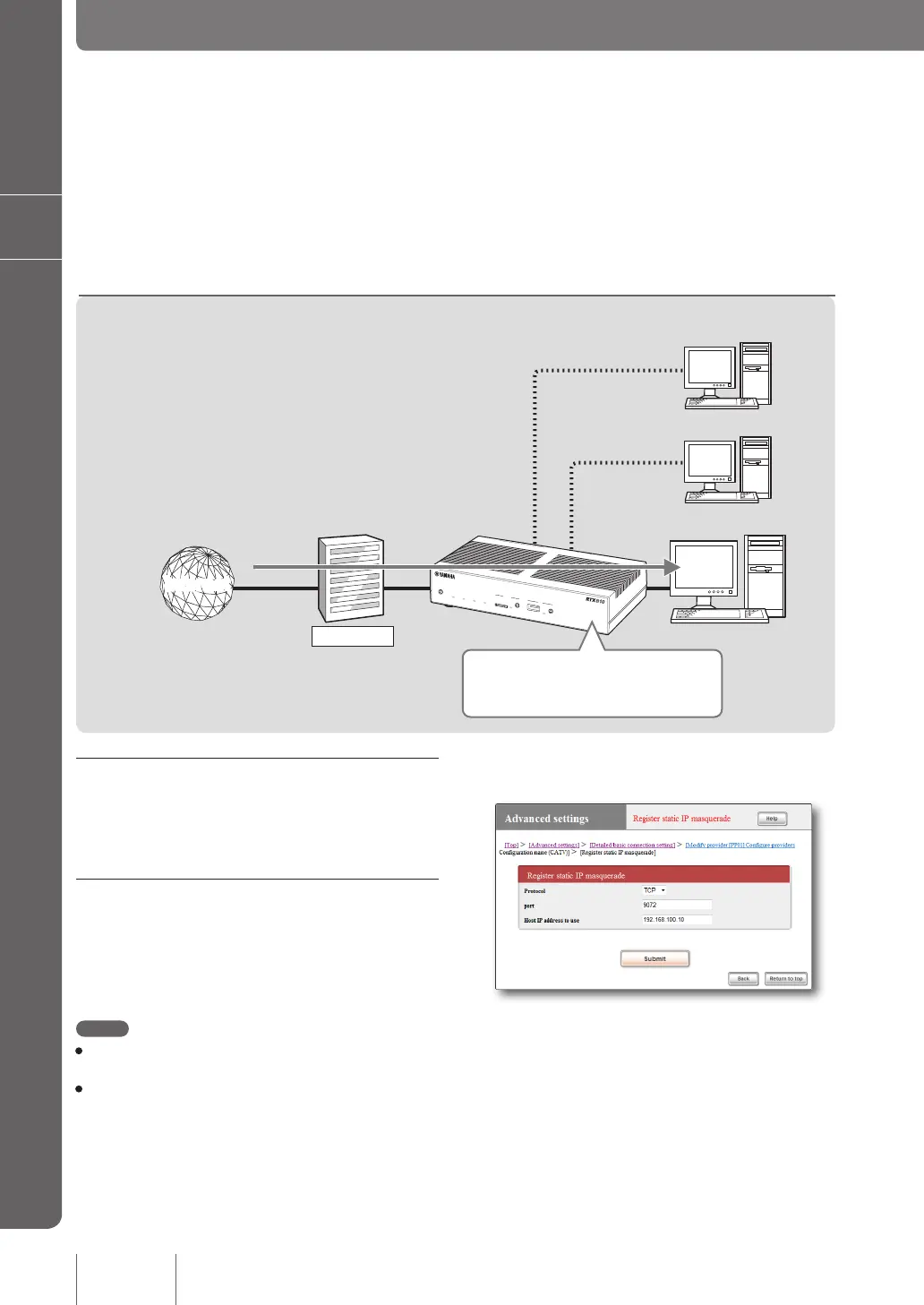
192.168.100.10
192.168.100.190
192.168.100.191
Provider
InternetInternet
DOWN
LOAD
POWER
STATUS
LAN
WAN
micro8D
USB
WAN
4
3
2
1
ON
STANDBY
CONSOLE
LAN
By registering the IP address conversion table (static IP
masquerade) in advance, packets of a specic protocol
can be sent to a specic host within the LAN.
If the incoming packet is for communication
port 9072, transfer the packet to a host
having IP address “192.168.100.10”.
Using a service requiring a global IP
address within LAN
1. Set the IP addresses of PCs.
Assign a xed private IP address to the PC for which you
want to permit external access.
2. Register the IP address conversion
table.
In the “Register static IP masquerade” screen, register the
conversion table of protocol, port number and the host IP
address. (Static IP masquerade settings)
Note
• For information about the protocol and port number, please
refer to the manual of the software or service to be used.
• So far as representative software programs are concerned,
you can click “Help” on the “Register static IP masquerade”
screen to conrm the port number to be used and other setting
examples.
1. Using the static IP masquerade setting to solve the
problem
When you attempt to use an application program that requires a global IP address from your LAN via the router, the program
may not operate correctly. You can solve the problem using either of the following methods.
1. Registering the conversion table of protocol, port number and the host IP address. (Static IP masquerade).
2. Using the DMZ host function.
For more details on the settings, click “Help” on the setup
screen and refer to the description displayed.
To open the “Register static IP masquerade”
screen
From “Basic conguration page”, click the buttons on the
setup screen in the following order:
▶ “Advanced settings” in the top page
▶ “Congure” of “Detailed basic connection setting”
▶ “Congure” of the destination of which settings you
want to change
▶ “Add” in the “Static IP masquerade” eld


 To Next Page