GENERAL SETUP MENU
Accessing the general setup menu
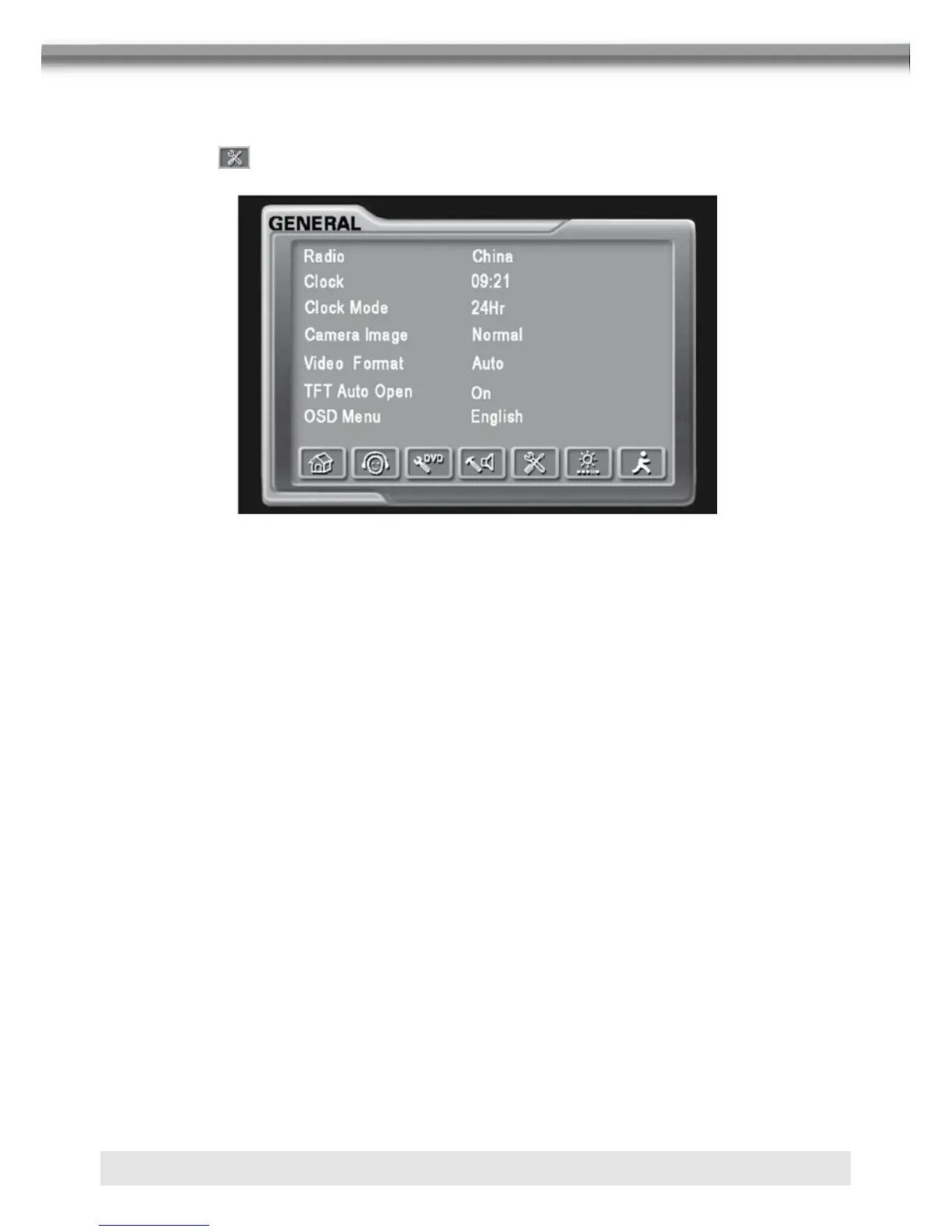
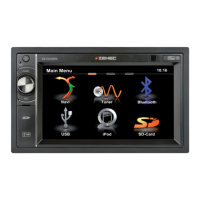
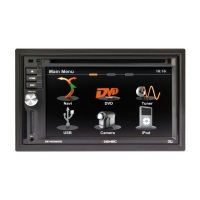
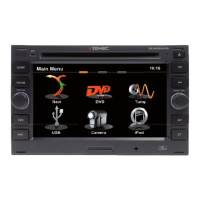
■ Select the button on the screen to access the GENERAL setup.
Selecting a feature for adjustment
Press the direction buttons on the remote control or touch the option directly on the screen
to select the feature to be adjusted.
Adjusting a feature
1. Enter the option field for the feature you want to adjust by pressing the OK button on the
remote control or by pressing the SMART DIAL button. A submenu appears in a second
row with the selected option.
2. Select a new value by pressing the direction button.
3. Confirm your selection by pressing the OK button or pressing the SMART DIAL button.
The adjustment of the new value is complete.
Adjusting the clock
1. Access the “Clock” setting under the general setup menu.
2. Press the direction button on the remote control to move the cursor to the “Hour” or
“Min” position, and press the OK button. You also can touch the “Hour” or “Min” position
directly.
3. The numeric keypad will pop up.
4. Press the numeric button on the remote control or touch the numeric keypad on the
screen to adjust the hour or minutes.
5. Press the OK button on the remote control or on the keypad of the screen to confirm
adjustment.
Return to normal playback
The system will automatically return the previous playback mode that before accessing the
setup menu after setting with no operation.
18
Selecting a Feature for Adjustment
Press the ( / ) buttons on the remote to select a feature to be adjusted.
Rotate SMART DIAL clockwise/anticlockwise to select a feature to be adjusted.
Touch directly the options on the screen to select a feature to be adjusted.
Adjusting a Feature
noitcnuF snoitpO gnitteS
Brightness
-10 to +10
Press the (
/ ) buttons on the remote or rotate
the SMART DIAL clockwise/anticlockwise to
adjust the Brightness to the desired setting.
Screen Tilt 1 to 6
Press the (
/ ) buttons on the remote or touch
the (1 to 6) number on the screen directly to adjust
the tilt of the screen to the desired degree.
On
Screen Saver
Off
Touch to activate/deactivate the Screen Saver.
No
TS Calibrate
Yes
Touch “Yes” to enter the touch screen calibrate
mode.
Version
Displays on screen the firmware version of this
unit.
General setup Menu
Accessing the General Setup Menu
· Select the
button on the bottom of the touch screen to access the General setup.


 To Next Page