PAGE 32
206-03890
VIDEO Menu
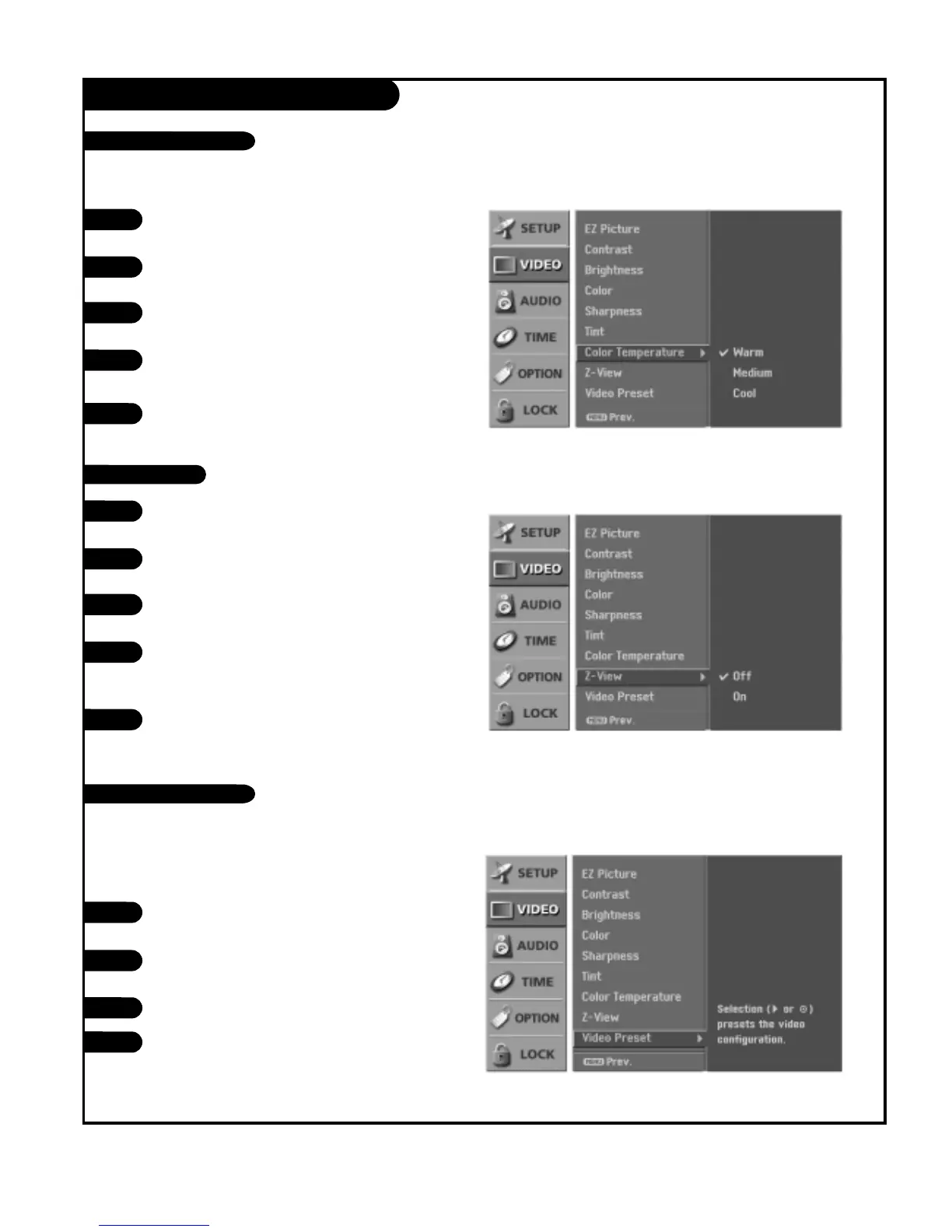
Press the MENU button on the remote control, then use
the UP/DOWN arrow button to select the Video menu.
Press the RIGHT arrow button to access the Video
menu.
Use the UP/DOWN arrow button to select Video Preset.
Use the RIGHT arrow button to preset the video config-
uration.
1
2
3
This is the function to quickly reset every Video menu
option to their factory preset values.
4
Video Preset
Press the MENU button on the remote control, then use
the UP/DOWN arrow button to select the Video menu.
Press the RIGHT arrow button to access the Video
menu.
Use the UP/DOWN arrow button to select Z-View, and
then press the RIGHT arrow button.
Use the UP/DOWN arrow button to select Off or On.
On, automatically adjusts the picture display for opti-
mum quality.
Press EXIT button to return to TV viewing or press
MENU button to return to the previous menu.
1
2
3
4
5
Z-View
Press the MENU button on the remote control, then use
the UP/DOWN arrow button to select the Video menu.
Press the RIGHT arrow button to access the Video
menu.
Use the UP/DOWN arrow button to select Color
Temperature, and then press the RIGHT arrow button.
Use the UP/DOWN arrow button to select Warm,
Medium, or Cool.
Press EXIT button to return to TV viewing or press
MENU button to return to the previous menu.
1
2
3
Lets you choose one of three automatic color adjustments. Set this to warm for hotter colors such as red, or set to cool for less intense
colors with more blue.
4
5
Color Temperature


 To Next Page