PAGE 46
206-03890
Caption Option Menu
6
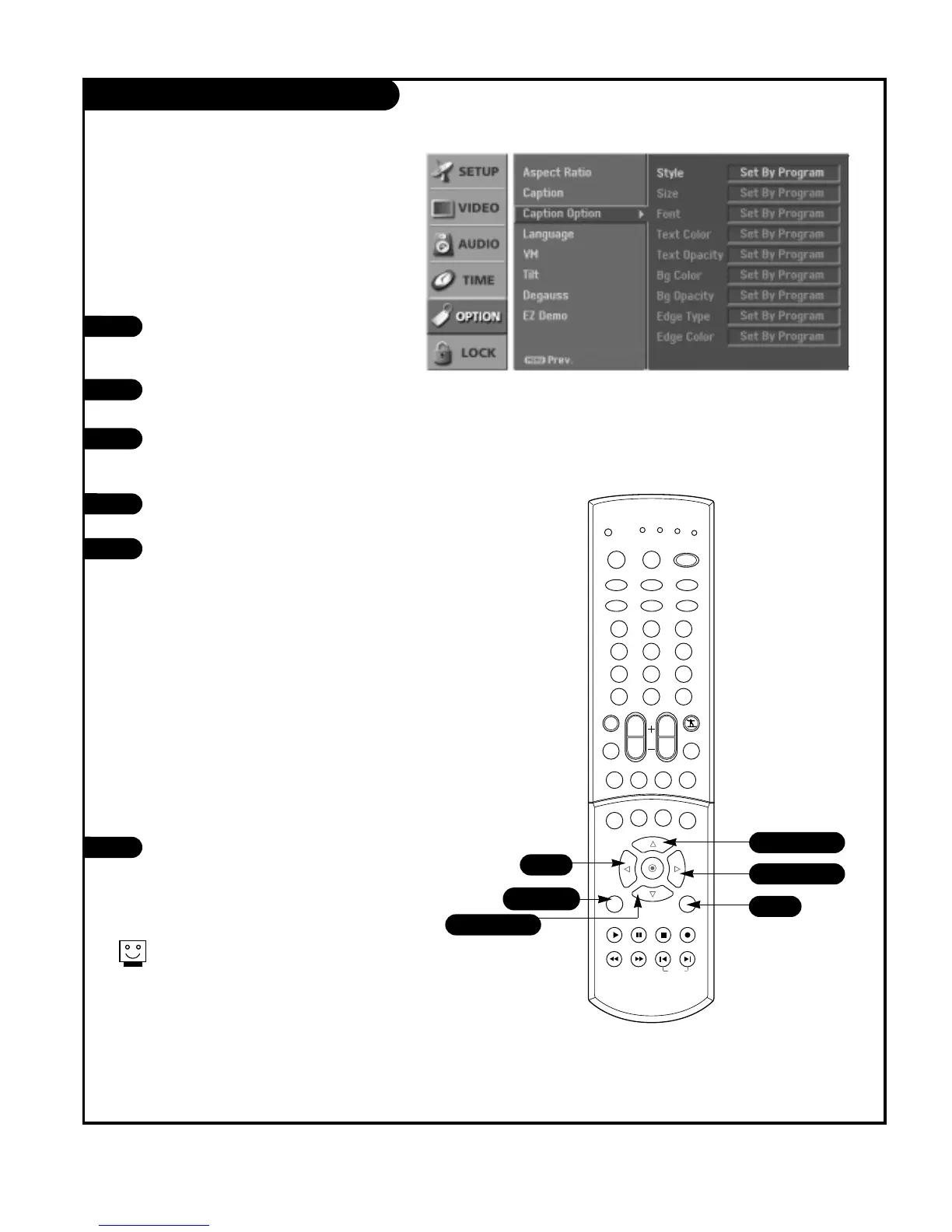
Customize the DTV/CADTV captions that will
appear on your screen.
1
2
Press the MENU button on the remote
control, then use the UP/DOWN arrow
button to select the Option menu.
Press the RIGHT arrow button to access
the Option menu.
Use the UP/DOWN arrows to select the
Caption Option, then press the RIGHT
arrow button.
Use the LEFT/RIGHT arrow button to
select Custom.
Use UP/DOWN arrow button to customize
the Style, Font, etc., to your preference.
Your Caption options are:
• Size: Set the size the words will appear
in.
• Font: Select a typeface for the words.
• Text Color: Choose a color for the text.
• Text Opacity: Specify the opacity for
the text color.
• Bg (Background) Color: Select a back-
ground color.
• Bg (Background) Opacity: Select the
opacity for the background color.
• Edge Type: Select an edge type.
• Edge Color: Select a color for the
edges.
Press EXIT button to return to TV viewing
or press MENU button to return to the
previous menu.
3
4
5


 To Next Page