6. Launch the ZOOM Handy Control & Sync app on the smartphone or tablet. Then, conduct connection
procedures from the app.
When connection completes “Handy Control & Sync Connected” will appear on the display.
Refer to the manual for the ZOOM Handy Control & Sync app for details about app settings and
operation procedures.
HINT
If connection occurred previously with ZOOM Handy Control
&
Sync, searching for connected devices will
begin automatically after step 2.
Checking timecode data
While timecode is being received from a smartphone or tablet, timecode data can be checked on the Home
Screen.
The timecode appears above the recordable time on the Home Screen as the hour, minute, second and
frame.
❶
Hour
❷
Minute
❸
Second
❹
Frame
Disconnecting from smartphones and tablets
Disconnection is possible by quitting the app on the smartphone or tablet.
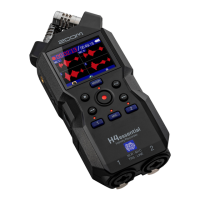
Removing the BTA-1 from the H5studio will also disconnect it from ZOOM Handy Control & Sync.
150



 To Next Page