Making preparations
Inserting microSD cards
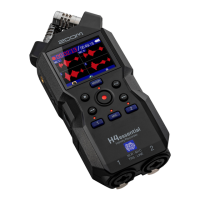
1. When the power is off, open the microSD card slot cover, and insert a microSD card with the logo
facing up all the way into the slot.
To remove a microSD card, push it further into the slot and then pull it out.
2. Close the microSD card slot cover.
NOTE
• Always make certain that the power is off when inserting or removing a microSD card. Inserting or
removing a card while the power is on could result in data loss.
• When inserting a microSD card, be sure to do so with the correct orientation and facing.
• Recording and playback are not possible when a microSD card is not loaded in the H5studio.
• When an SD card that has not been used with the H5studio before is loaded in it, an SD card test screen
will open.
Use the (selection) dial to select “Execute” and press the (ENTER) button to open the SD
card screen and test the card. (→Testing microSD cards)
• The following types of recording media are supported.
- microSDHC memory cards
- microSDXC memory cards
See the ZOOM website (zoomcorp.com/help/h5studio) for information about microSD cards that have
been confirmed to work with this unit.
32



 To Next Page