Setting the date and time (first time starting up)
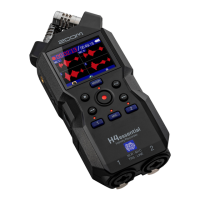
Set the date and time when a screen to set them is shown after setting the date format the first time the
power is turned on after purchase or after the H5studio has been reset to factory defaults. The date and
time are stored in recording files.
1. Use the (selection) dial to select the desired item to set and press the (ENTER) button.
2. Use the (selection) dial to change the value and press the (ENTER) button.
3. Repeat steps 1–2 to set the date and time.
4. After setting all the items, use the (selection) dial to select and press the
(ENTER) button.
After the date and time setting is confirmed, set the battery type when a screen to set it opens.
(→Setting the type of batteries used (first time starting up))
NOTE
If power is not supplied by an AC adapter or batteries for a long time, and the power supply for date and
time retention becomes depleted, data stored in the unit will be reset.
If the Set Date/Time Screen appears during startup, set them again.
44



 To Next Page