Making input settings and monitoring adjustments
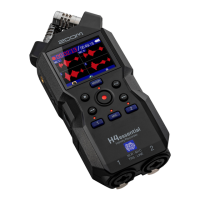
When using the H5studio as an audio interface, input settings and monitoring adjustments can be made in
the same way as when using it as a recorder.
See the references below and make input settings and monitoring adjustments.
Reference Explanation
Enabling tracks for recording Select MIC (mic capsule) and/or INPUT 1 and 2 as the inputs.
Converting mic capsule input to mono Mic capsule input can be mixed to a single channel and
handled as mono audio.
Using plug-in power Turn on the plugin power setting when a mic that is
compatible with plug-in power is connected to the MIC/LINE
IN jack.
Setting the input level (mic/line) The input level can be set according to the devices connected
to the H5studio INPUT 1 and 2.
Setting phantom power INPUT 1 and 2 support phantom power and can provide +48
V. Turn on phantom power when condenser mics that require
it are connected.
This can be turned on/off separately for each input.
Reducing noise (Low Cut) Low frequencies can be cut to reduce the sound of wind and
vocal pop noises, for example.
This can be set separately for each input.
Setting the Advanced Limiter This limiter can be turned on/off on each track.
Enabling stereo linking Using stereo-linking, input signals can also be handled as
stereo audio.
When the stereo setting is used, INPUT 1 will become the left
channel and INPUT 2 will become the right channel.
When the mid-side stereo setting is used, INPUT 1 will become
the mid signal and INPUT 2 will become the side signal. Mid
captures sound front and center while Side captures sound
left and right. The stereo width can be changed by adjusting
the Side level.
Linking gain knobs The gain controls can be set to be linked for the L and R
channels of the mic capsule as well as for INPUT 1 and INPUT
2.
Adjusting input gain
Use the (GAIN) knobs for each track to adjust their input
gains.
Monitoring input sounds Use headphones, for example, to monitor input sounds and
adjust levels.
108



 To Next Page