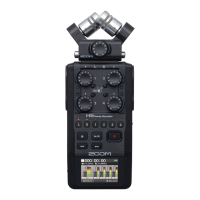
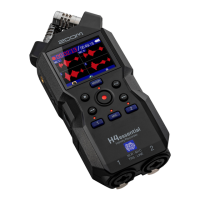
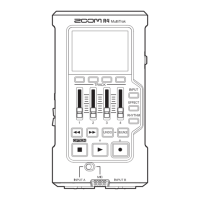
Recording on the H5studio while using it as an audio
interface
As explained in “Connecting to computers, smartphones and tablets”, the H5studio can record while it is
being used as an audio interface if the Mode is set to “Audio I/F + REC”. In this case, recording settings can
be made in the same way as when using it as a recorder.
See the references below and make recording settings.
Reference Explanation
Setting the recording mode 16/24bit Fixed or 32bit Float can be selected for recording files.
Setting whether to record mix files The recording of stereo mix files can be disabled to save SD card
space.
Setting the Advanced Limiter for
mix files
This limiter can be turned on/off for mix files.
Capturing audio before recording
starts (pre-recording)
The input signal is always buffered for a set amount of time, so it
can be captured (pre-recorded) for up to 6 seconds before the time
when the (REC) button is operated to start recording.
Enabling the recording start tone Half-second tone signals (recording start tones) can be output from
the PHONE/LINE OUT jack when recording is started.
Writing metadata (iXML chunks) to
recording files
Various related information (metadata) stored in iXML chunks can
be written to recorded files.
NOTE
The following settings cannot be changed when the Mode is set to “Audio I/F + REC” as explained in
“Connecting to computers, smartphones and tablets”.
• The sample rate of the H5studio
• The bit depth of the H5studio when the recording mode is “16/24-bit Fixed”
To change the sample rate, disconnect from the computer, smartphone or tablet. Then, follow step 6 of
“Connecting to computers, smartphones and tablets”.
To change the bit depth, disconnect from the computer, smartphone or tablet first. (→Selecting the bit
depth)
HINT
Press the (PLAY/PAUSE button) to open the Playback Screen where recorded files can be played back.
(→Playing recordings)
113



 To Next Page