Changing the file format and exporting files
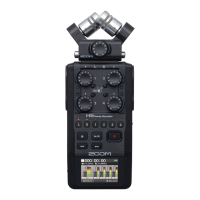
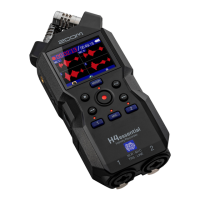
The H5studio can convert and export recorded files in other formats.
This is convenient, for example, when loading files recorded on the H5studio to a computer, smartphone or
tablet if the application being used does not support 32-bit float format.
In addition, the exported tracks can be selected and trimmed to only the necessary parts as well as
normalized to optimize the volume of the recorded files.
1. On the Playback Screen, use the (selection) dial to select (EXPORT) and press the
(ENTER) button.
This opens the Export Screen.
2. Select the bit depth.
Use the (selection) dial to select “Bit Depth” and press the (ENTER) button. Then, use
the (selection) dial to select the format and press the (ENTER) button.
The following formats can be selected.
16-bit, 24-bit, 32-bit Float
3. Select the tracks to export.
Use the (selection) dial to select “Track” and press the (ENTER) button. Then, use the
(selection) dial to select the tracks to export and press the (ENTER) button.
Setting value Explanation
2Mix This exports a stereo file that uses the mix adjusted with the mixer
during playback. (→Adjusting the track level balance)
All This exports all the tracks separately.
95



 To Next Page