7. Select the power supply.
Use the (selection) dial to select “Power” and press the (ENTER) button. Then, use the
(selection) dial to select the power supply and press the (ENTER) button.
Setting value Explanation
USB Power will be supplied using USB bus power.
Batteries The batteries in the unit will be used.
NOTE
• When “USB” is selected, power is supplied through the USB cable from the computer. Depending on the
USB bus power supply capacity of the computer, operation using bus power might not be possible. If this
is the case, select “Batteries” and operate using batteries when connected.
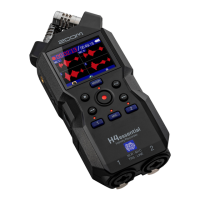
• When “Batteries” is selected, power will not be supplied from the other device. Instead, the H5studio will
operate using the batteries in it.
8. Use the (selection) dial to select “Connect” and press the (ENTER) button to confirm.
This connects with the computer, smartphone or tablet.
9. Launch an application on the computer, smartphone or tablet, and select “H5studio” as the “Audio” or
“Input/Output” device.
NOTE
• If “H5studio” cannot be selected for the “Sound” setting on a computer, it can still be used as a 32-bit
float audio interface by selecting “H5studio” as the “Audio” or “Input/Output” device in an application that
supports 32-bit float format.
• See the operation manuals of applications for information about their operation.
107



 To Next Page