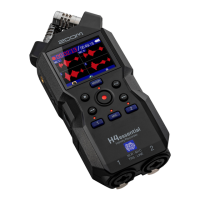
• USB: This opens a screen to connect the H5studio to a computer, smartphone or tablet
in order to check and move files on the microSD card and make audio interface settings.
(→Transferring files to computers and other devices, Using as an audio interface)
• SYSTEM: This opens a screen where various unit settings, including date/time and display
settings, can be made. (→Making various settings)
■ When recording
The name of the currently selected item is shown at the left end of the Menu bar.
• MARK: Use this to add marks to the file being recorded. (→Adding marks during recording)
• OUTPUT: This opens a screen with settings related to output. (→Making output settings)
• DISPLAY: The Home Screen can be set to show level meters only, waveforms only or level
meters and waveforms. (→Changing screen content)
• TRASH: Use this to move the file being recorded to the trash. (→Moving the file being recorded
to the TRASH folder)
HINT
• When the Playback Screen or a settings screen is open, press the (STOP) button to return to the
Home Screen. This function is useful when you want to return to the Home Screen quickly from various
setting screens. (Moving to the Home Screen is not possible from some screens.)
• Clip indicators can be cleared when recording is paused by pressing and holding the (STOP) button.
22



 To Next Page