• : INPUT 1
• : INPUT 2
❻
Playback position bar
This shows the current playback location.
❼
Mark bar
This shows marks added to the file being played back.
❽
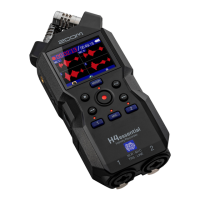
Level meters (MIC (mic capsule), INPUT 1/2, stereo mix)
This shows the levels of the tracks.
From the left, the level meters are for the MIC (mic capsule), INPUT1, INPUT2 and stereo mix tracks.
The input types are shown at the bottom of each level meter.
• : Mic capsule L/R
• : INPUT 1
• : INPUT 2
The waveform will be shown in gray when a track is off.
❾
Faders
Use this to adjust the levels of the tracks. (→Adjusting the track level balance)
The current fader value is shown at the top left of the screen.
❿
Menu bar
Turn the (selection) dial to show the Menu Bar at the top of the screen.
This shows icons for various setting items so settings screens, including output and repeat, can be
opened and settings can be made easily.
Use the (selection) dial to select an icon, and press the (ENTER) button to conduct the
following operations.
The name of the currently selected item is shown at the left end of the Menu bar.
• File List: This opens the File List Screen where the files on the microSD card can be checked.
(→File List Screen)
• A-B Repeat: Use this to set the starting and ending points for repeat playback. (→Repeating
playback of a set interval (A-B repeat))
• OUTPUT: This opens a screen with settings related to output. (→Making output settings)
24



 To Next Page