EasyManua.ls Logo

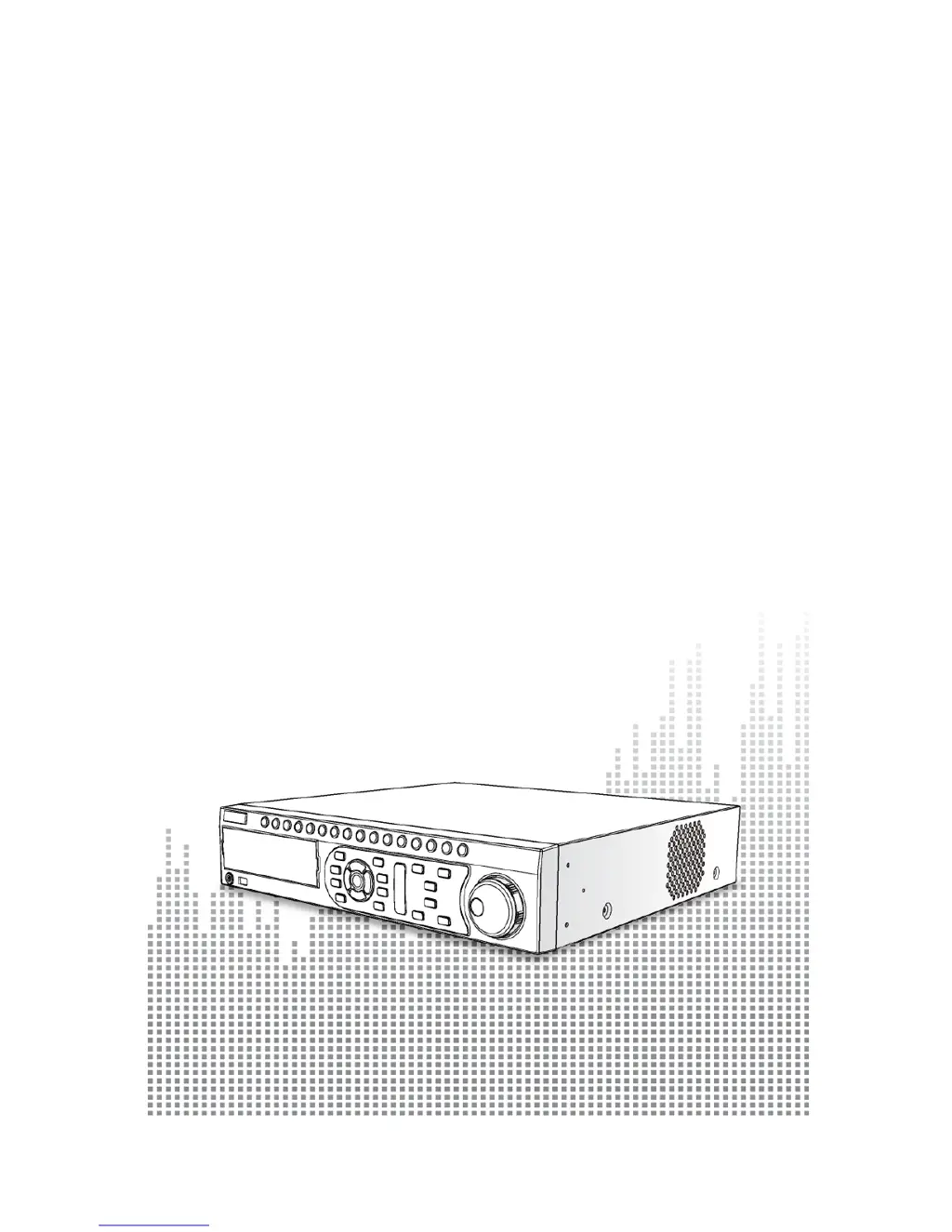
360 Vision H7016 - User Manual

Default Icon
111 pages
Print Icon
To Next Page IconTo Next Page
Loading...
H7016
User Manual

Questions and Answers

  • J
    Jonathan McdanielSep 5, 2025
    What to do if there is no reaction from the alarm even if the sensor has detected an event on my 360 Vision DVR?
    • J
      John PayneSep 5, 2025
      If the alarm on your 360 Vision DVR does not trigger even when the sensor detects an event, ensure that the recording mode is set to sensor recording and that you have selected the correct alarm output port. Confirm that you are using an A Type sensor. Finally, check and adjust the sensor operation time to ensure it is properly set.
  • R
    Ralph LambertSep 3, 2025
    How to improve poor image quality on a 360 Vision H7016?
    • S
      Sherri ParkerSep 3, 2025
      If you're experiencing poor image quality with your 360 Vision DVR, connect the camera directly to another monitor to check its operation status. Also, verify the camera and lens are properly adjusted. If the image quality is still poor, consider using a camera with a higher resolution.
  • N
    Nicole RamosSep 1, 2025
    What to do if there is no camera input signal on my 360 Vision H7016 DVR?
    • S
      Shane SpenceSep 1, 2025
      If you are not getting any camera input signal on your 360 Vision DVR, first, check the camera's power connection to ensure it is properly connected. Next, inspect the camera and cable connections for any issues, and if necessary, try changing the cable. Finally, verify that the recording settings are correctly configured to enable recording.
  • C
    Christina LongAug 31, 2025
    How to improve the color of the image in the monitor on a 360 Vision DVR?
    • B
      billywhiteAug 31, 2025
      If the color of the image on your 360 Vision DVR monitor is poor, begin by checking and correcting the monitor settings. If the issue persists, adjust the output setting values for contrast and brightness in the display settings. Should these steps not resolve the problem, the video chip may have an issue, and you should have it checked by an authorized vendor or the installer.
  • J
    johnnyhowardAug 29, 2025
    What to do if the monitored image is displayed too dark in the monitor on a 360 Vision DVR?
    • J
      Jacqueline RodriguezAug 29, 2025
      If the monitored image on your 360 Vision DVR appears too dark, try adjusting the monitor settings first. If adjusting the monitor doesn't solve the issue, check and adjust the camera iris, as it may not be correctly adjusted.
  • M
    Megan SteinAug 27, 2025
    How to fix a monitored image that is displayed too bright in the monitor on a 360 Vision H7016?
    • D
      Dawn DavisAug 28, 2025
      If you find that the monitored image on your 360 Vision DVR is too bright, you can adjust the monitor settings to correct this. Also, check and adjust the camera iris, as it may not be properly adjusted. If the issue persists, there might be a problem with the video display or the camera's synchronous signal; in this case, inspect the video cable and connection, or try using a different camera to see if that resolves the brightness issue.
  • K
    Kevin CastilloAug 25, 2025
    Why is my remote monitoring program successfully executed, but not properly connected to my 360 Vision H7016?
    • E
      Elizabeth DiazAug 25, 2025
      If your remote monitoring program is successfully executed but not properly connected to your 360 Vision DVR, verify that the network is connected by performing a ping test. Ensure you are using a CAT 5 TPE (Category 5 Twisted-Pair Ethernet) cable and that it's correctly connected, noting that different methods apply depending on the network's connection status (cross cable or direct cable). If issues persist, test the connection by directly linking the PC and the DVR using a cross cable to isolate network environment errors. Finally, confirm that the version of the Remote Monitoring Program matches that of the system; update it from the website if necessary.
  • M
    Michael BlakeAug 22, 2025
    What to do if there is no video on the monitor connected to my 360 Vision H7016 DVR?
    • C
      Crystal CarrAug 23, 2025
      If there's no video on the monitor connected to your 360 Vision DVR, ensure the power cable is correctly connected to the monitor. Also, check that the monitor cable is properly connected to the port on the rear panel of the DVR. If the monitor does not support some vertical resolution frequencies, change the monitor to a new one which can support over 50Hz.

Summary

Safety Cautions

General Cautions

General safety cautions and warnings for operating the product.

Danger Warnings

Highest Priority Dangers

Warnings indicating potential death or serious injury.

Warning Messages

Serious Injury or Damage Warnings

Warnings indicating potential serious or lesser injury or damage.

Cautionary Safety Notes

Tripping Hazards and Liquid Contact

Warnings about tripping hazards and contact with liquids.

Minor Injury Cautions

Cautions for Minor Injury or Damage

Cautions regarding minor injury or damage.

Important Operational Notes

Chapter 1: Introduction and Installation

H7016 Specifications

Detailed technical specifications of the H7016 model.

Chapter 3: Operating H7016

Search Functions and Playback

Performing various searches and navigating recorded playback.

Chapter 4: H7016 Setup

System Configuration Settings

Setting up general system parameters like date, time, and language.

Disk Configuration

Managing HDD settings, including formatting and overwriting.

Recording Configuration

Setting resolution, FPS, quality, and recording schedules.

Motion, Sensor, and Event Configuration

Configuring motion detection, sensors, and alarm event actions.

Troubleshooting and Glossary

Startup and Display Issues

Solutions for common issues with device startup and screen display.

360 Vision H7016 Specifications

General IconGeneral
Operating SystemEmbedded Linux
Operating Humidity10% to 90%
Channels16
CompressionH.264
NetworkEthernet
Operating Temperature-10 °C to +55 °C (14 °F to 131 °F)
Video Input16 channels
Video Output1 HDMI, 1 VGA

Related product manuals