
 Need help?
Do you have a question about the ABB Welcome IP and is the answer not in the manual?
Overview of the ABB-Welcome IP system and its core functionalities.
Explains structured cabling principles, objectives, and standards.
Distinguishes between building and unit networks in ABB-Welcome IP systems.
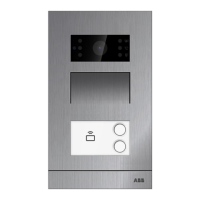
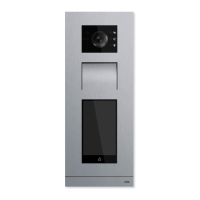
Details ABB-Welcome IP outdoor stations, applications, and available materials.
Overview of installation boxes for outdoor stations, including types and mounting methods.
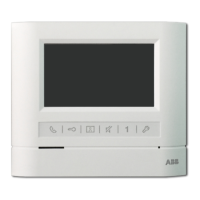
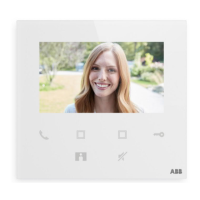
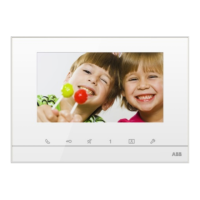
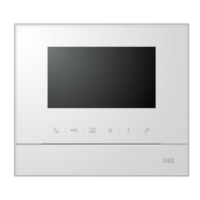
Information on ABB-Welcome IP indoor stations, focusing on IP Touch 7 and Guard unit.
Overview of essential system devices like Smart Access Point and IP actuator.
Specifications for compatible door openers and their power requirements.
Instructions for mounting outdoor stations using surface-mounted installation boxes.
Details on mounting outdoor stations in various facade types.
General mounting and dismantling procedures for outdoor stations.
Instructions for mounting IP Touch indoor stations using surface-mounted boxes.
Guide for mounting indoor stations in solid walls using FM boxes.
Wall installation procedures for IP Touch indoor stations.
Information on installing the Guard unit, including wall mounting.
Recommendations for network cabling and module installation for robustness.
Provides exterior dimensions for outdoor and indoor station components.
Outlines the three-step process for commissioning ABB-Welcome IP systems.
Details the first step of commissioning: assigning physical addresses to devices.
Procedure for addressing IP Touch 7 and Guard unit indoor stations.
Guide to addressing outdoor stations equipped with a display.
Procedure for addressing outdoor stations with physical push-buttons.
Steps for addressing an IP switch actuator using the IP Touch 7.
Details the second step of commissioning: configuring the Smart Access Point.
Guide on connecting a PC to the Smart Access Point for initial configuration.
Step-by-step guide to commissioning the Smart Access Point using its wizard.
Overview of Step 3: searching for and certifying devices in the system.
Instructions for configuring PC IP addresses for system connection.
Guide on reconnecting the Smart Access Point to the PC via LAN.
How to automatically search for and certify devices in the system.
Process for joining devices and defining which indoor stations can open doors.
Instructions for creating and restoring system data backups.
Steps for manually adding devices like IP switch actuators to the system.
Procedure for deleting devices from the Smart Access Point administration.
Procedure for resetting system devices to their default settings.
How to reset indoor stations like IP Touch 7 and Guard unit to factory settings.
Instructions for completely resetting the Smart Access Point to factory defaults.
How to assign doorbell buttons to specific indoor stations for activation.
Overview of adding and managing name entries for outdoor stations.
Steps for adding or changing name entries for outdoor stations.
Procedure for modifying existing name entries for outdoor stations.
How to change device assignments or update physical addresses.
Explains the symbols and icons used in the case study graphics.
Example installation for a private apartment using minimum components.
Guide on integrating additional indoor stations into an existing unit network.
How to connect additional indoor stations using a point-to-point LAN setup.
Connecting additional indoor stations via a PoE switch using LAN connections.
Connecting additional indoor stations via a router using LAN connections.
Connecting additional indoor stations via a router using WLAN connections.
Illustrates various practical installation scenarios for ABB-Welcome IP.
Example of a single-family house installation with a panel, disconnecting networks.
Example of a single-family house using three panels and an IP gateway.
Example of a 10-party multifamily house with multiple units and IP actuators.
Example of a multifamily house with a separate wing and its own entrance door.
Example of a multifamily house with an outdoor station for each unit's entrance door.
Guide on integrating IP cameras into the ABB-Welcome IP system.
Example of a 10-party multifamily house integrating IP cameras.
Connecting ABB-Welcome IP system with free@home for integrated operation.
Operating the ABB-Welcome IP system via the ABB-Welcome App on mobile devices.
Example of a perimeter installation with multiple houses and parking garages.
 General
| Protection Rating | IP54 |
|---|---|
| Type | IP System |
| Audio | Two-way audio communication |
| Connectivity | Ethernet |
| Power Supply | Power over Ethernet (PoE) |







 To Next Page
