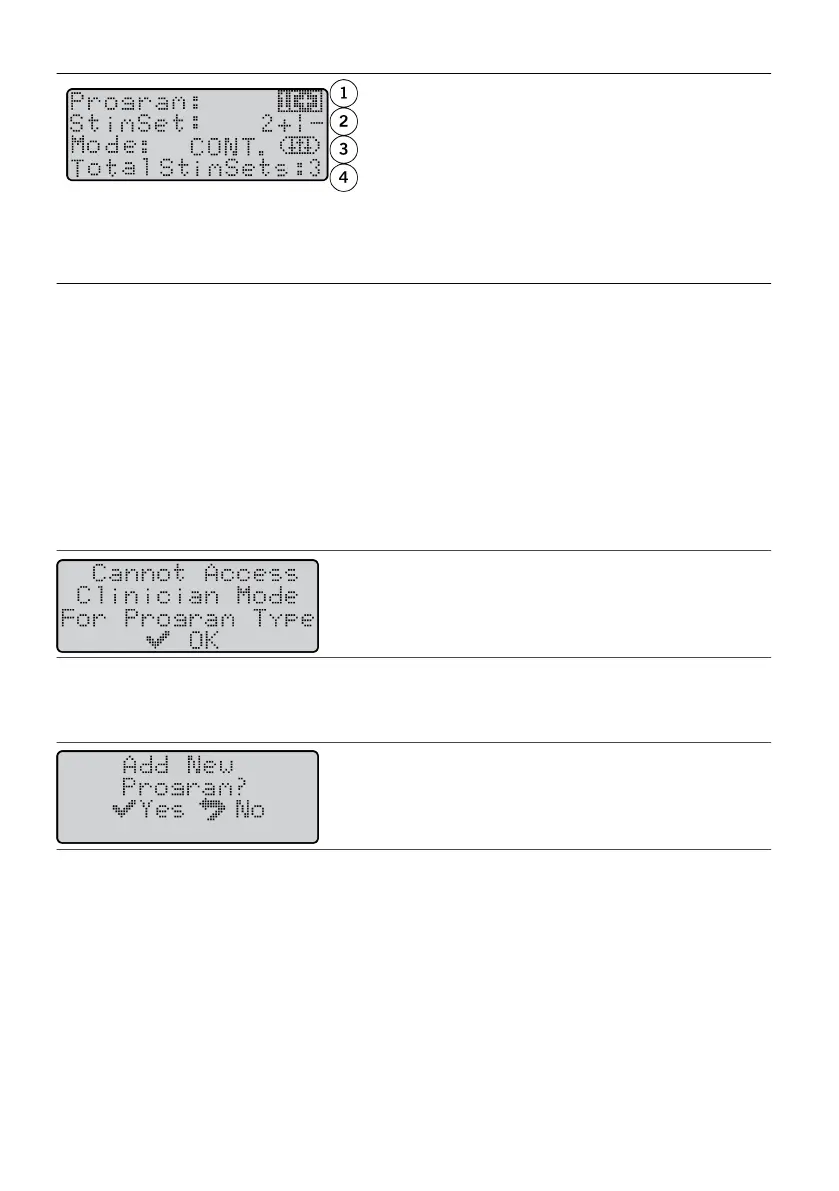
Figure 40. Parts of the Program screen
1. Program eld. Shows the program number and a1.
[+] to indicate whether there is room to add
another program.
2. SmSet eld. Shows the sm set number and2.
a + or - to indicate whether there is another
sm set.
3. Mode eld. Shows the smulaon delivery3.
mode.
4. Total SmSets eld. Shows the total number of4.
sm sets in the program.
NOTE: An X in the Program eld indicates that this is the rst program following the authorizaon process.
Make and save changes to this program, and it will become program 1.
5.
To add a program with the same parameters as the current program or to add one with default values,
5.
follow the steps in “Creang a New Program” (page 20). Otherwise, modify any parameters in the
current program as desired.
Programming BurstDR™ Smulaon Programs
You can use the paent programmer to program tonic programs. However, you must use the
Rapid
Programmer
™ system to program
BurstDR
™ smulaon programs. See the clinician’s manual for the
Rapid
Programmer
system for informaon and instrucons on
BurstDR
smulaon programming.
If you try to enter programming mode with a
BurstDR
smulaon program, the following screen will appear.
Figure 41.
Cannot Access Clinician Mode screen
If you receive this screen:
1. Press the Select key. The following screen appears.1.
Figure 42.
Add New Program screen
2.
Perform one of the following acons:
2.
– To create a new default tonic program, press the Select key.–
– To program using an exisng tonic program, press the Previous Screen key, select a tonic program from–
the Program Selecon screen, and access programming mode again.
To program the selected
BurstDR
smulaon program, press the Previous Screen key and connect the paent
programmer to the
Rapid
Programmer
™ system (see the clinician's manual for the
Rapid
Programmer
system).
19
–
–




 To Next Page